
Skip to content
Guides

PikaShow App Guide: Features, Setup and User Tips

Reported PikaShow features, a step-by-step Android setup, how to use the interface, practical tips and the safety, privacy and copyright limits to understand first.

Written by pikashowsapp.org Editorial TeamPublished Updated 10 min read

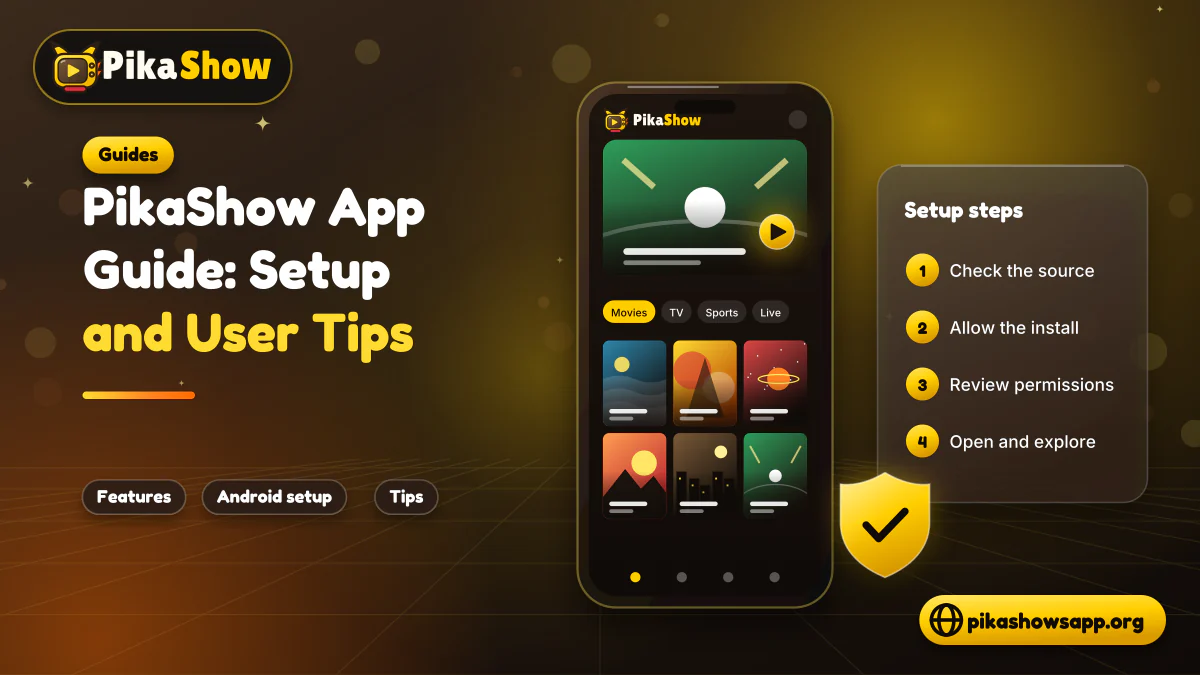
Phone running the PikaShow app beside numbered setup steps, feature chips and a safety shield

PikaShow is commonly described as a third-party Android entertainment application. Depending on the APK version and available sources, its interface may display movies, television programmes, web series, live channels and sports.

This PikaShow app guide explains the basic setup process, commonly reported features and practical checks for new users. It also covers important limitations involving APK safety, device compatibility and copyright.

PikaShow releases found on different websites may not be identical. Check the exact file rather than assuming every version contains the same features.

01

What Is the PikaShow App?

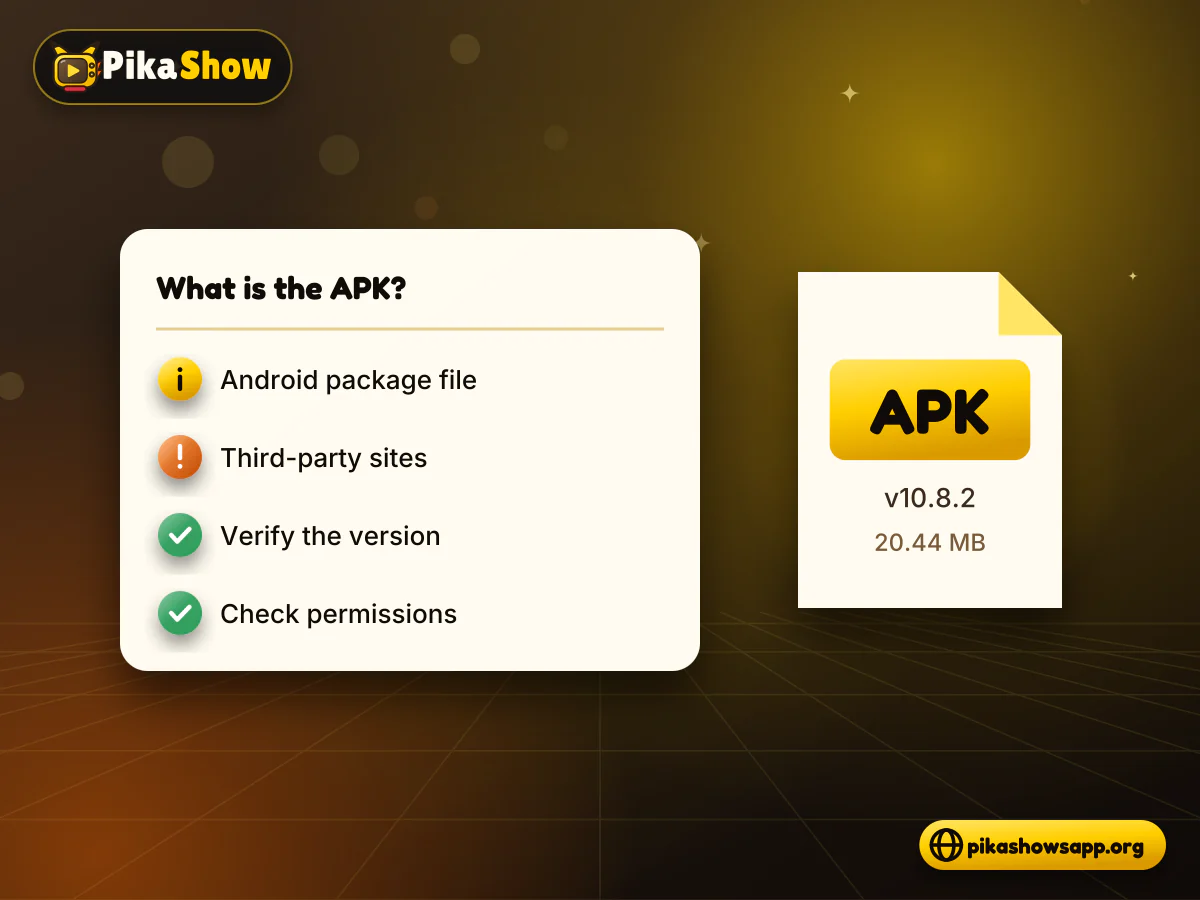
PikaShow is primarily distributed as an Android Package Kit, commonly called an APK. An APK is the file format Android uses to install an application.

Unlike applications obtained through a standard app-store listing, PikaShow APK files are often circulated through independent websites. This makes it important to verify:

  • Who operates the download page
  • Which APK version is provided
  • Whether the file has been modified
  • What permissions it requests
  • Whether the content is licensed
  • How the application handles user data

A website using the PikaShow name or logo is not necessarily connected with the app’s original developer.

PikaShow APK file card on an Android phone with checks for source, version and permissions
02

PikaShow App Features

The exact PikaShow app features depend on the installed release. The following functions are commonly reported, but they should be checked against the current APK.

  • Content Categories

    The app may organise content into sections such as movies, television programmes, web series, live channels and sports. Categories can help users move through the interface without searching for every title individually.

    The available selection can change when a source is updated, removed or restricted.
  • Search Function

    A search box may help users find a specific programme. Results depend on the application’s connected sources, so a missing title does not always indicate an app error.

    Check the spelling before assuming that a programme is unavailable.

  • Built-In Video Player

    Some releases may include an integrated video player with basic controls such as:

    • Play and pause
    • Full-screen mode
    • Forward and rewind
    • Volume adjustment
    • Playback-quality selection
    • Subtitle selection
    • Screen orientation

    Not every video will provide the same options.

  • Quality Selection

    Certain sources may offer more than one resolution. A lower setting can use less data and may reduce buffering on slower networks.

    The app cannot improve the original file. A low-resolution source will not become genuine Full HD or 4K video.

  • Subtitle Support

    Subtitles may be available for selected programmes. Their languages, timing and accuracy depend on the source.

    A missing subtitle option usually means that the selected stream does not include a compatible track.

  • Offline Viewing

    Some versions are reported to provide an offline or download option for certain content. Saved files may remain inside the application’s private storage rather than the normal Downloads folder.

    Offline availability does not remove copyright restrictions. Users should save only content they own or have permission to download.

  • Casting

    Casting may work when the phone, receiving device and video source are compatible. Both devices will usually need to use the same Wi-Fi network.

    The presence of a casting icon does not guarantee support for every television or stream.

03

Device Compatibility

PikaShow is mainly associated with Android APK files. Other platforms may require workarounds.

Anyone looking into PikaShow for Smart TV should note that Android TV and Google TV models can sideload APKs, while Samsung (Tizen) and LG (webOS) TVs cannot run them without an external Android TV box or Fire TV Stick.

DeviceCompatibility information
Android phoneMay run a compatible APK
Android tabletMay work with layout differences
Android TVSideloading and remote testing may be needed
FirestickCompatibility varies by APK and Fire OS version
Windows PCGenerally requires an Android emulator
macOSMay require a compatible Android emulator
iPhone or iPadAndroid APK cannot install directly
Web browserA verified web player is not clearly established

Do not treat emulator use as native Windows support. Similarly, an APK-download page is not a browser-based PikaShow version.

04

Checks Before Setting Up PikaShow

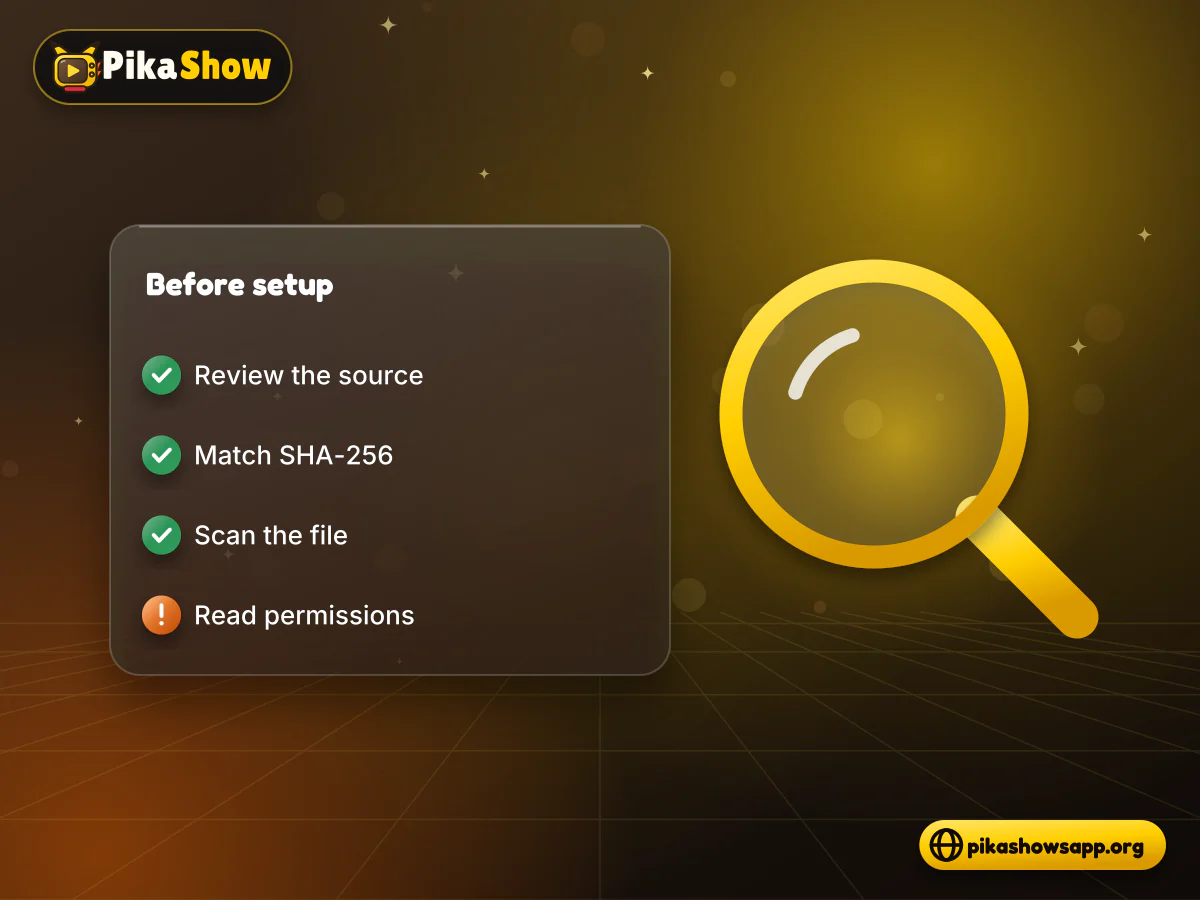
Complete a few checks before opening the APK.

Review the Download Source

Check whether the website provides:

  • Clear contact details
  • Privacy and cookie information
  • Terms of use
  • A non-affiliation statement
  • File version and size
  • Android requirements
  • Package name
  • Security-scan information
  • A verifiable update date

The word “official” in a domain or page heading is not proof of ownership.

Inspect the APK Details

Compare the downloaded file with the information displayed on the source page.

Useful technical details include:

  • Version number
  • File size
  • Package name
  • Signing certificate
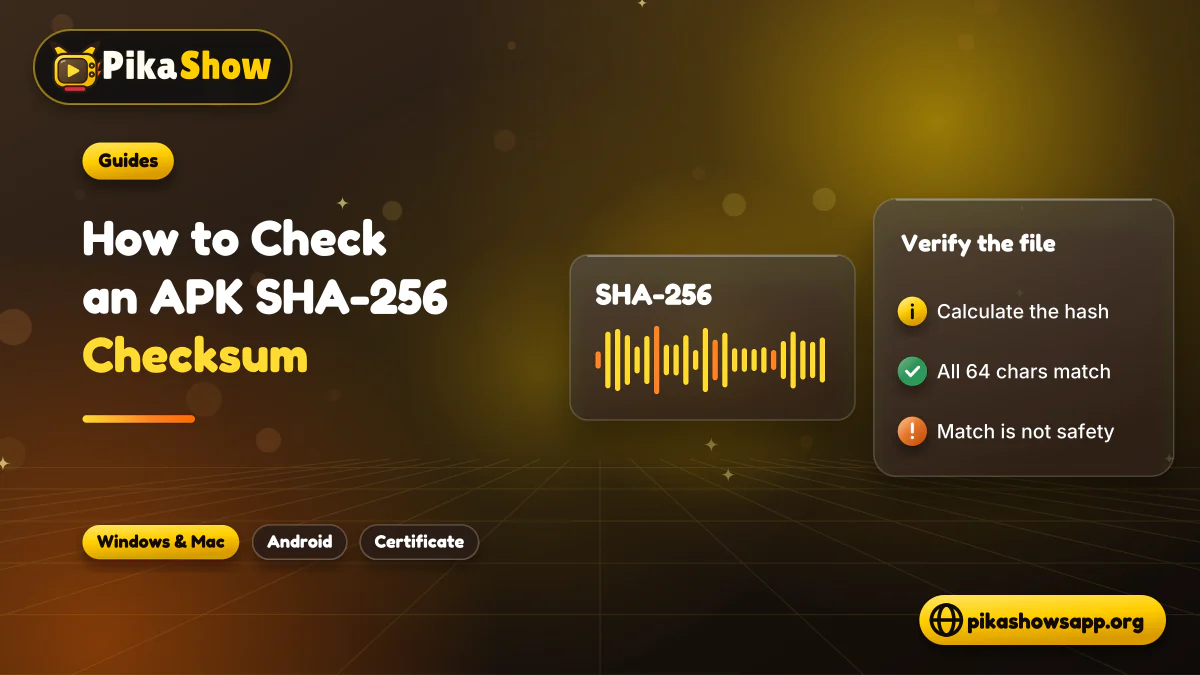
  • SHA-256 checksum
  • Supported Android version
  • Processor architecture

A website should examine its own file instead of copying this information from a competitor.

Scan the File

Use a reputable security service to scan the APK. If several independent scanners flag it, do not install it.

A clean scan reduces uncertainty but does not guarantee complete safety.

Read the Requested Permissions

A streaming application may need network and limited media access. Be cautious if it requests unrelated permissions involving:

  • Contacts
  • SMS messages
  • Call history
  • Precise location
  • Accessibility controls
  • Device-administrator access
  • Microphone or camera access without explanation

Deny permissions that do not match the feature being used.

Checklist for PikaShow setup covering download source, SHA-256 checksum, file scan and permissions
05

PikaShow Setup Guide for Android

The exact menu names differ by phone manufacturer, but the general PikaShow setup guide follows these steps.

  • Step 1: Download the Verified APK

    Download the file only after checking its source and technical details. Wait for the browser to confirm that the download has finished.

    Avoid opening incomplete or repeatedly renamed files.

  • Step 2: Allow Installation From the Selected Source

    Android may block applications obtained outside the Play Store. Open the unknown-app installation settings for the browser or file manager being used.

    Enable this permission only for that specific source.

  • Step 3: Open the APK

    Find the file in the Downloads folder and select it. Android should display the application-installation screen.

    Read any security warning before continuing.

  • Step 4: Install the Application

    Select Install and wait for Android to finish. If installation fails, do not immediately uninstall the existing version.

    A package conflict, low storage or Android incompatibility may be responsible.

  • Step 5: Disable Installation Permission

    After setup, return to Android settings and remove unknown-app installation permission from the browser or file manager.

    Leaving it enabled creates unnecessary risk.

  • Step 6: Open the Application

    Launch PikaShow and review its permission requests. Grant only those needed for its normal functions.

    Do not enter personal, payment or banking information into an unverified application.

06

How to Use PikaShow

The layout can vary, but new users can generally begin with a few basic actions.

  • Explore the Home Screen

    Review the available categories and interface controls. Do not select advertisements or unexpected pop-ups that resemble normal app buttons.

  • Use Search Carefully

    Enter the complete title and check the results. If it does not appear, the current source may not provide it.

    Avoid downloading another APK simply to find one copyrighted movie.

  • Open a Content Page

    Select a title to view available details or sources. The number and condition of these sources can change.

  • Choose a Playback Source

    When more than one option appears, test a working source. Do not enter payment details or install another application to unlock a stream.

  • Adjust the Playback Quality

    Select a resolution suited to your connection. Lower quality can reduce data use and buffering.

  • Exit the Player Properly

    Use the app’s back or close control before removing it from recent applications. This can stop playback and reduce unnecessary background activity.

07

Practical PikaShow User Tips

  • Start With a Lower Resolution

    Use a moderate video-quality setting on mobile data or weak Wi-Fi. Increase it only when playback remains stable.

  • Keep Free Storage Available

    Android needs space for temporary files, application data and updates. A nearly full device can become slow or unstable.

  • Avoid Modified APK Files

    A mod APK may contain changed code, an unfamiliar certificate or additional permissions. Features such as “premium unlocked” or “all ads removed” do not justify the extra security risk.

  • Do Not Update From Random Pop-Ups

    An in-app message can lead to an unrelated website. Verify the new file separately before replacing the installed version.

  • Keep Android Updated

    Install legitimate Android security updates provided by your device manufacturer. These updates can close known system vulnerabilities.

  • Test Another Video Before Reinstalling

    If one video fails, its source may be unavailable. Reinstalling the entire application will not necessarily fix it.

  • Check Data Usage

    Video streaming can consume significant mobile data. Use Android’s data settings to review how much the application has used.

  • Avoid Giving Personal Information

    Do not provide identity documents, banking details or account passwords to an application whose publisher and privacy practices cannot be verified.

08

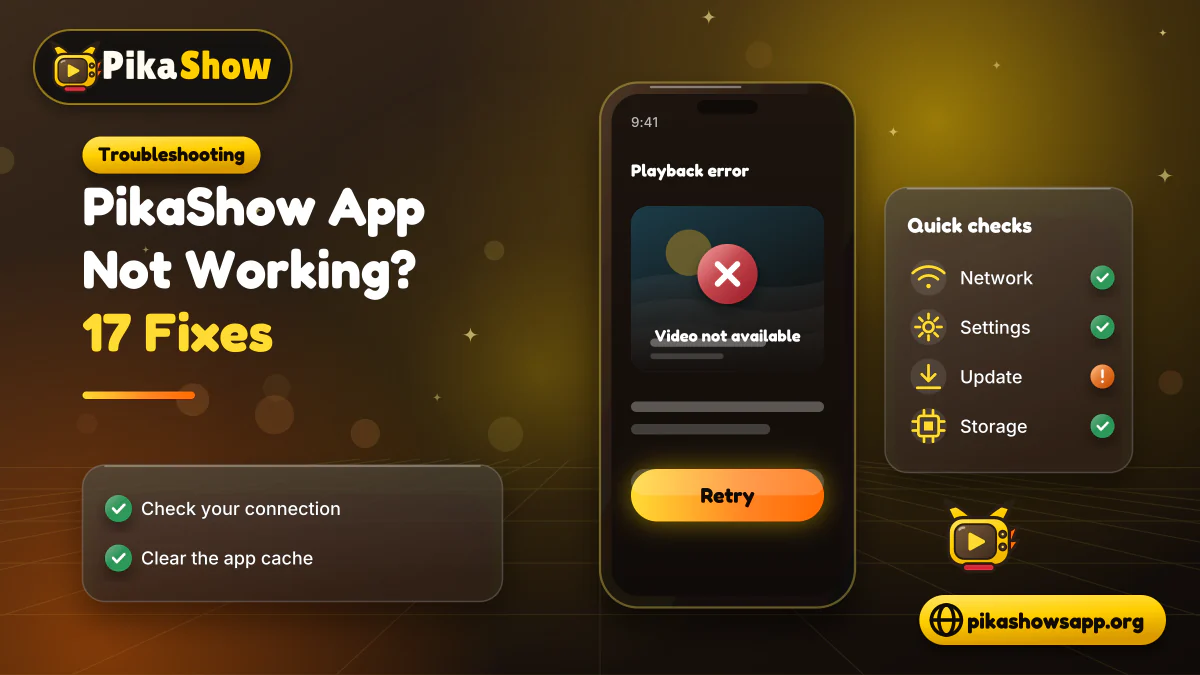
Common PikaShow Problems

  • PikaShow Does Not Open

    Restart the phone and clear the application cache. Check whether the APK supports your Android version.

    If the problem started after an update, the new release may be incompatible.

  • The App Keeps Crashing

    Low memory, limited storage or damaged application data can cause crashes. Close background apps and restart the device.

  • The Home Screen Is Empty

    An empty home page can indicate a connection or application-server problem. Test another online service before changing phone settings.

  • Videos Keep Buffering

    Try a lower playback setting and test another network. If other services work normally, the selected PikaShow source may be slow.

  • One Video Does Not Play

    The particular source may have expired, been removed or become restricted. Test another title to confirm whether the complete app is affected.

  • An Update Does Not Install

    The old and new APKs may use different digital signatures. Low storage, a damaged file and Android incompatibility are other possible causes.

  • The App Has No Sound

    Check device volume, in-app controls and the selected video source. An unsupported audio format can also produce silent playback.

09

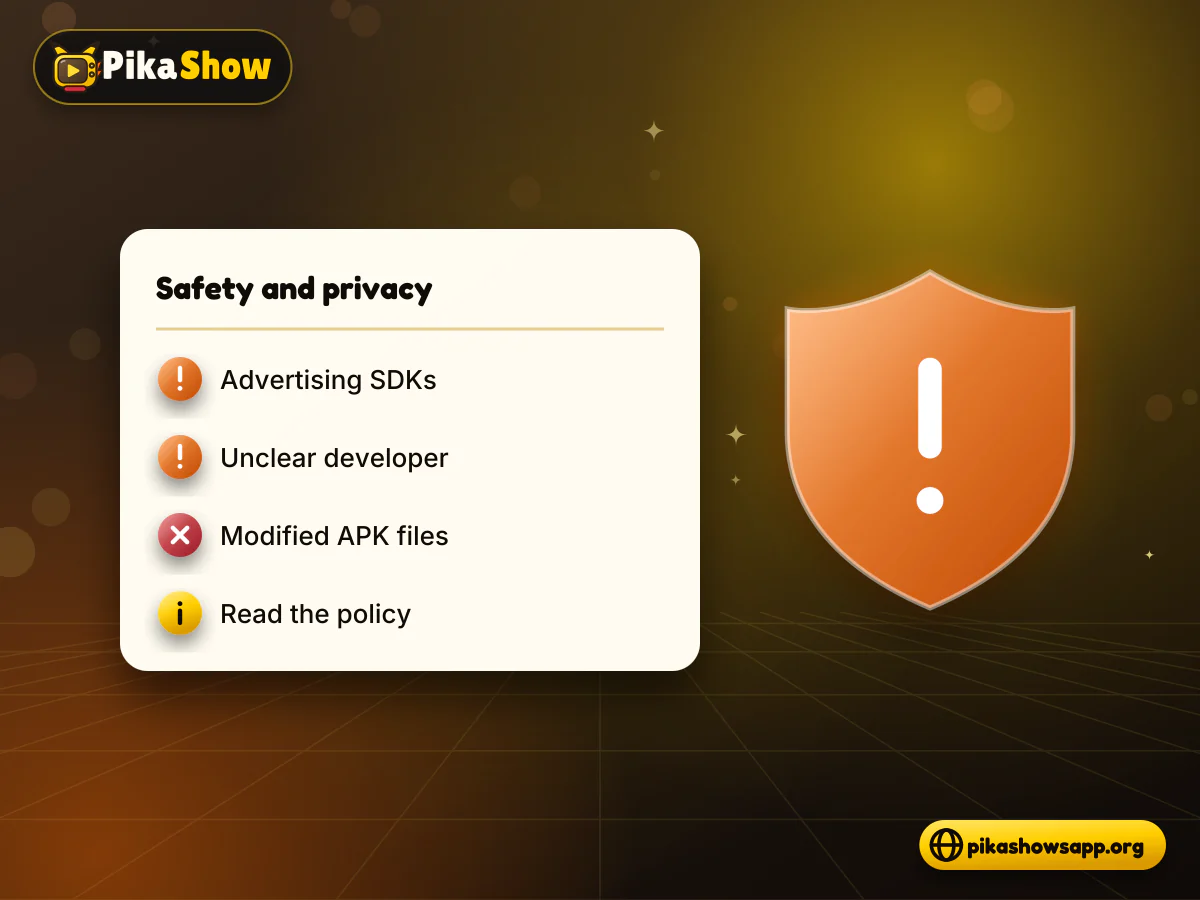
Safety and Privacy Limitations

It is not accurate to describe PikaShow as completely safe or anonymous without technical evidence.

Possible concerns include:

  • APK files modified by third-party websites
  • Unclear developer information
  • Excessive application permissions
  • Advertising and tracking services
  • Missing data-retention details
  • Fake updates
  • Copycat applications
  • Unverified download sources

Review the privacy policy and technical file information before installation. If the publisher or data practices cannot be identified, that uncertainty should be clearly stated.

Shield with warning mark beside PikaShow app permissions and advertising tracker icons
11

Advantages and Limitations

Possible Advantages

  • Categorised mobile interface
  • Search-based navigation
  • Different playback controls
  • Possible subtitle and quality options
  • Support for some Android-based devices
  • Offline options in certain releases

Important Limitations

  • No clearly verified official domain
  • Features can vary between APK files
  • Video sources may stop working
  • Native Windows and iOS versions are not established
  • Web-player availability is unclear
  • Quality depends on the original source
  • Privacy practices can be difficult to verify
  • Copyright and regional restrictions apply
12

Frequently Asked Questions

What is PikaShow?

PikaShow is commonly described as a third-party Android entertainment application that may provide movies, programmes, live channels and sports through different sources.

How do I set up PikaShow?

Check and scan the APK, allow installation temporarily for the selected source, open the file and review its permissions. Turn the installation permission off afterward.

What are the main PikaShow app features?

Reported features include categories, search, playback controls, quality selection, subtitles, casting and offline options. Availability varies by APK.

Does PikaShow work on a PC?

The Android APK generally requires an emulator on Windows or macOS. This is not the same as having native desktop software.

Can I use PikaShow on an iPhone?

An Android APK cannot be installed directly on iOS. A verified native iPhone version is not clearly established.

Why is PikaShow not working?

Possible reasons include connection problems, unavailable servers, damaged cache, low storage or APK incompatibility.

Is PikaShow safe?

Complete safety cannot be guaranteed. Check the APK source, signature, scan results and permissions before installation.

Is PikaShow legal?

Its legal position depends on content licensing and regional law. PikaShow has faced copyright-related proceedings and blocking measures in India.

13

Final Words

This PikaShow app guide covers the application’s reported features, Android setup process and useful checks for new users. Its interface may provide categories, search, playback controls and other viewing options, but functionality can vary between APK releases.

Verify the file before installation, grant only necessary permissions and do not ignore Android security warnings. When content ownership is unclear, use a licensed streaming service available in your region.

Non-affiliation notice: This website is an independent informational resource and is not affiliated with, endorsed by or sponsored by PikaShow, Google, Android or any content provider.

Share this article