Skip to content
v10.8.2 · 20.44 MB · Android 5.0+

PikaShow for Windows: Compatibility and Setup Guide

PikaShow is primarily distributed as an Android APK. It is not normally available as a native Windows program, so its APK cannot be opened directly like a standard .exe or .msi file.

To use PikaShow for Windows, you generally need an Android emulator. The emulator creates an Android environment on a computer and allows compatible APK files to run inside it.

This guide explains the compatibility requirements, setup process and common issues Windows users may encounter. It also covers important security and copyright concerns to consider before installing a third-party APK.

01

Is PikaShow Compatible With Windows?

PikaShow may work on a Windows computer through a compatible Android emulator. This is an indirect method because the application is still running as an Android program.

A verified native PikaShow Windows application is not clearly available. Be careful with websites offering an unfamiliar Windows installer under names such as:

  • PikaShow for Windows .exe
  • PikaShow PC installer
  • PikaShow Windows software
  • PikaShow desktop edition
  • PikaShow premium Windows version

An .exe file carrying the PikaShow name is not automatically genuine. Do not open it unless you can verify its developer, digital signature and download source.

02

Windows 10 and Windows 11 Compatibility

Both Windows 10 and Windows 11 can run supported Android emulators. However, compatibility depends on the computer’s hardware, Windows configuration and selected emulator.

PikaShow for Windows 10

A Windows 10 computer may run the APK when it has:

  • A supported 64-bit Windows installation
  • Enough free RAM
  • Available storage
  • Updated graphics drivers
  • Hardware virtualisation support
  • A compatible Android emulator
  • A stable internet connection

Older computers may struggle with video playback because Windows and the emulator use system resources at the same time.

PikaShow for Windows 11

The general process for PikaShow for Windows 11 is similar. Users install an emulator, import the APK and open it from the virtual Android screen.

Do not rely on old tutorials about Microsoft’s Windows Subsystem for Android. Microsoft ended official Windows Subsystem for Android support in March 2025. A currently supported third-party emulator is therefore the more practical route for most users.

03

Suggested System Requirements

The exact requirements depend on the emulator rather than PikaShow alone. As a general starting point, check the following:

ComponentGeneral recommendation
Operating systemSupported Windows 10 or Windows 11
Architecture64-bit system preferred
RAM4 GB minimum; 8 GB or more is more practical
StorageSpace for Windows, emulator, APK and cache
ProcessorModern Intel or AMD processor
GraphicsUpdated integrated or dedicated graphics
InternetStable broadband connection
VirtualisationEnabled when required by the emulator

These are general recommendations, not guaranteed PikaShow requirements. Always compare them with the current documentation provided by your emulator.

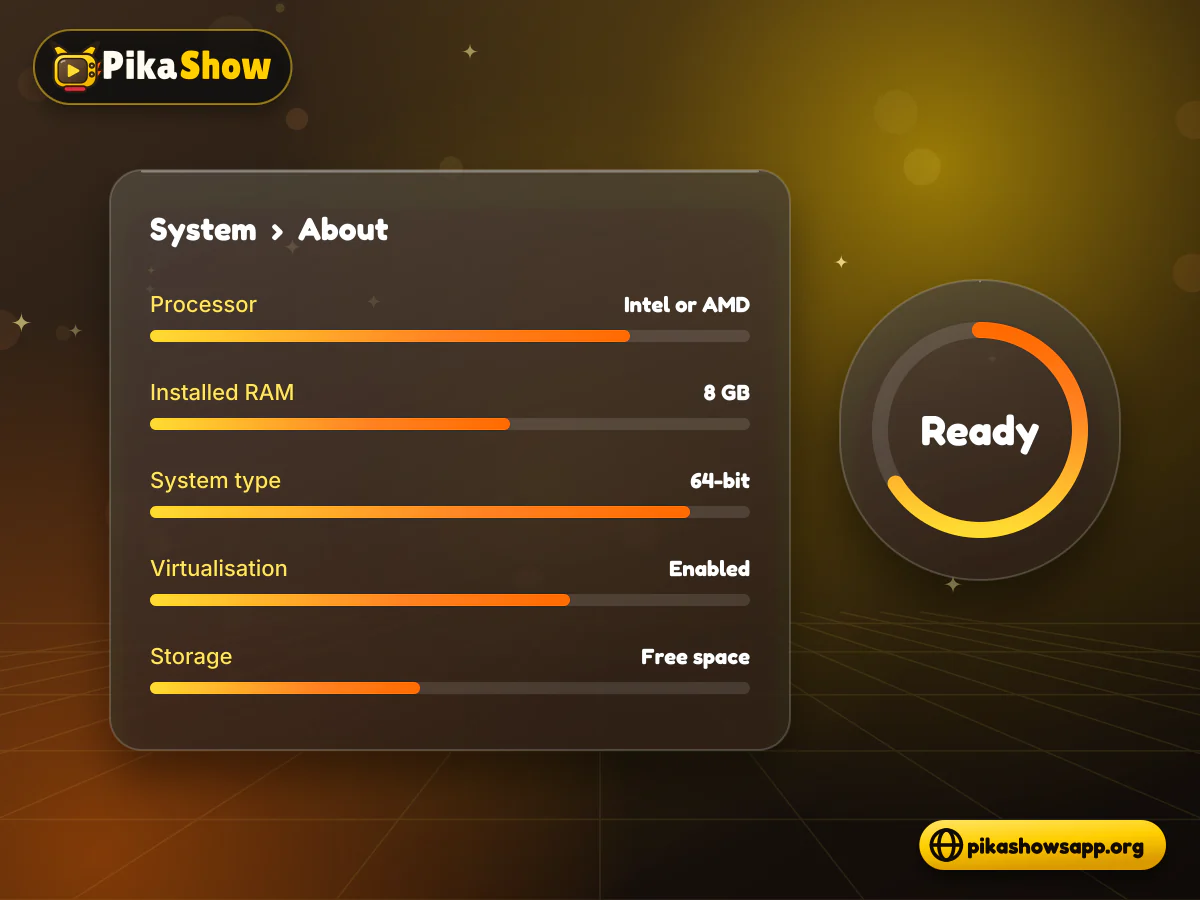
Windows settings about panel with processor, memory and system type bars next to a virtualisation status gauge
04

How to Check Your Windows System

Before installing an emulator, check whether your computer can run it properly.

  1. 1

    Press Windows + I to open Settings.

  2. 2

    Select System.

  3. 3

    Open About.

  4. 4

    Check the processor, installed RAM and system type.

  5. 5

    Confirm whether the PC is running Windows 10 or Windows 11.

  6. 6

    Compare these details with the emulator’s requirements.

You can also open Task Manager and select the Performance tab to check memory use, processor activity and virtualisation status.

If the computer is already low on memory during normal use, running an Android environment may result in slow performance.

05

How to Set Up PikaShow on Windows

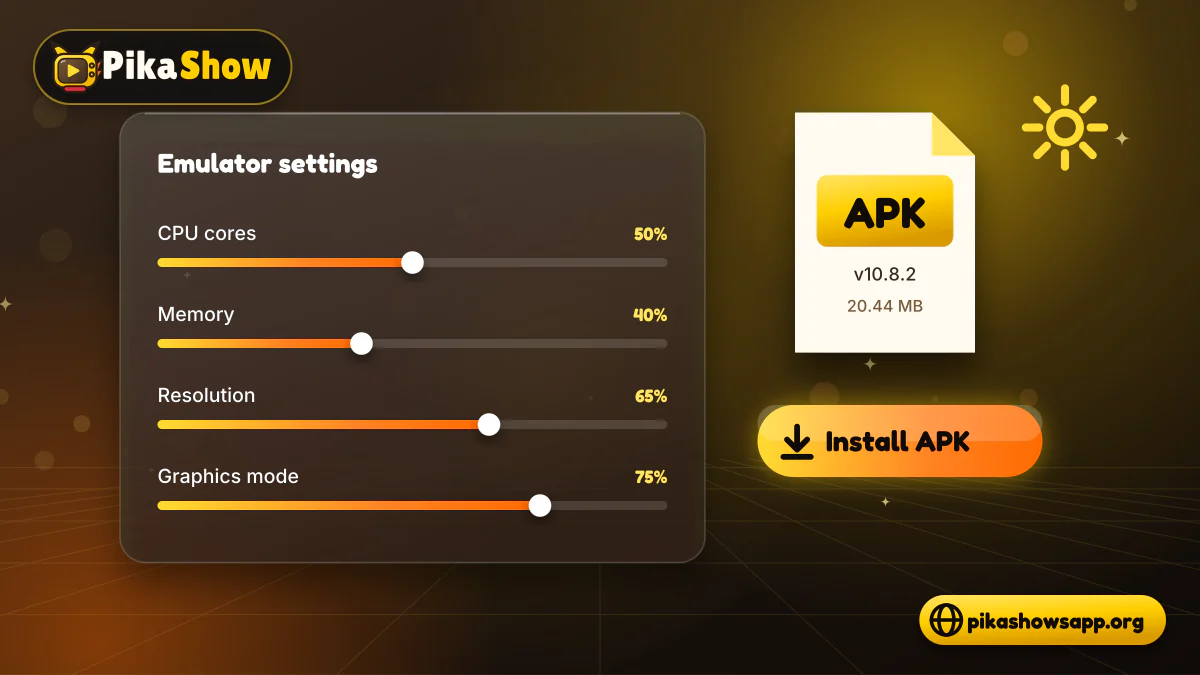
Emulator settings panel with processor, memory and resolution sliders beside an APK install button
  • 1. Choose a Reputable Android Emulator

    Select an emulator from a recognisable developer. Visit its genuine website instead of downloading a repackaged installer from a file-sharing page.

    Review its:

    • Windows requirements
    • Privacy policy
    • Installation instructions
    • Update history
    • Advertising policy
    • Support documentation

    Avoid modified, cracked or “unlocked” emulator editions.

  • 2. Download the Windows Installer

    Download the emulator’s installer from its verified website. Check that the domain and publisher name are correct before opening the file.

    Windows may display a User Account Control message. Read the verified publisher information instead of approving the prompt automatically.

  • 3. Install and Configure the Emulator

    Follow the setup instructions shown by the installer. Decline unrelated optional programs if they appear.

    After installation, open the emulator and select suitable settings for:

    • Processor allocation
    • Available RAM
    • Screen resolution
    • Display orientation
    • Graphics mode
    • Storage

    Start with the default configuration. Increase processor or memory allocation only when the computer has enough unused resources.

  • 4. Download the PikaShow APK

    Download the APK only after examining the source. A website calling itself the official PikaShow site does not prove that it belongs to the developer.

    Before installation, confirm the APK’s:

    • Version number
    • File size
    • Package name
    • Signing certificate
    • Update date
    • Security-scan results
    • Requested permissions

    Do not continue if the file arrives through unexpected redirects or is placed inside an unrelated Windows installer.

  • 5. Scan the File

    Use reliable security software to scan the APK. A clean result can reduce uncertainty, but it cannot guarantee complete safety.

    Delete the file if several security tools flag it or if its technical information does not match the download page.

  • 6. Import the APK

    Open the emulator and locate its Install APK option. Select the downloaded file from the Windows Downloads folder.

    Some emulators also support dragging the APK into the main window. Wait until installation is complete.

  • 7. Open PikaShow

    The PikaShow icon should appear on the emulator’s Android home screen. Open it and review any permission requests before proceeding.

    Do not grant access to contacts, SMS messages, call history, accessibility controls or other unrelated information.

06

Recommended Emulator Settings

Incorrect emulator settings can cause freezing, blank screens or slow playback.

Processor and Memory

Assigning more resources is not always better. Windows still needs enough memory and processing power to operate.

If your computer has 8 GB of RAM, do not allocate nearly all of it to the emulator. Leave sufficient memory for Windows, security software and other essential processes.

Display Resolution

A high emulator resolution can place extra demand on an older graphics processor. If playback or navigation feels slow, try a moderate resolution.

Changing the emulator’s resolution does not improve the actual video source.

Graphics Mode

Some emulators offer different graphics-rendering options. If the application opens to a blank or distorted screen, switch to another supported mode and restart the emulator.

Virtualisation

Hardware virtualisation can improve emulator performance. Its name and location vary by computer manufacturer.

Avoid changing BIOS or UEFI settings unless you understand the process. Incorrect changes can affect the computer’s normal operation.

07

What You Can Expect on Windows

The application may provide a mobile-style interface controlled with a mouse and keyboard. Depending on the installed version, users may see categories, search options and playback controls.

Running PikaShow on a computer may provide:

  • A larger viewing area
  • Mouse-based navigation
  • Full-screen playback
  • Access to a wired connection
  • More storage than some phones

However, the larger screen does not improve the source resolution. Picture quality continues to depend on the available stream.

08

Limitations of PikaShow on Windows

Using an APK through an emulator introduces several limitations:

  • PikaShow is not running as native Windows software.
  • The emulator requires additional RAM and storage.
  • Touch-based controls may be awkward with a mouse.
  • Some videos may not open.
  • Casting may not work correctly.
  • Downloads may remain inside the emulator’s virtual storage.
  • The app may stop working after an update.
  • Playback depends on external sources.
  • Features may differ between APK versions.

Availability may also change when a streaming source, application server or regional restriction changes.

09

Is PikaShow for Windows Safe?

Running an Android application inside an emulator does not make the APK safe. The emulator and APK must be checked separately.

Be cautious if a download page:

  • Promises complete security without evidence
  • Uses fake antivirus badges
  • Forces several advertising redirects
  • Automatically downloads an .exe
  • Asks you to disable antivirus protection
  • Hides the APK version or file size
  • Provides no privacy policy
  • Does not identify the file’s publisher
  • Requests payment or personal documents

If the APK’s source cannot be verified, a recognised and licensed Windows streaming service is a safer option.

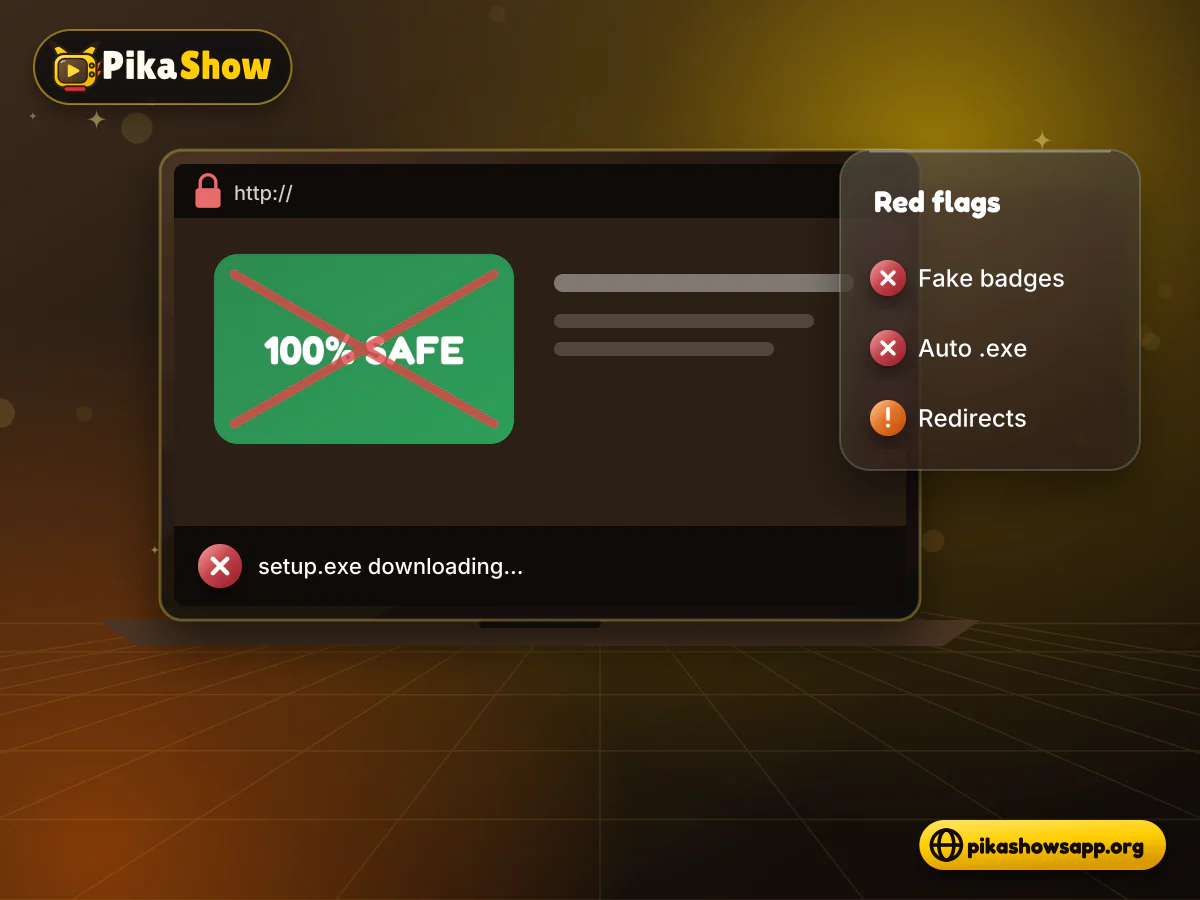
Laptop browser with a fake antivirus badge, redirect arrows and an automatic exe download marked with warnings
11

Common Windows Setup Problems

  • The Emulator Will Not Install

    Check whether the computer meets the emulator’s minimum requirements. An unsupported Windows version, insufficient storage or disabled virtualisation can prevent installation.

    Download the installer again from its genuine source if the file is incomplete.

  • PikaShow APK Will Not Install

    The APK may be corrupted, incompatible or signed differently from a previously installed copy. Compare its technical details before trying another version.

  • The Application Opens to a Blank Screen

    Restart the emulator and clear the application cache. Try a different supported graphics mode if the display remains blank.

    The problem may also be caused by an unavailable application server.

  • Playback Is Slow

    Close unnecessary Windows programs and test the connection. Lower the playback resolution when that option is available.

    If other applications work normally, the selected video source may be responsible.

  • There Is No Sound

    Check the Windows volume mixer, emulator volume and in-app player controls. Test audio in another emulator application to identify where the problem begins.

  • Downloads Cannot Be Found

    A file downloaded inside an emulator may be stored in its virtual Android folders rather than the normal Windows Downloads folder. Use the emulator’s shared-folder or media-export feature if available.

12

Frequently Asked Questions

Can PikaShow run directly on Windows?

The Android APK cannot normally run as a standard Windows application. A compatible Android emulator is generally required.

Can I install PikaShow on Windows 11?

It may run through an emulator that supports Windows 11. Compatibility still depends on the computer hardware and APK version.

Which Android emulator should I use on Windows?

We do not recommend one brand over another. Choose a well-known emulator that is still being updated, supports your version of Windows and publishes a privacy policy, and download it only from the developer’s own website. Avoid “lite”, cracked or repackaged editions shared on file-hosting pages.

Do I need to turn on virtualisation (Intel VT-x or AMD-V)?

Most emulators run much better with hardware virtualisation switched on, and some will not start without it. Open Task Manager, select Performance and then CPU, and look for “Virtualisation: Enabled”. If it says Disabled, the setting is in the BIOS or UEFI menu, usually labelled Intel Virtualization Technology, VT-x, AMD-V or SVM Mode. Follow your PC maker’s instructions before changing it.

Will an emulator conflict with Hyper-V on Windows 11?

It may. Some emulators have trouble when Hyper-V, Virtual Machine Platform, Windows Hypervisor Platform or Memory Integrity is active, while newer builds of several emulators are designed to run alongside Hyper-V. Check the emulator’s own support pages first, and pick an edition that works with Hyper-V where one is offered. Do not switch off Windows security features just to run a streaming APK.

Can I use the Microsoft Store or Windows Subsystem for Android instead?

Not any more. Microsoft discontinued Windows Subsystem for Android, and support ended in March 2025, so guides that sideload APKs through it no longer apply. PikaShow is not a verified Microsoft Store app either, so treat any Store listing or .exe using the name with caution. A maintained third-party emulator is now the practical route.

Is PikaShow for Windows safe and legal?

An emulator does not make an APK safer. The copy checked on this site is signed with a generic Android debug certificate, its developer could not be verified and it contains several advertising SDKs, so compare the SHA-256 checksum before importing it. PikaShow has also faced Delhi High Court blocking and restraining directions in copyright proceedings, so it should not be treated as an authorised source for premium content.

How do I uninstall PikaShow from my PC?

First remove the app inside the emulator: press and hold its icon and choose Uninstall, or use the emulator’s Android Settings > Apps screen. If you no longer need the emulator, open Windows Settings > Apps > Installed apps (Apps & features on Windows 10), select the emulator and choose Uninstall. Then delete the leftover APK from your Downloads folder. Some emulators keep a separate data folder, which their support pages explain how to remove.

From the blog

Latest PikaShow Articles

View all articles
13

PikaShow APK Information

Running PikaShow on a Windows computer means running an Android APK inside an emulator. There is no verified native .exe, Windows Subsystem for Android is no longer supported, and the emulator needs virtualisation, spare RAM and an up-to-date graphics driver to play video smoothly.

If you go ahead, check the file first. The copy reviewed on this site on 16 September 2026 is PikaShow v10.8.2 (PikaShow-v10.8.2.apk, 21,434,649 bytes, package com.offshore.pikachu). The PikaShow APK download page lists its full checksum and permissions, so you can confirm your file matches before importing it.

Remember that a larger screen does not change where the streams come from. When a film, series or match is available through a licensed service with an official Windows app or web player, that remains the more reliable and lower-risk choice.

This independent website provides information about PikaShow. It is not affiliated with, endorsed by or sponsored by PikaShow, Google, Pinterest, any streaming service or any content owner.