
Change to a Nearby Server
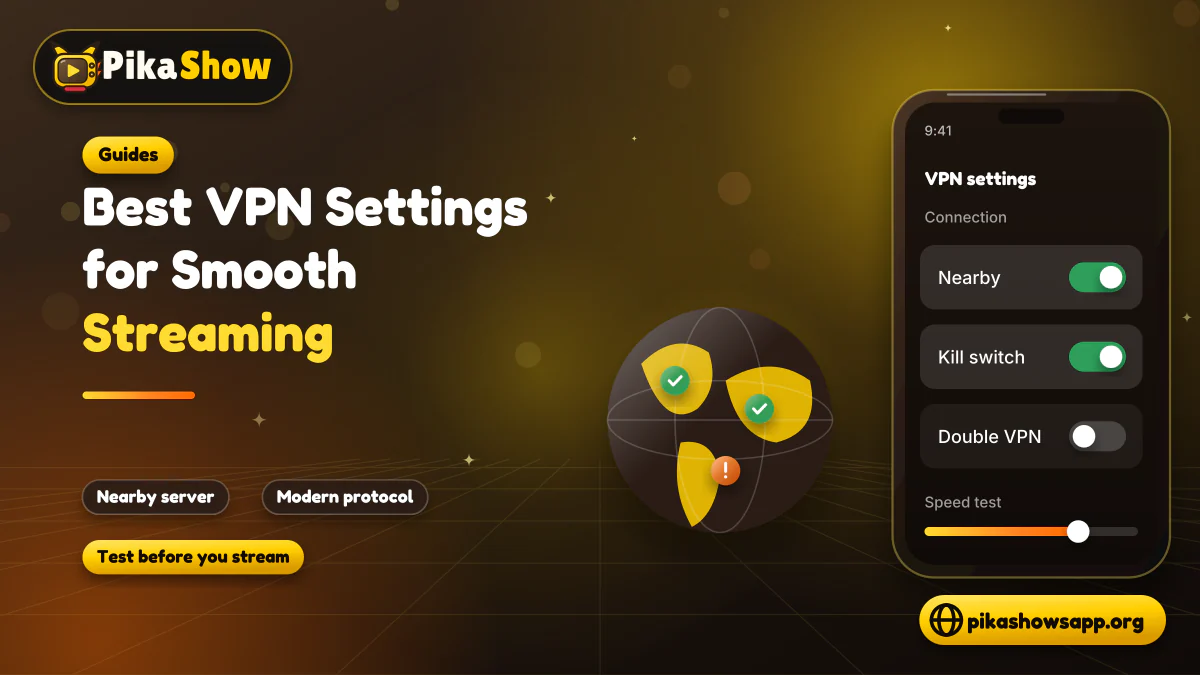
Disconnect from the current server and select another location nearby. Do not choose a distant location unless there is a clear lawful reason.

A VPN can slow streaming as easily as it helps. Choose a nearby server and modern protocol, avoid extra routing layers and test before assuming it improves playback.
Written by pikashowsapp.org Editorial TeamPublished Updated 11 min read
Using a VPN does not automatically make PikaShow faster. A virtual private network adds another step between your device and the streaming source, so it can sometimes increase buffering instead of reducing it.
However, the right configuration may provide a more stable connection when a poorly performing VPN server or unsuitable protocol is causing playback problems. The best VPN settings for PikaShow generally involve choosing a nearby server, using a modern protocol and avoiding unnecessary privacy features during ordinary streaming.
A VPN does not repair a failed PikaShow server, improve the original video quality or make unauthorised content legal. Use one only for lawful privacy and security purposes.
PikaShow does not technically need a VPN to open on every network. Whether it works depends on the application version, internet connection, video source and regional conditions.
A VPN may be useful for protecting traffic on an untrusted public network. It should not be presented as a tool for bypassing court orders, copyright controls or a streaming provider’s regional restrictions.
If PikaShow works normally without a VPN, adding one may not improve the experience. In many cases, a direct connection is faster.
These general settings provide a sensible starting point:
| VPN setting | Suggested choice |
|---|---|
| Server location | A nearby server in your own country or region |
| Protocol | WireGuard or the provider’s modern automatic protocol |
| Connection mode | Automatic or fastest available |
| Split tunnelling | Use only when supported and understood |
| Kill switch | Enable for privacy; test for connection interruptions |
| Custom DNS | Use the VPN default first |
| Double VPN | Disable for ordinary streaming |
| Obfuscation | Disable unless genuinely required |
| Ad or tracker blocking | Test both on and off |
| Auto-connect | Useful on untrusted public Wi-Fi |
| Battery optimisation | Standard or unrestricted only when necessary |
The exact option names vary between VPN applications. Do not change settings you do not understand.
Distance is one of the biggest factors affecting VPN performance. Data has to travel from your device to the VPN server before reaching its destination.
A server in your own country or a nearby region will usually produce:
Choosing a distant country without a clear reason adds unnecessary travel time.
If the nearest server is overloaded, try another nearby location rather than immediately connecting to a different continent.
Many VPN applications include options such as:
These settings normally consider factors such as distance and server load. They are a useful starting point for users who do not want to test individual servers manually.
The “fastest” result can change during the day. Disconnect and reconnect if streaming becomes slow during busy hours.
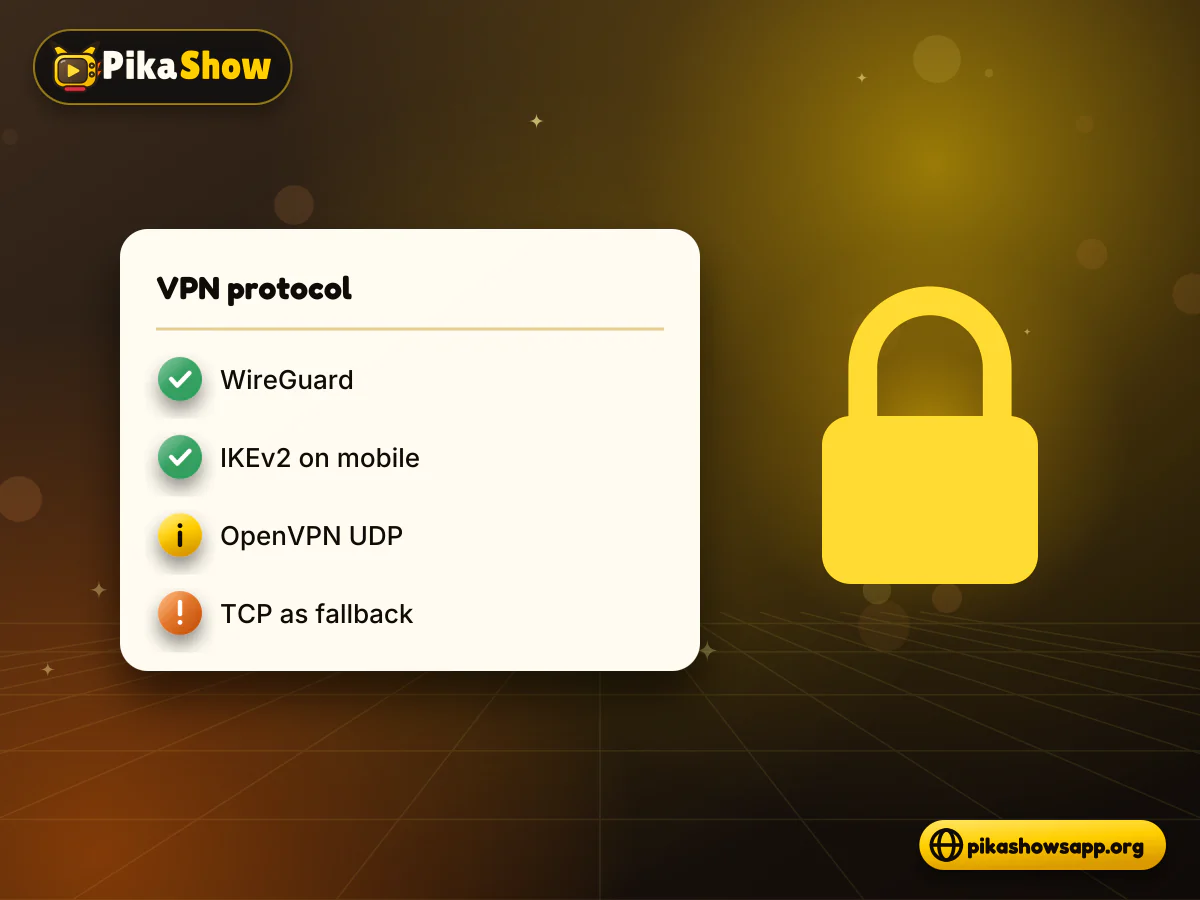
A VPN protocol controls how the encrypted connection works. Its name and availability depend on the provider and device.
Common options include:
WireGuard is often a practical choice for streaming because it is designed to be lightweight and efficient. Many VPN companies use it directly or offer their own protocol based on similar technology.
IKEv2 can work well on mobile devices, particularly when switching between Wi-Fi and mobile data. It may reconnect quickly after the network changes.
OpenVPN UDP can provide reasonable performance, although it may use more resources than newer alternatives. It is usually faster than OpenVPN TCP for video.
TCP can be helpful on certain restrictive or unstable networks, but it often produces more overhead. Use it when faster protocols fail rather than making it the first choice.
For most users, the provider’s automatic option is suitable. It allows the VPN application to select a protocol based on the current network.
Do not install separate or modified VPN configuration files from unknown websites.
Double VPN routes traffic through two VPN servers. This may provide an additional privacy layer in specialised situations, but it also adds distance and processing.
For ordinary streaming, Double VPN can cause:
Keep it disabled unless you have a specific, lawful reason to use it.
Obfuscated or stealth connections are designed to make VPN traffic harder to identify. They can be useful on networks where VPN traffic itself is restricted, but additional processing may reduce speed.
If a normal VPN connection works, use the standard mode. Do not enable obfuscation simply because it sounds more secure.
This website does not recommend using obfuscation to bypass legal restrictions.
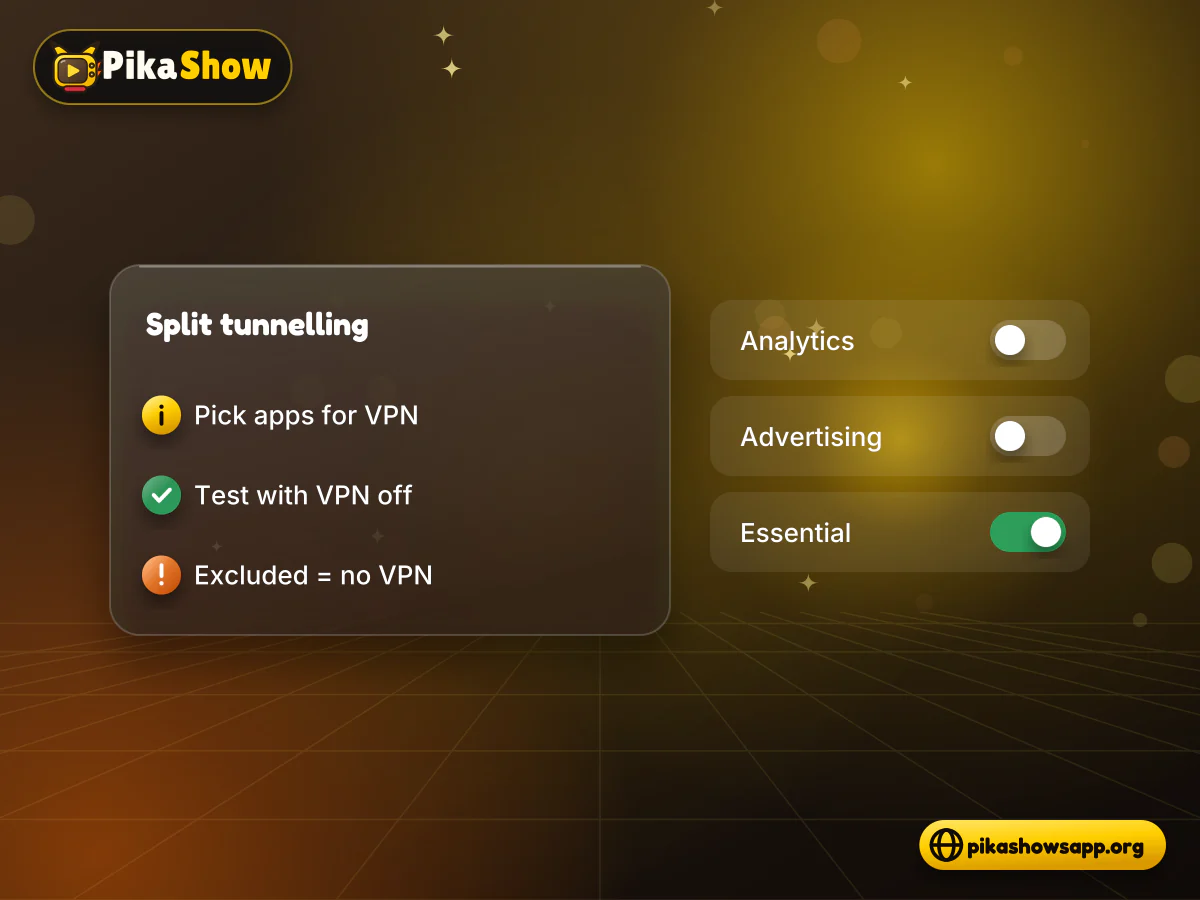
Split tunnelling allows selected applications to use the VPN while others remain on the normal connection.
Depending on your purpose, you could:
If PikaShow buffers only when the VPN is active, excluding it through split tunnelling can help identify whether the VPN is the cause.
Remember that excluded applications will not receive the VPN connection’s privacy protection. The option may not be available on every phone or VPN service.
A kill switch blocks internet traffic if the VPN disconnects. This prevents the device from silently returning to the normal connection.
It can also make an application appear completely offline when:
If PikaShow shows a connection error, open the VPN app and confirm that the tunnel is still active.
Keep the kill switch enabled when privacy is important, but understand how it affects connectivity.
Most reputable VPNs automatically provide DNS settings. Begin with the default option instead of entering random addresses from online tutorials.
Custom DNS settings can occasionally create:
If you previously added a custom DNS, return to automatic settings and test the connection again.
Some VPN applications include advertisement, tracker or malware blocking. These features may improve browsing, but they can sometimes block a domain or script required by an application.
If PikaShow loads without videos while the VPN’s blocking feature is active:
Do not permanently disable security features without understanding the result.
Android may close a VPN application in the background to save battery. When this happens, PikaShow can lose its connection during playback.
Open the VPN’s Android application settings and review battery use. If the tunnel repeatedly disconnects, choose a less restrictive battery option for that VPN app.
Avoid disabling battery optimisation across the complete device. Apply changes only where necessary.
Run a simple comparison to see whether the VPN is actually helping.
Test PikaShow using:
Keep the playback quality and device conditions the same during each test.
If the direct connection is consistently faster, the VPN is adding unnecessary overhead. If every connection fails, the problem may be related to PikaShow or its video source rather than the VPN.
A VPN cannot compensate for a connection that lacks enough bandwidth for the selected resolution.
If the video player offers quality controls, choose a lower setting. This reduces the amount of data needed for continuous playback.
The application cannot turn a low-quality source into genuine HD or 4K video. Available resolution depends on the original stream.
A PikaShow buffering with VPN problem may be caused by:
The VPN is only one part of the connection. A failed or overloaded content server will remain slow even when the VPN works properly.
Disconnect from the current server and select another location nearby. Do not choose a distant location unless there is a clear lawful reason.
Switch from OpenVPN TCP to a faster available protocol, such as WireGuard, IKEv2 or the VPN’s automatic mode.
Close PikaShow and the VPN completely. Open the VPN first, wait until it connects and then launch PikaShow.
Restarting clears temporary network processes and memory. Test the VPN before opening other applications.
If the VPN disconnected, the kill switch may be blocking all internet access. Reconnect the VPN and check whether ordinary websites load.
Obtain updates through the provider’s verified website or official app-store listing. Do not use modified VPN APK files.
Testing another network helps determine whether the problem is connected with the router, mobile provider or application.
If PikaShow also fails on the normal connection, the problem is unlikely to be caused entirely by the VPN.
Use the automatic or modern protocol option and select a nearby server. Review battery restrictions if the VPN disconnects when the screen turns off.
Close unnecessary applications and use the VPN provider’s native Windows client. Avoid running multiple VPN applications at the same time.
If PikaShow is running in an Android emulator, check whether the VPN protects the full Windows connection or only selected desktop applications.
Streaming devices have less memory than many computers and phones. Choose a lightweight protocol and nearby server.
Do not install a VPN or PikaShow APK from an unknown source solely because it promises Firestick compatibility.
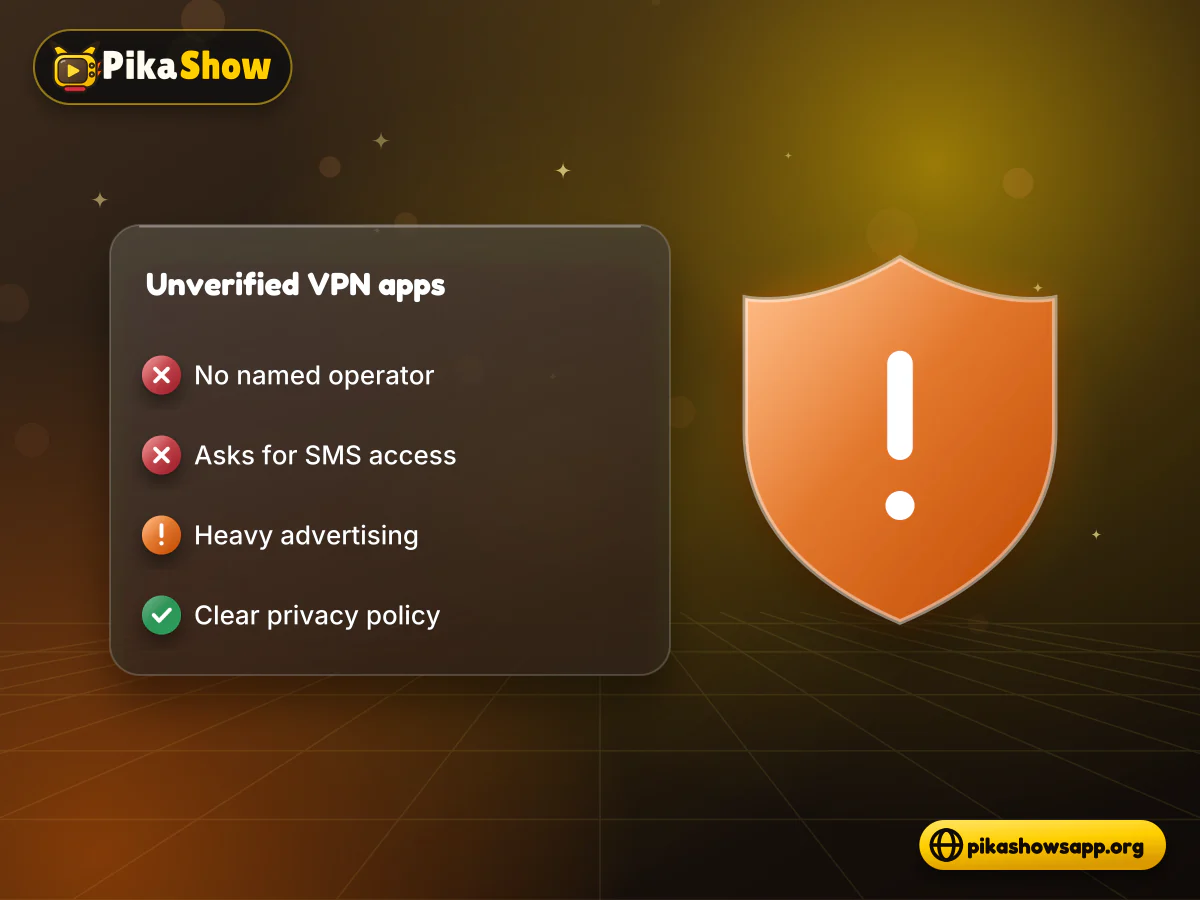
A free VPN is not automatically harmful, but its business model and privacy practices should be clear.
Be cautious when a VPN:
A VPN handles internet traffic, so its ownership and security deserve careful review.
A VPN changes the IP address visible to online services and encrypts traffic between the device and VPN server. It does not make a person completely anonymous.
Information may still be available through:
Do not trust a provider that promises complete anonymity without explaining its technical and data-handling practices.
A VPN does not give PikaShow permission to distribute copyrighted movies, television programmes or sports broadcasts.
PikaShow has faced copyright proceedings and blocking directions in India. Changing a virtual location does not cancel those proceedings or convert an unauthorised stream into a licensed one.
Users should:
Use a VPN for lawful privacy and network-security purposes, not copyright avoidance.
Start with a nearby server, automatic or WireGuard-based protocol, standard routing and default VPN DNS. Disable Double VPN and obfuscation unless genuinely required.
Not necessarily. A VPN can add overhead and make playback slower. It will not repair an unavailable PikaShow server or video source.
Choose a nearby server with low load. A distant location normally increases latency and can cause buffering.
WireGuard or the provider’s modern automatic protocol is often a practical starting point. Performance still depends on the network and provider.
The server may be slow, the kill switch may be active, or the VPN’s DNS or blocking feature may conflict with the application.
Double VPN is generally unnecessary for ordinary streaming and may reduce speed.
No. A VPN provides no content licence and does not make unauthorised streaming legal.
Technically, some free VPNs may connect, but speed, data limits and privacy practices vary. Review the provider carefully before routing traffic through it.
The best VPN settings for PikaShow usually involve a nearby server, a modern protocol and a simple connection without unnecessary routing layers. Test the direct and VPN connections before assuming that the VPN improves streaming.
If PikaShow remains slow on multiple networks and servers, the application or selected video source may be responsible. A VPN cannot repair unavailable content or improve its original resolution.
Most importantly, use VPN services lawfully. They are privacy tools, not permission to bypass copyright or regional restrictions.
Non-affiliation notice: This website is an independent informational resource and is not affiliated with, endorsed by or sponsored by PikaShow or any VPN provider.

8 min read
A checksum tells you whether the APK on your device is the exact file that was published. Here is how to calculate and compare it on every platform, and what it cannot tell you.

10 min read
Reported PikaShow features, a step-by-step Android setup, how to use the interface, practical tips and the safety, privacy and copyright limits to understand first.
5 min read
Has PikaShow shut down? What the Delhi High Court blocking directions mean, why the app may stop working, and what to check before you download a “new” version.

8 min read
apkpikashow is a search term, not a verified brand. Learn why a domain containing the PikaShow name proves nothing, and how to check a site and its APK before installing.

11 min read
Compare legitimate streaming services people consider instead of PikaShow, from subscription platforms to free ad-supported apps, with devices and regional limits.
10 min read
Blank screen, endless loading or crashes? Work through safe checks for your connection, cache, storage, server status and APK version before reinstalling.