
PikaShow for Firestick
Sideloading on Fire TV, remote control support and playback checks.

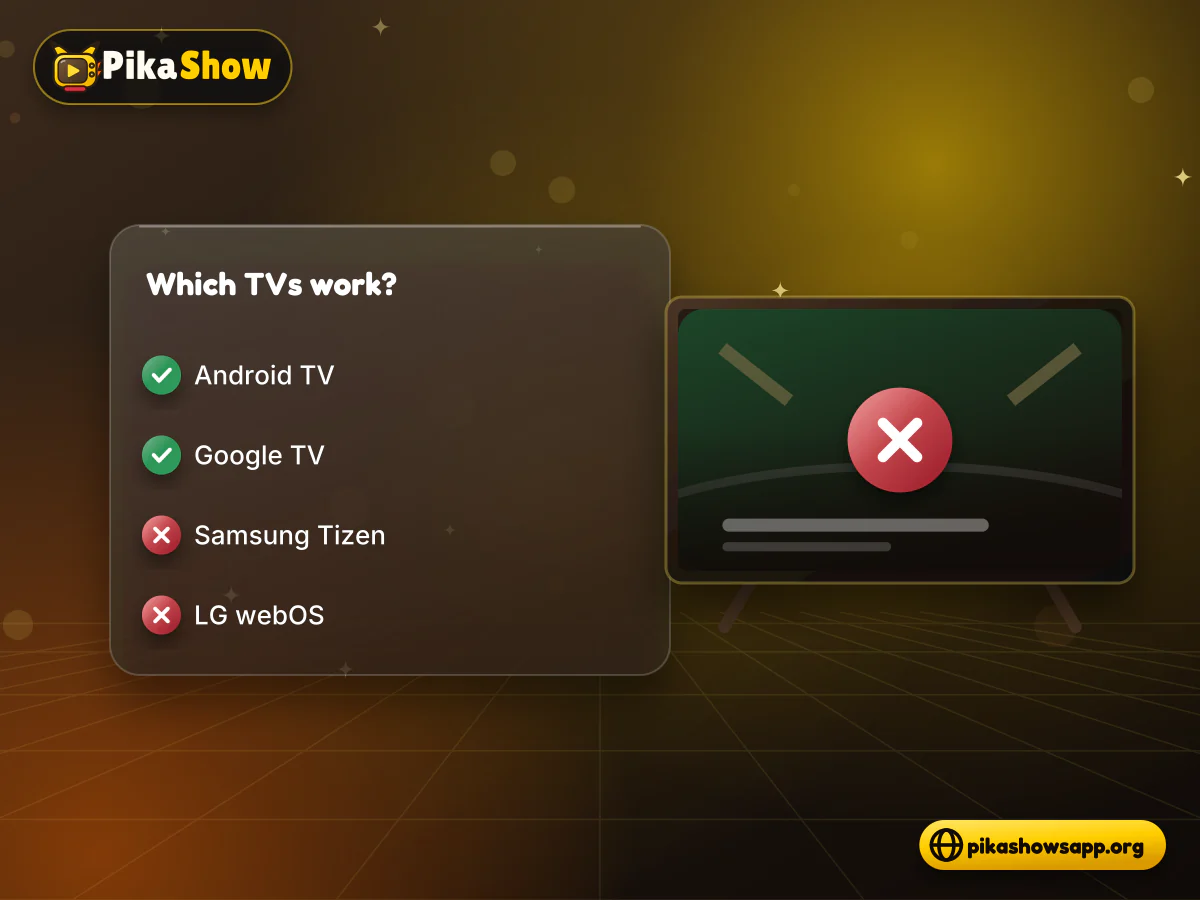
Whether PikaShow for TV works depends on your TV’s operating system, not its brand. Android TV and Google TV sets can sideload the Android APK; Samsung TVs running Tizen and LG TVs running webOS cannot install APK files at all.
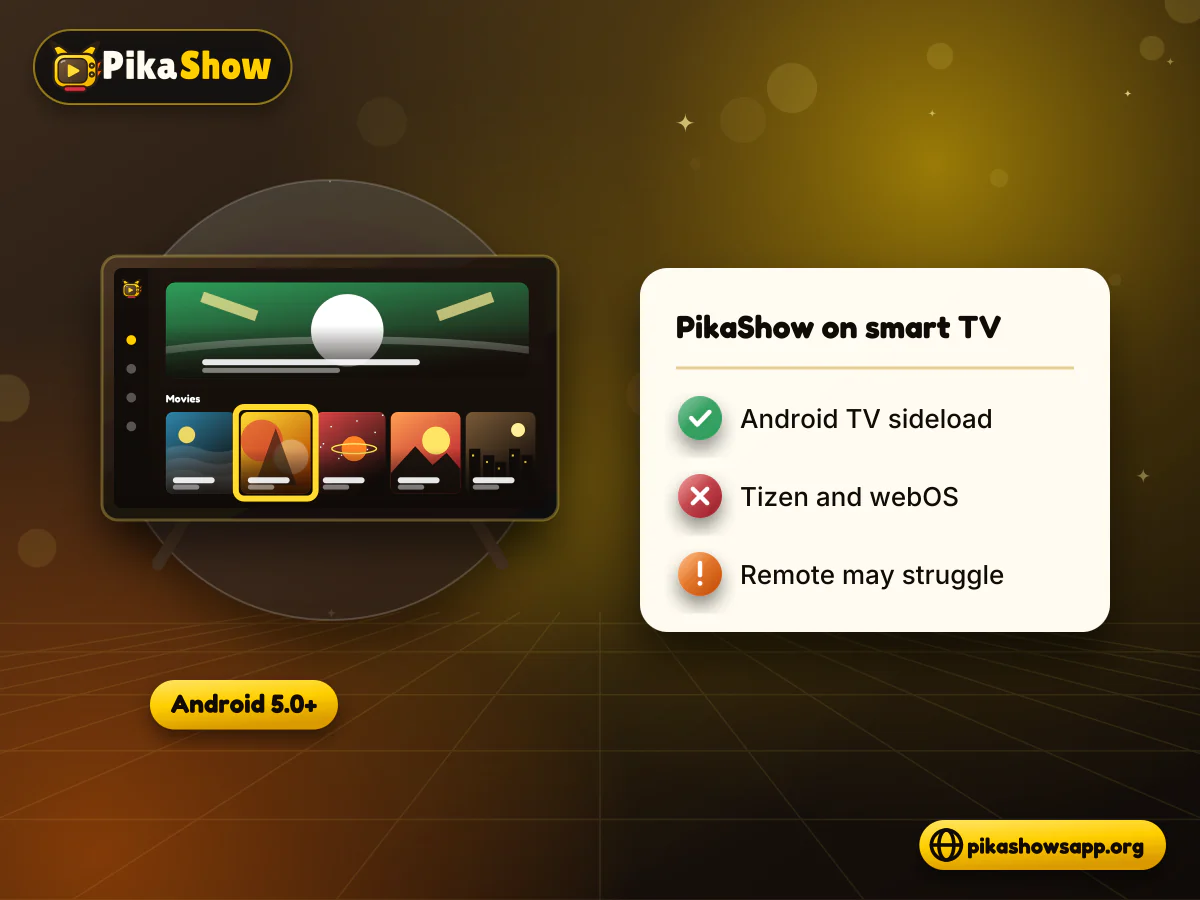
The file we checked on 16 September 2026, PikaShow-v10.8.2.apk, needs Android 5.0 or later and is about 20.44 MB. PikaShow is not available in the Google Play Store for TVs, so installing it means sideloading a file from outside the store, with the same risks as on a phone plus a few TV-specific problems such as remote-control navigation.
Below you will find a compatibility table, step-by-step Android TV instructions, the options for Samsung and LG owners, and the checks worth running before the file ever reaches your television.
This page is general information. It does not endorse PikaShow or any streaming source, and it does not guarantee the app will work on your TV.
Only TVs and streaming devices built on Android can install an APK, which is why PikaShow for smart TV works on some sets and not others. To find out which you have, open the TV’s settings and look for an About screen: if it mentions Android TV OS or Google TV, sideloading is possible. If it shows Tizen, webOS or another system, it is not.
PikaShow on TV: compatibility by platform
| TV or device | Operating system | Can install the APK? |
|---|---|---|
| Sony Bravia (Android and Google TV models) | Android TV / Google TV | Yes, by sideloading |
| Xiaomi Mi TV and Mi TV Stick | Android TV / Google TV | Yes, by sideloading |
| TCL and Hisense Android models | Android TV / Google TV | Yes, on Android-based models only |
| Nvidia Shield, Chromecast with Google TV | Android TV / Google TV | Yes, by sideloading |
| Amazon Fire TV Stick and Fire TV sets | Fire OS (Android-based) | Often, by sideloading |
| Samsung smart TVs | Tizen | No |
| LG smart TVs | webOS | No |
| Apple TV | tvOS | No |
Brands such as TCL and Hisense sell TVs on more than one operating system, so the brand name alone is not enough. “Yes” means Android allows the install; it does not mean every release of the app will run well.
We have not checked any separate PikaShow TV application. A file offered as a “PikaShow TV application APK” should be treated like any other copy: check the package name (com.offshore.pikachu for the file we checked), size and SHA-256 before installing. For PikaShow for Android TV, remember the app was designed for touch screens, so remote navigation may be awkward.
Check three things first: the Android version, free storage and your connection. The APK declares minSdk 21, which means the TV must run Android 5.0 or newer.
Budget TVs often have very little spare storage. If the TV is close to full, installs may fail with a vague error and streaming apps may stutter or close.
These steps cover the general process for a PikaShow Android TV install. Menu names vary between manufacturers and software versions, so look for the closest match on your set rather than installing extra tools to find a setting.
Install your installer app from the Play Store on the TV: either the Downloader app, or a file manager app if you plan to use a USB drive.
Enable installs from unknown sources for that one app only. On many Android TVs this is under Settings > Device Preferences > Security & restrictions > Unknown sources. On Google TV you may first need to turn on Developer options by selecting the Android TV OS build number seven times under Settings > System > About, then go to Settings > Apps > Security & restrictions.
USB route: on a computer, check the file’s SHA-256 checksum, copy PikaShow-v10.8.2.apk to a USB drive, plug it into the TV and open the drive in the file manager.
Downloader route: enter the address of the download page you have chosen, download the file, and compare the size and checksum shown on that page before continuing.
Select the APK and read the install screen. Stop if it asks for device administrator or accessibility access.
Select Install and wait for the confirmation. Choose Done rather than Open if you want to finish the security steps first.
Go back to the unknown sources setting and switch it off for the installer app.
Open the app from the Apps row or Settings > Apps, and test the remote before trying to play anything.
Do not skip the file check
Sites can distribute modified APKs under the PikaShow name. A matching checksum is the only way to know you have the same file that was examined, and it still does not make the app safe or legal.
The install steps are the same across Android TV brands; the differences are mostly in where settings live and how much storage and memory the TV has.
Many Xiaomi TVs sold in India use Xiaomi’s own home screen on top of Android TV. When you try PikaShow for Mi TV, the security settings are still found in the Android TV settings menu rather than in the Xiaomi launcher. Sideloaded apps may not show on the main home screen, so check the full apps list.
Sony’s Android TV and Google TV models follow the standard menus described above. Newer Google TV models may need Developer options enabled before the unknown sources setting appears.
Confirm the operating system first. Some models from these brands run Android TV or Google TV, while others use different systems that cannot install APKs. Entry-level models with limited memory may struggle with apps designed for phones.
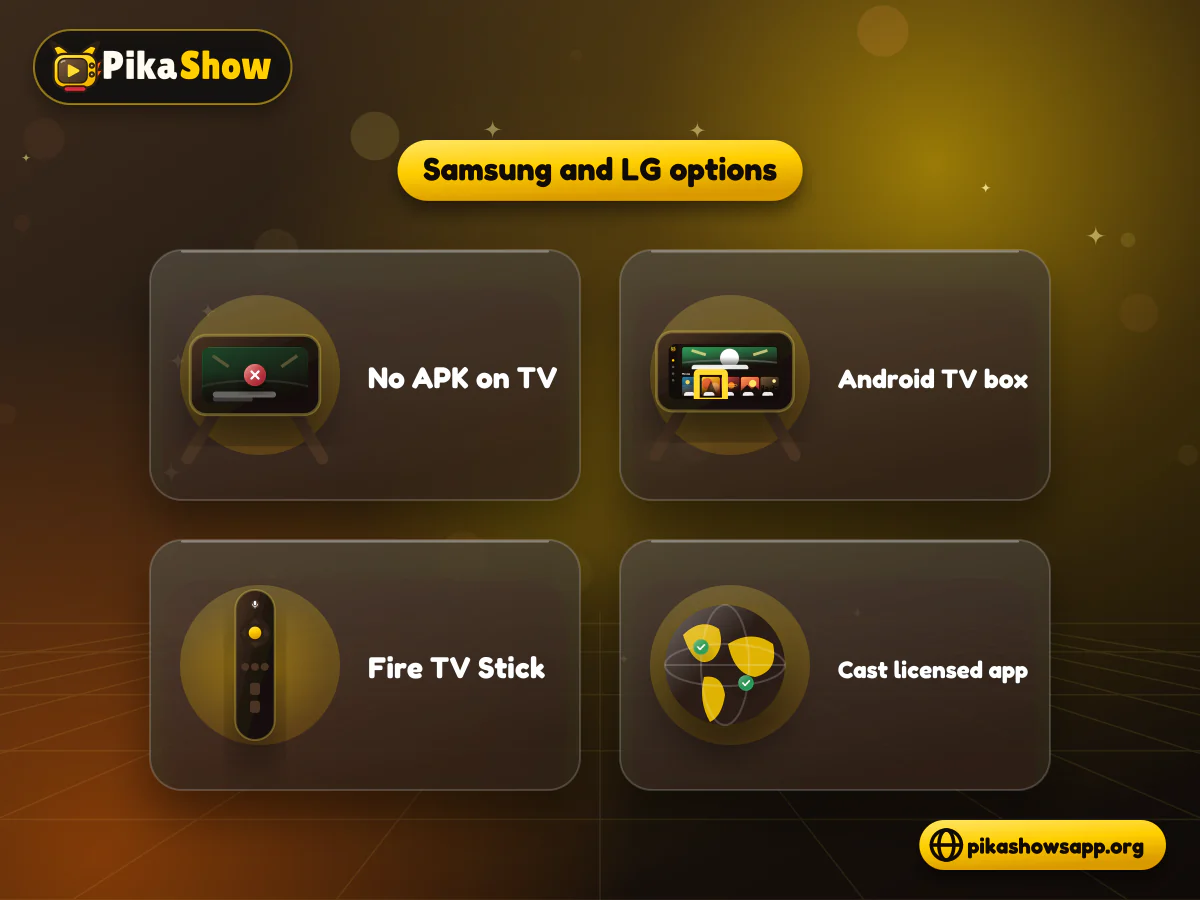
You cannot install PikaShow on Samsung smart TV models or use PikaShow for LG TV directly, because Tizen and webOS do not run Android APK files. Any page offering a Tizen or webOS version of the APK should be treated as untrustworthy.
Plugging an Android TV or Google TV streaming device into a spare HDMI port gives the TV an Android system. The steps above then apply to that device instead of the TV.
Amazon’s Fire OS is Android-based and allows sideloading, though menus differ. Our guide to PikaShow for Firestick covers those differences and the compatibility problems to expect.
Many licensed streaming apps are available directly in the Samsung and LG app stores. Others can send video from your phone to the TV using the TV’s screen-mirroring feature, or through AirPlay or Chromecast where the TV or an attached device supports them.
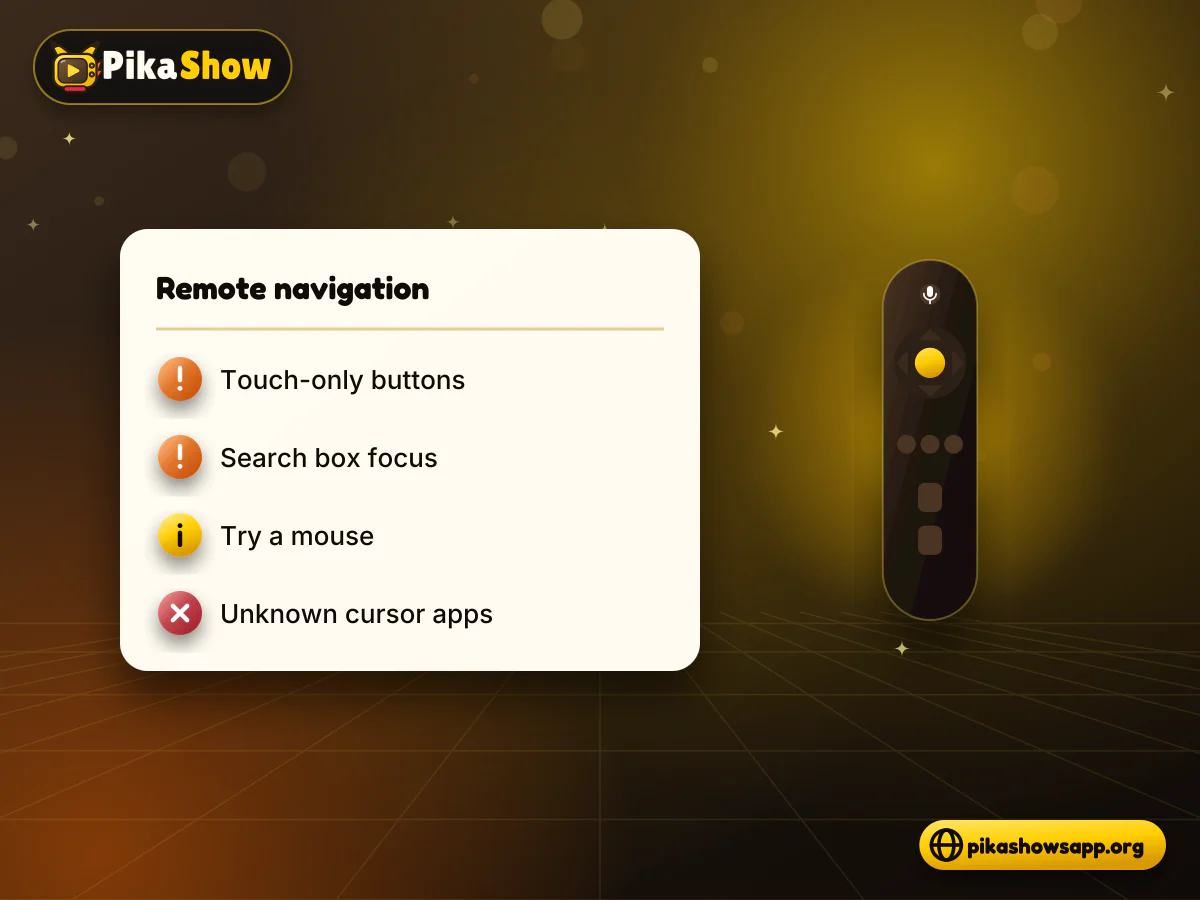
Even when the install works, the app may be awkward to use. Phone apps are designed for taps and swipes, while a TV remote only moves focus up, down, left and right.
Problems you may run into:
Some people pair a Bluetooth mouse or keyboard, or use a phone-based remote app, to get around this. Both are reasonable if your TV supports them.
Avoid installing unknown “mouse toggle” or cursor apps that ask for accessibility permissions. Accessibility access can read what is on screen and act on your behalf.
A big screen makes buffering more noticeable, but the causes are usually the same as on a phone: the connection, the device or the video source. Start with the parts you control.
If PikaShow buffering continues after all of this, the stream itself may be overloaded or unavailable, which nothing on your TV can fix.
Checking the file on a computer is easier than on a TV. Compare its SHA-256 checksum with the one below: if even one character differs, it is not the file we examined.
| Check | What to look for |
|---|---|
| SHA-256 | 372dc5af73e2299ed4a65c0567a3a2ecb3ce6c7ce850d06f4d3c29faf3a4e0a6 |
| Size | 21,434,649 bytes (about 20.44 MB) |
| Package name | com.offshore.pikachu |
| Signing certificate | CN=Android Debug, O=Android, C=US (a generic debug certificate) |
| Windows command | certutil -hashfile PikaShow-v10.8.2.apk SHA256 |
| macOS / Linux command | shasum -a 256 file.apk / sha256sum file.apk |
The APK requests 15 permissions, including microphone access (RECORD_AUDIO), starting after a restart, and several advertising ID permissions. Our static review found advertising SDKs from AppLovin, Mintegral, Vungle/Liftoff and Unity Ads. About 8 MB of encoded assets and a native library could not be inspected, so we cannot rule out features hidden there. On Android 6.0 and later you can deny the microphone under Settings > Apps > PikaShow > Permissions.
Because the file uses a debug certificate, an update signed with a different key will not install over it. The TV will show “App not installed”, and uninstalling first deletes the app’s local data.
Watching on a television does not change the legal position, so PikaShow for smart TV carries the same copyright questions as the phone app. Whether content is authorised depends on the rights holder, not the screen size.
PikaShow has faced copyright proceedings in India. Reports of the Delhi High Court case state that the court directed authorities to block the application and related domains after allegations that copyrighted content was streamed without permission. We do not describe PikaShow as legal anywhere.
Every TV platform covered here, including Android TV, Google TV, Tizen and webOS, has an app store with licensed streaming services, many with free, ad-supported sections. Those apps are built for remote controls, update automatically and avoid the sideloading risks above. For more background, read is PikaShow legal, or compare legal alternatives to PikaShow before you install anything.
No. Only Android TV, Google TV and Android-based devices such as Fire TV can install the APK. Samsung Tizen, LG webOS and Apple TV cannot.
No. It has to be sideloaded from a file, which means checking the file yourself because the Play Store’s checks do not apply.
Xiaomi Mi TVs running Android TV or Google TV can install the APK. Whether the app runs smoothly depends on the model’s memory, storage and remote-control support.
You cannot install it on the TV itself. The alternatives are an external Android TV box, a Fire TV Stick, or casting from a licensed app on your phone.
The checked file, v10.8.2, needs Android 5.0 or later (minSdk 21). Check under Settings > Device Preferences > About, or Settings > System > About on Google TV.
The app may be designed for touchscreens. Some screens may not respond to the D-pad, so a Bluetooth mouse or keyboard can help if your TV supports one.
Android only installs an update when the package name and signing certificate match, and it blocks installing an older version over a newer one. Uninstalling first removes the app’s local data.
We cannot say it is safe. The developer cannot be verified, the app contains several advertising SDKs, and part of its code could not be inspected.
We have not verified one. The file we checked is an Android phone APK that people sideload onto Android TV and Google TV, so treat any PikaShow TV app download as unverified until its package name and SHA-256 match.
10 min read
Reported PikaShow features, a step-by-step Android setup, how to use the interface, practical tips and the safety, privacy and copyright limits to understand first.
5 min read
Has PikaShow shut down? What the Delhi High Court blocking directions mean, why the app may stop working, and what to check before you download a “new” version.
11 min read
A VPN can slow streaming as easily as it helps. Choose a nearby server and modern protocol, avoid extra routing layers and test before assuming it improves playback.
8 min read
A checksum tells you whether the APK on your device is the exact file that was published. Here is how to calculate and compare it on every platform, and what it cannot tell you.
8 min read
apkpikashow is a search term, not a verified brand. Learn why a domain containing the PikaShow name proves nothing, and how to check a site and its APK before installing.
11 min read
Compare legitimate streaming services people consider instead of PikaShow, from subscription platforms to free ad-supported apps, with devices and regional limits.
10 min read
Blank screen, endless loading or crashes? Work through safe checks for your connection, cache, storage, server status and APK version before reinstalling.
8 min read
What a PikaShow MOD APK really is, why premium and ad-free claims can't be verified, how re-signing changes the certificate, and what to do if you have already installed one.
9 min read
Updated PikaShow and now it will not open, crashes on launch or refuses to install? Match your symptom to the cause, then work through 12 fixes in a safe order.
PikaShow for smart TV only works on Android-based televisions and streaming devices, and even there it depends on sideloading an unverified file that was built for phones. Samsung and LG owners need extra hardware or casting.
If you go ahead, verify the checksum, allow unknown sources for one app only and switch it off afterwards. If you would rather avoid the risk and the copyright questions, licensed apps from your TV’s own store are the simpler route.
Non-affiliation notice: This website is an independent informational resource and is not affiliated with, endorsed by or sponsored by PikaShow, Google, Amazon, Samsung, LG, Xiaomi, Sony or any streaming provider.