
PikaShow APK Download
The checked 10.8.2 file with its SHA-256 checksum, permissions and install steps.

Updated PikaShow and now it will not open, crashes on launch or refuses to install? Match your symptom to the cause, then work through 12 fixes in a safe order.
Written by pikashowsapp.org Editorial TeamPublished Updated 9 min read
PikaShow not opening after update? The cause is usually one of four things: leftover cache from the old version, an update that never installed properly, a damaged download, or a problem on the app’s own servers. Most cases can be fixed in a few minutes without losing anything.
The trick is to work in the right order. Start with the checks that cannot delete your data, and only uninstall once you know the new file is complete and genuine. This guide covers PikaShow v10.8.2, the release we checked on 16 September 2026, which needs Android 5.0+.
We are an independent information site. We do not run PikaShow’s servers and cannot switch them back on, but we can help you rule out everything on your own device.
Most cases of PikaShow not opening after update match one of the rows below, so look at exactly what happens on screen before you change anything. A PikaShow update problem that shows an error message is far easier to solve than one that simply closes, so note the wording.
| What you see | Likely cause | Try first |
|---|---|---|
| Splash screen, then the app closes | Old cache clashing with new code | Fixes 1 and 2 |
| Still shows the old version number | The update never installed | Fix 3, then Fix 7 |
| “App not installed” or “package conflicts” | Different signing certificate or a lower versionCode | Fix 7 |
| “There was a problem parsing the package” | Incomplete or corrupt download, or Android too old | Fixes 4 and 8 |
| App icon disappeared after the update | Play Protect removed or disabled it | Fix 9 |
| Opens, but stuck loading forever | Network, DNS, VPN or server outage | Fix 11 and the server section |
| Closes when you switch apps | Battery optimisation or low memory | Fixes 5 and 10 |
A restart clears processes that were still attached to the old version. Hold the power button, choose Restart, and open PikaShow before anything else. It sounds too simple, but it is the quickest thing to rule out.
An update replaces the app’s code but keeps its temporary files. If those files were built for the previous release, the new version can crash while reading them.
Menu names differ between Samsung, Xiaomi, Realme and other brands, but the App info screen is always there.
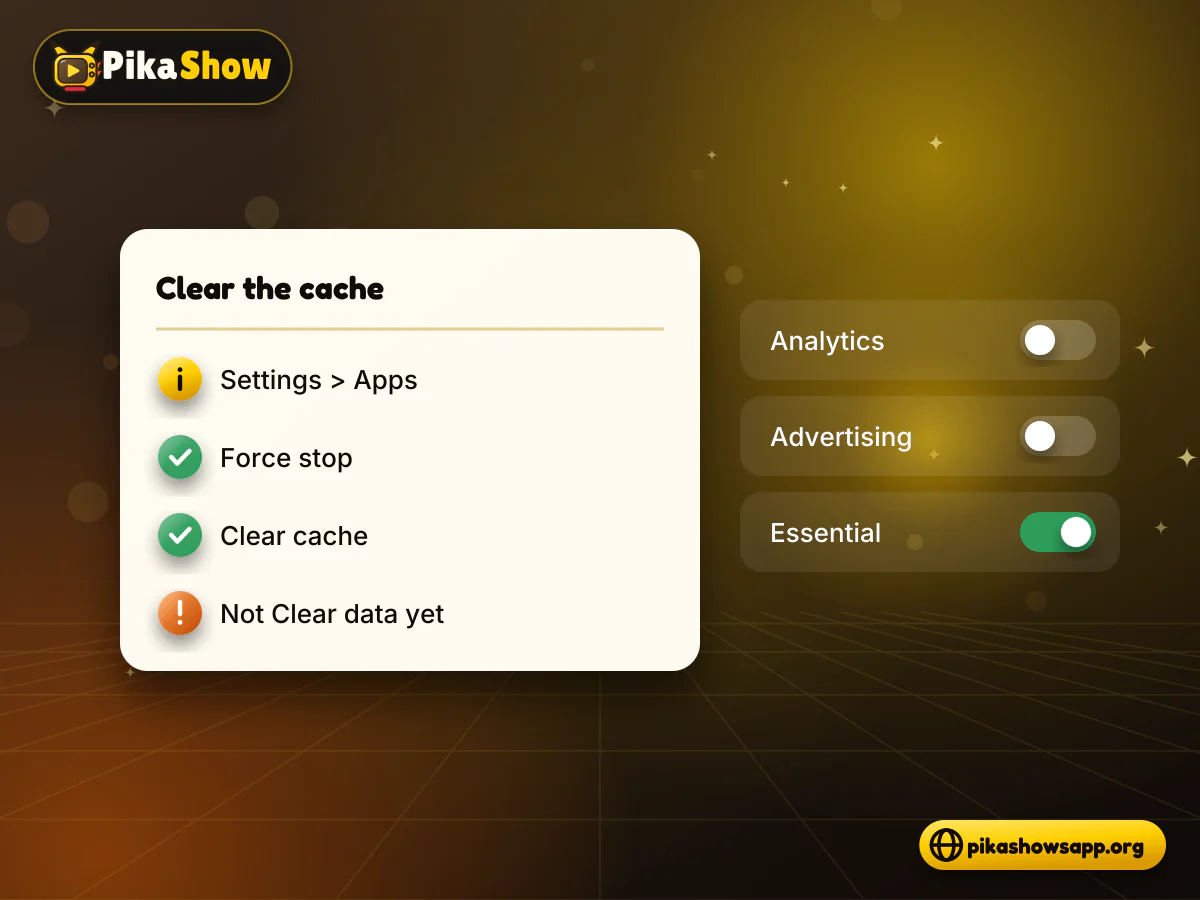
Go to Settings > Apps > PikaShow > App info and scroll to the bottom, where Android shows the version. The current release reads 10.8.2. If you still see an older number, the update did not go through, and the crash has nothing to do with the new version.
PikaShow v10.8.2 has a minimum SDK of 21, which means Android 5.0+. Check Settings > About phone > Software information. Phones older than that cannot parse the file at all, so no amount of reinstalling will help.
The APK itself is 20.44 MB, but Android needs extra room on top of that to unpack and optimise it. When storage is nearly full, installs can fail quietly and apps can close on launch. Delete old APK files from your Downloads folder first; they are often the easiest space to recover.
Clearing data resets PikaShow to the state it was in on the day you first installed it. That removes corrupted settings files, which are a common reason for a PikaShow crash after update when the cache alone did not help.
Use the same Storage and cache screen as before, but tap Clear data (or Clear storage) instead.
You will lose saved items
Clear data deletes favourites, watch history and in-app settings stored on the phone. We found no account or login screen in the readable code of this release, so assume there is no cloud backup to restore them from.
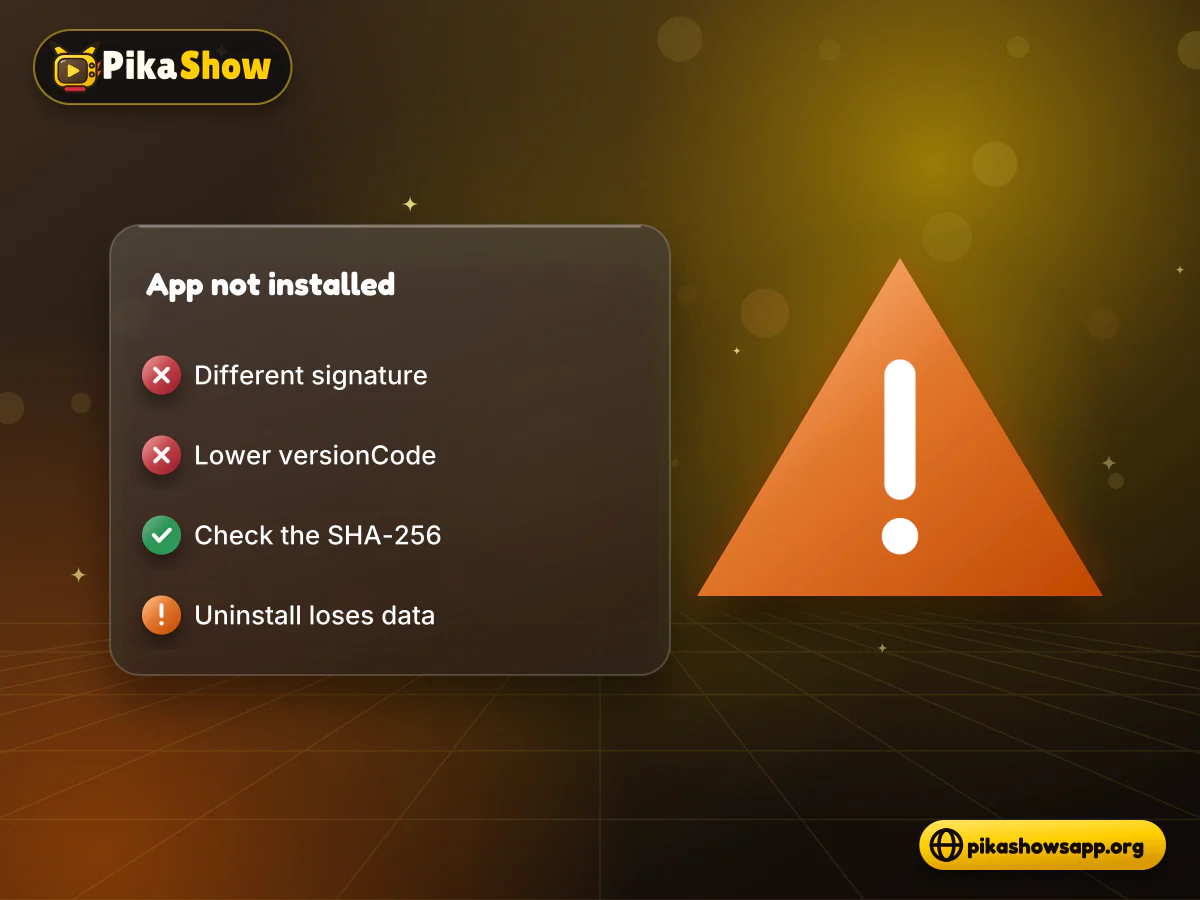
The PikaShow “App not installed” update error almost always means Android refused to put the new file on top of the old one. It is a security rule, not a bug.
Android only accepts an update when:
If your old copy came from a different website, it may have been re-signed with another certificate. Some sites also relabel files, so the same APK can appear as PikaShow v94 elsewhere. In either case the only way forward is to uninstall the old app, then install the new file.
Uninstalling deletes all local PikaShow data, including favourites and history. Only uninstall once you have confirmed the replacement file is complete (see Fix 8).
“There was a problem parsing the package” usually means the APK is incomplete. A dropped connection or a browser that saved half the file will produce it. A damaged file can also install and then crash, which is why a PikaShow new version not working straight away is worth checking at file level.
Delete the old APK from your Downloads folder so you do not pick the wrong copy.
Download the latest PikaShow APK again on a stable Wi-Fi connection.
Check the file size. The current release is exactly 21,434,649 bytes (20.44 MB).
Calculate the file’s SHA-256 checksum and compare it with 372dc5af73e2299ed4a65c0567a3a2ecb3ce6c7ce850d06f4d3c29faf3a4e0a6.
Install only if all 64 characters match. If they do not, delete the file and download it again.
On a phone, the free Termux app can run sha256sum on the file; on a computer, Windows, macOS and Linux all have a built-in command. A matching hash proves the file is identical to the one we checked. It does not prove the app is safe.
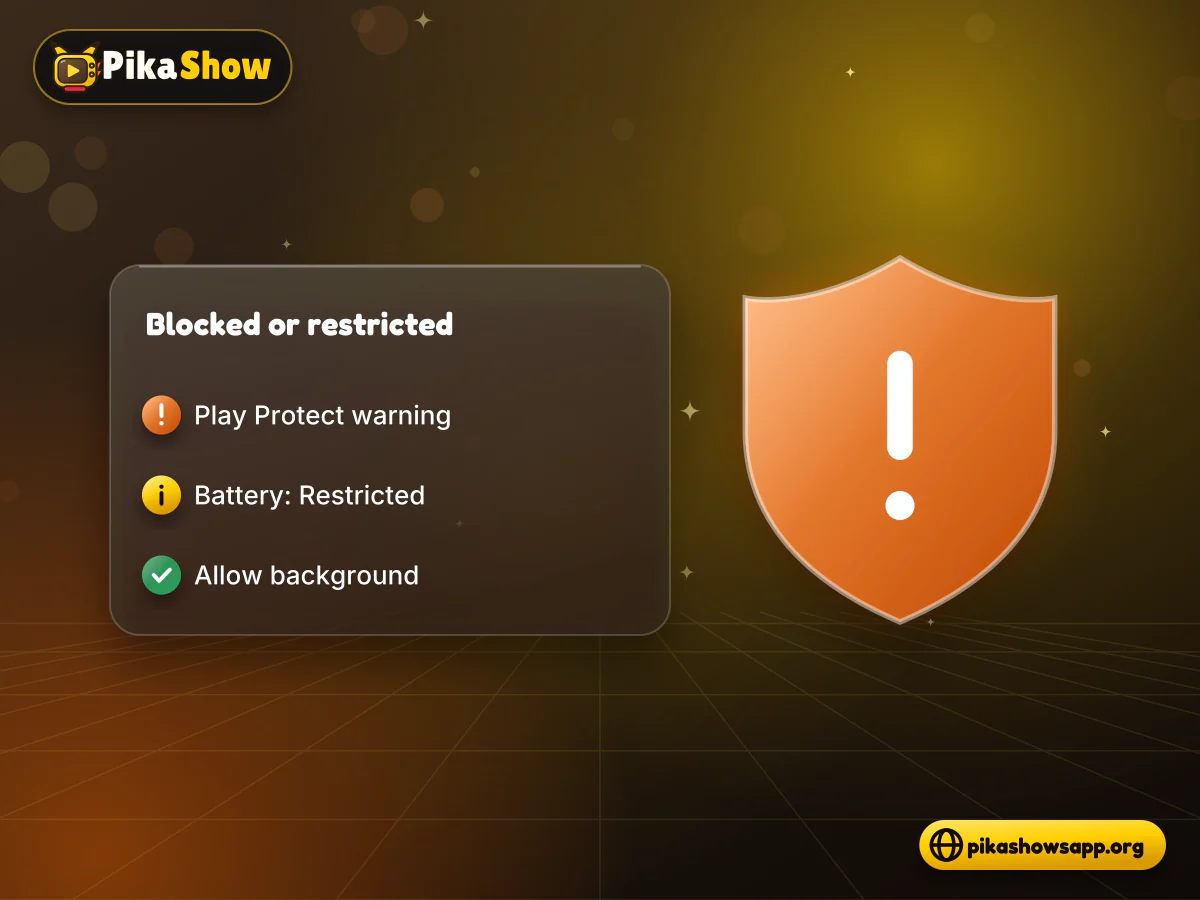
Google Play Protect scans sideloaded apps and can disable or remove one it flags, sometimes right after an update. Open the Play Store, tap your profile picture, then Play Protect, and look at recent activity.
This release is signed with the generic Android debug certificate rather than a publisher certificate, and it contains several advertising SDKs. Treat a warning as information, not an obstacle. We do not recommend turning Play Protect off to force an install.
Some phones reset battery settings for an app after it updates. If PikaShow opens and then closes when the screen dims or you switch apps, go to Settings > Apps > PikaShow > Battery and choose Unrestricted or Optimised instead of Restricted. Also check that Background data is allowed under Mobile data.
If the app opens but sits on a loading screen, the new version may be failing to reach its servers. Secure connections fail when your phone’s clock is wrong, so fix that first.
If the app works with the VPN off, review your VPN settings for PikaShow, such as the protocol or server location, rather than leaving privacy protection off permanently. A VPN will not make unlicensed content legal.
If the new release still crashes on a phone that meets every requirement, going back one version is a reasonable last step. Android will not let you install a lower versionCode over a higher one, so you must uninstall first and accept the data loss.
Before you roll back:
Avoid “fixed” or modified builds posted in comment sections. A file that promises to repair the update but has no checksum can contain anything.
Sometimes nothing on your phone is broken. If the app opens but no categories load, on different networks and on more than one device, the servers behind it are probably down or blocked. That is not something you can repair locally.
In that situation, do not:
Wait a few hours and try again. PikaShow has also been the subject of blocking directions in India, so some outages may not be temporary. If you rely on it daily, a licensed streaming service is the more dependable option.
The most common causes are old cache files, an update that did not install, a corrupt APK download or a server problem. Restart the phone and clear the cache before trying anything that deletes data.
Android blocks the update when the new file is signed with a different certificate or has a lower versionCode than the app already installed. Uninstall the old app first, knowing this removes local data, then install the verified file.
No. Clear cache only removes temporary files. Clear data and uninstalling are the options that delete favourites, history and settings.
Compare its size with 21,434,649 bytes and its SHA-256 checksum with the value published for v10.8.2. If either differs, the file is incomplete or not the same file.
Version 10.8.2 has a minimum SDK of 21, so it needs Android 5.0+. It targets Android 14.
Yes, but only after uninstalling the current version, because Android does not allow installing a lower versionCode over a higher one. Verify the older file’s checksum before installing.
If the app opens but nothing loads on two different networks and two devices, the problem is most likely on the server side. Local fixes will not help, so wait and test later.
If you are still dealing with PikaShow not opening after update, the cause usually comes down to cache, an incomplete download or a signature clash. Work from restart to cache to version checks, and verify the file before you uninstall anything.
If the app still fails while your network and device check out, the problem is likely outside your phone, and repeated reinstalls will not change that.
Non-affiliation notice: This website is an independent informational resource and is not affiliated with, endorsed by or sponsored by PikaShow, Google, Android or any streaming provider. We do not operate PikaShow’s servers.
10 min read
Blank screen, endless loading or crashes? Work through safe checks for your connection, cache, storage, server status and APK version before reinstalling.
5 min read
Has PikaShow shut down? What the Delhi High Court blocking directions mean, why the app may stop working, and what to check before you download a “new” version.
11 min read
A VPN can slow streaming as easily as it helps. Choose a nearby server and modern protocol, avoid extra routing layers and test before assuming it improves playback.
8 min read
A checksum tells you whether the APK on your device is the exact file that was published. Here is how to calculate and compare it on every platform, and what it cannot tell you.
8 min read
apkpikashow is a search term, not a verified brand. Learn why a domain containing the PikaShow name proves nothing, and how to check a site and its APK before installing.
11 min read
Compare legitimate streaming services people consider instead of PikaShow, from subscription platforms to free ad-supported apps, with devices and regional limits.