
Skip to content
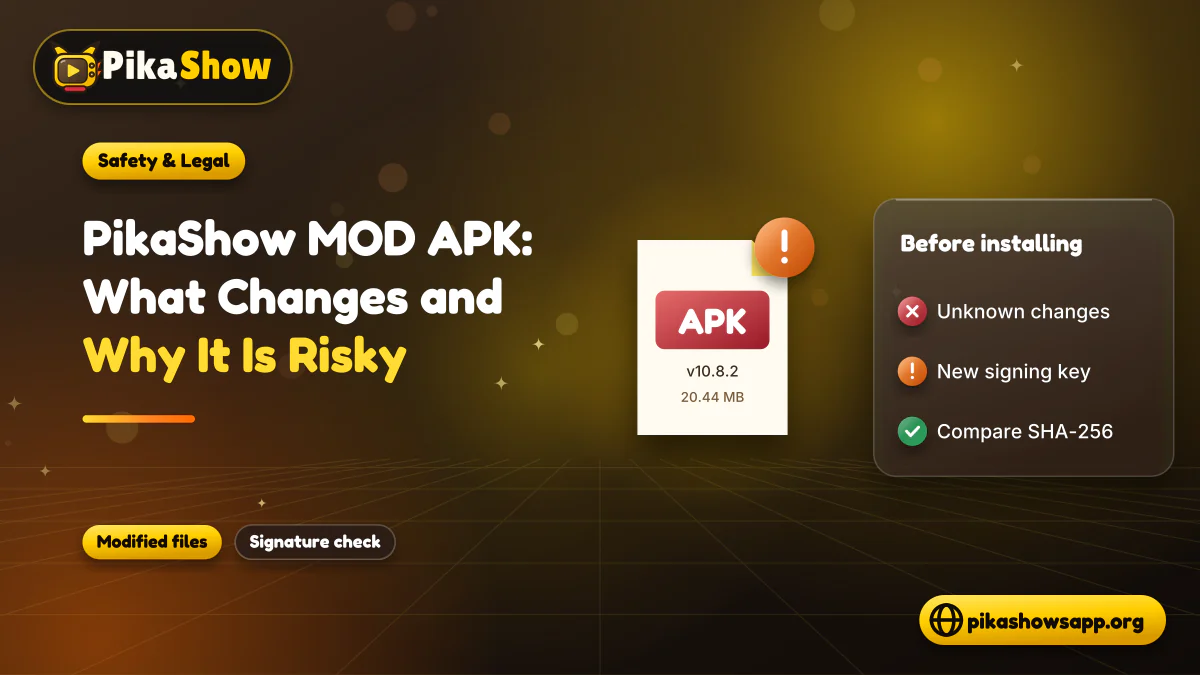
v10.8.2 · 20.44 MB · Android 5.0+

PikaShow for Firestick: Installation and Compatibility Guide

PikaShow is primarily distributed as an Android APK. Since Amazon Fire TV devices use an Android-based operating system, some APK releases may technically run on them. However, this does not guarantee that every PikaShow version will install or work correctly.

Using PikaShow for Firestick normally involves sideloading the APK because a clearly verified listing is not available through the Amazon Appstore. Sideloading means installing an application from outside the device’s standard store.

Before continuing, check the APK source, requested permissions and copyright concerns. Do not assume that a file is safe or official simply because a download website uses the PikaShow name.

01

Is PikaShow Compatible With Firestick?

Some PikaShow APK versions may open on Fire TV devices, but compatibility needs to be tested with the exact file and device model.

An APK designed for an Android phone can cause several problems on a television:

  • The interface may expect touchscreen controls.
  • Some buttons may not respond to the Fire TV remote.
  • The screen may appear in the wrong orientation.
  • Video playback may fail.
  • The application may close without warning.
  • Downloaded files may be difficult to locate.
  • Casting and subtitle controls may not work.
  • A newer APK may require an unsupported Android version.

A website should not promise complete PikaShow Firestick compatibility unless it has tested the current APK on the specific Fire TV model.

02

Fire TV Devices That May Run Android APKs

Different Fire TV devices use different processors, memory capacities and Fire OS versions. An APK that works on one model may fail on another.

Possible devices include:

  • Fire TV Stick
  • Fire TV Stick Lite
  • Fire TV Stick 4K
  • Fire TV Stick 4K Max
  • Fire TV Cube
  • Fire TV smart televisions

These names only identify Amazon device families. They do not confirm that PikaShow works on every model or generation.

Before installation, check:

  • Your Fire TV model
  • The installed Fire OS version
  • Available storage
  • The APK’s minimum Android requirement
  • Processor compatibility
  • Whether the application supports television controls
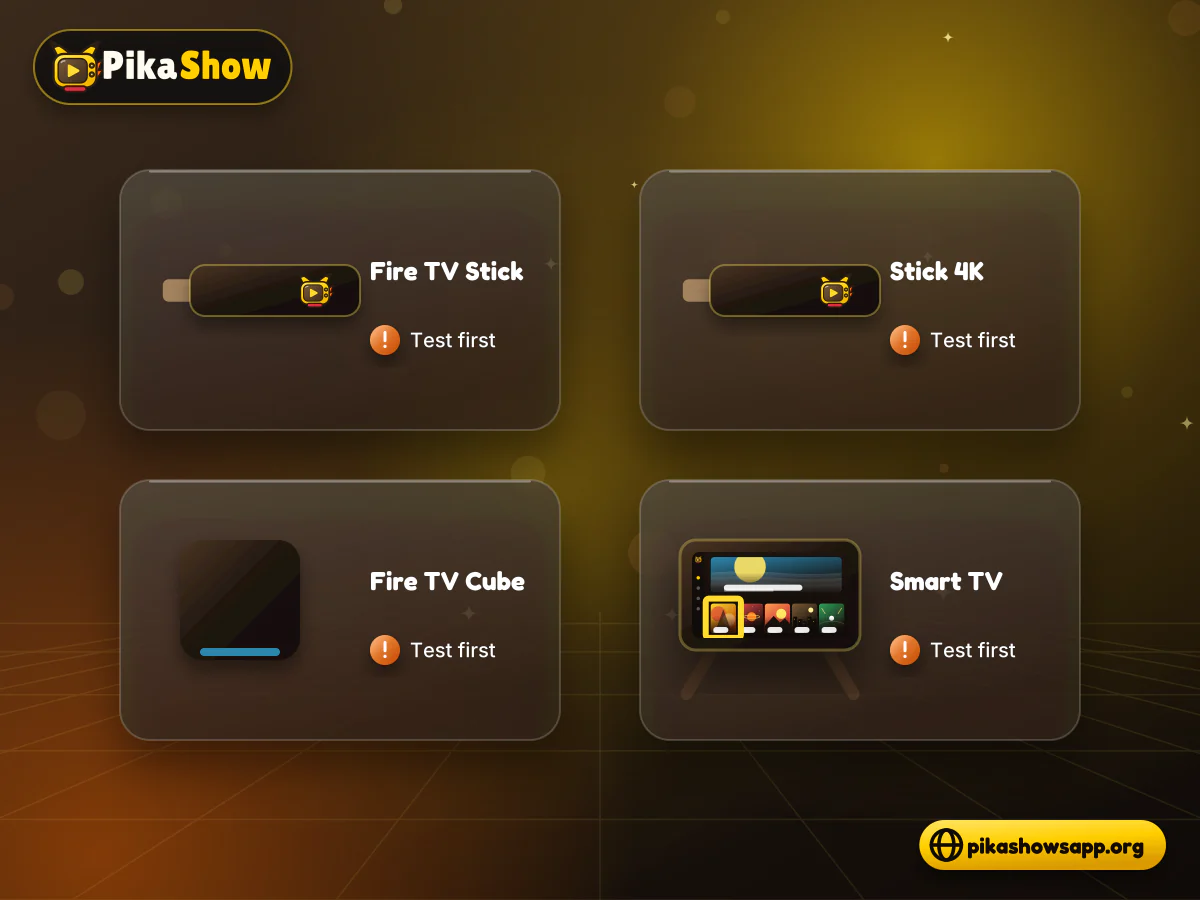
Streaming stick, 4K stick, media cube and smart TV icons each shown with a compatibility status badge
03

What You Need Before Installation

To attempt a PikaShow Firestick download, you generally need:

  • A compatible Fire TV device
  • A stable internet connection
  • Enough free storage
  • A trustworthy APK source
  • A method for transferring or downloading the APK
  • Permission to install applications from the chosen source

Fire TV menu names can change after a software update. If a setting mentioned in an online guide is missing, search within the current Fire TV settings rather than installing unknown tools to unlock it.

04

Check the PikaShow APK First

The most important step happens before the file reaches your Firestick. Different websites can distribute modified files under the same PikaShow name.

Check the following information:

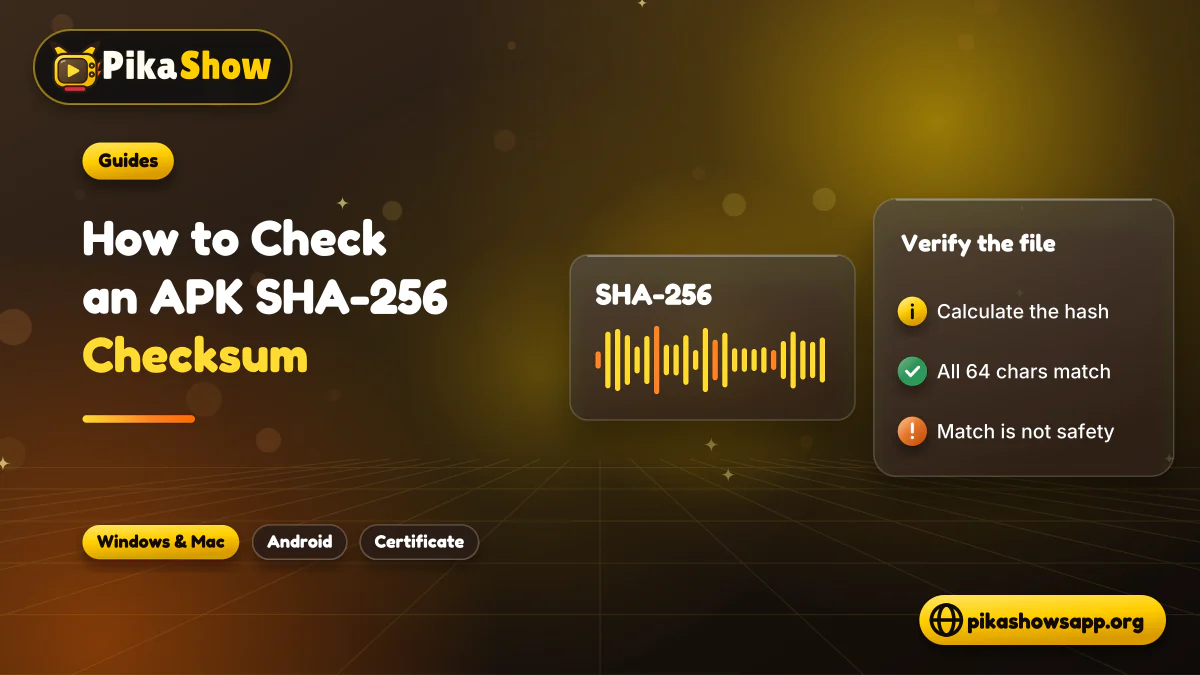
APK detailWhy it matters
Version numberIdentifies the advertised release
File sizeHelps detect an incomplete or different file
Package nameDistinguishes the application from copycats
Digital signatureHelps compare the publisher across updates
Update dateShows when the file was last reviewed
Android requirementIndicates possible Fire OS compatibility
SHA-256 checksumIdentifies the exact APK file
Security scanMay reveal known threats

A clean security scan is useful, but it is not a complete safety guarantee. Newly modified files may not be detected immediately.

05

How to Install PikaShow on Firestick

The exact menu labels vary between Fire TV models and Fire OS versions. The following steps describe the general process without assuming a particular interface.

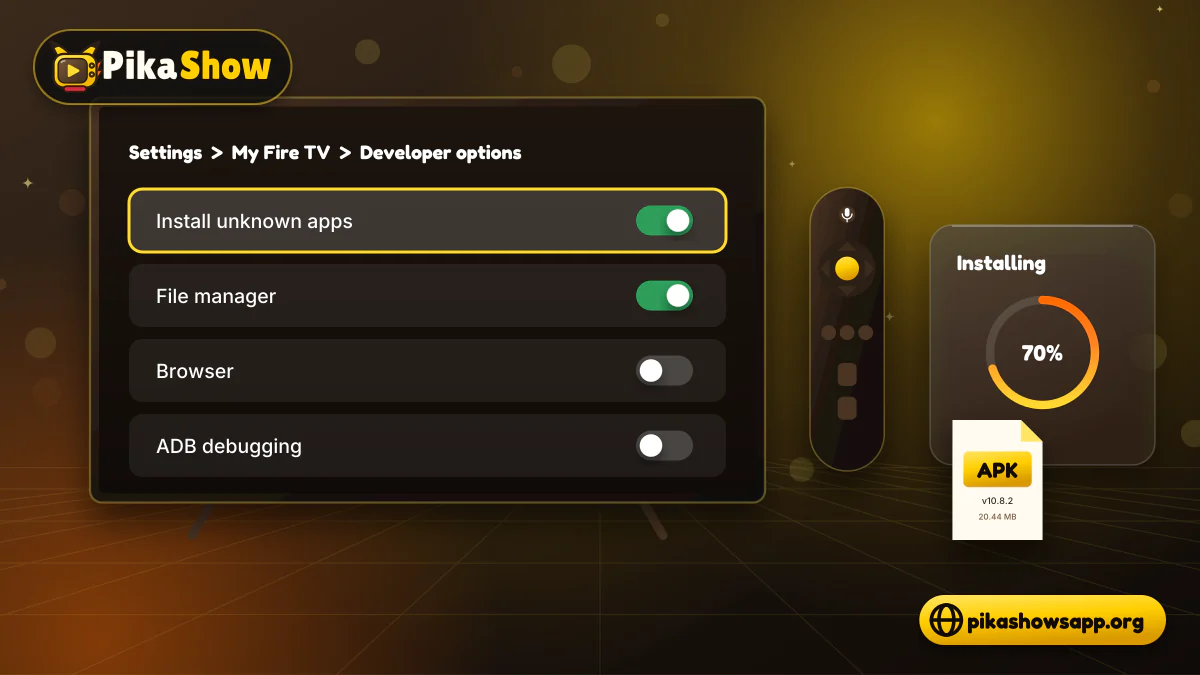
Television settings screen with an install unknown apps toggle beside a remote and an APK install progress panel
  • Step 1: Check Available Storage

    Open the Fire TV settings and review the device’s available storage. Remove applications you no longer use if the device is almost full.

    The Firestick needs space for the APK, installed application, temporary files and video cache. Low storage can cause installation failures and app crashes.
  • Step 2: Allow Installation From the Selected Source

    Fire TV normally restricts applications obtained outside the Amazon Appstore. To sideload an APK, you may need to enable developer-related installation settings for the specific application being used to obtain the file.

    Only allow this permission for a source you understand. Do not enable it for every installed application.

    After installation, turn the permission off again.

  • Step 3: Obtain the APK

    Download or transfer the PikaShow APK for Firestick using a method supported by your device.

    Before opening it:

    • Confirm that the file name is correct.
    • Compare its size with the source page.
    • Avoid shortened or hidden download links.
    • Close any page that repeatedly redirects you.
    • Do not download an .exe file for Firestick.
    • Do not enter payment information to access an APK.

    An Android or Fire TV device uses an APK file. A Windows installer will not work.

  • Step 4: Open the APK

    Use the selected file manager or transfer application to open the APK. Fire TV should display an installation screen.

    Read any visible permission information before selecting Install. Stop if the application requests unrelated access or device-administrator control.

  • Step 5: Complete Installation

    Wait until Fire TV confirms that the application has been installed. You can then open it immediately or find it in the installed-applications section.

    The icon may not appear on the main home screen automatically. Its location depends on the current Fire TV interface.

  • Step 6: Test the Remote Controls

    Open the application and test basic navigation before trying to play a video.

    Check whether you can:

    • Move between menu items
    • Open and close categories
    • Use the search function
    • Select a video
    • Pause and resume playback
    • Return to the previous screen
    • Exit the application

    If navigation requires touchscreen gestures, the APK may not be properly designed for Fire TV.

  • Step 7: Disable Unknown-App Permission

    Return to the Fire TV security or developer settings and remove the installation permission from the application used to obtain the APK.

    Leaving sideloading permission active creates unnecessary risk.

06

How to Use PikaShow on Fire TV

If the APK is compatible, its basic sections may appear on the television screen. Available options depend on the version and source used by the application.

The interface may include:

  • Entertainment categories
  • Search controls
  • Video sources
  • Playback-quality options
  • Subtitle settings
  • Favourites or saved items
  • Full-screen playback

Do not assume that every displayed feature works on a television. Some releases are designed only for phones and may not respond properly to remote input.

07

PikaShow Firestick Remote Compatibility

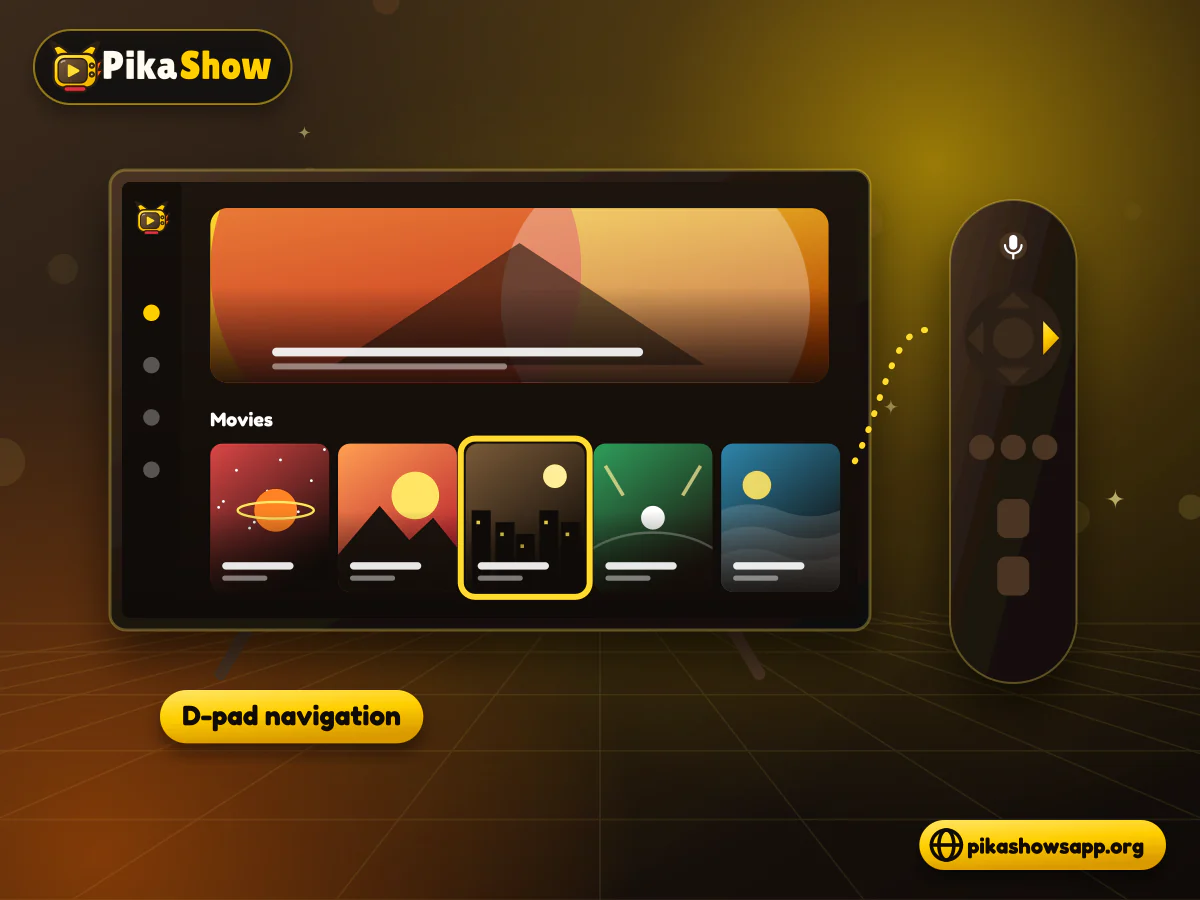
Remote compatibility is one of the main differences between using an APK on a phone and a television. Mobile applications expect taps, swipes and portrait-screen navigation.

A Fire TV remote provides directional controls instead. As a result, you may encounter:

  • Buttons that cannot be selected
  • Menus that do not scroll
  • A missing on-screen cursor
  • Search fields that will not open
  • Playback controls that disappear
  • A portrait layout displayed on a television

Avoid granting accessibility permissions to an unknown application simply to make its controls work. Such permissions can provide broad access to the device.

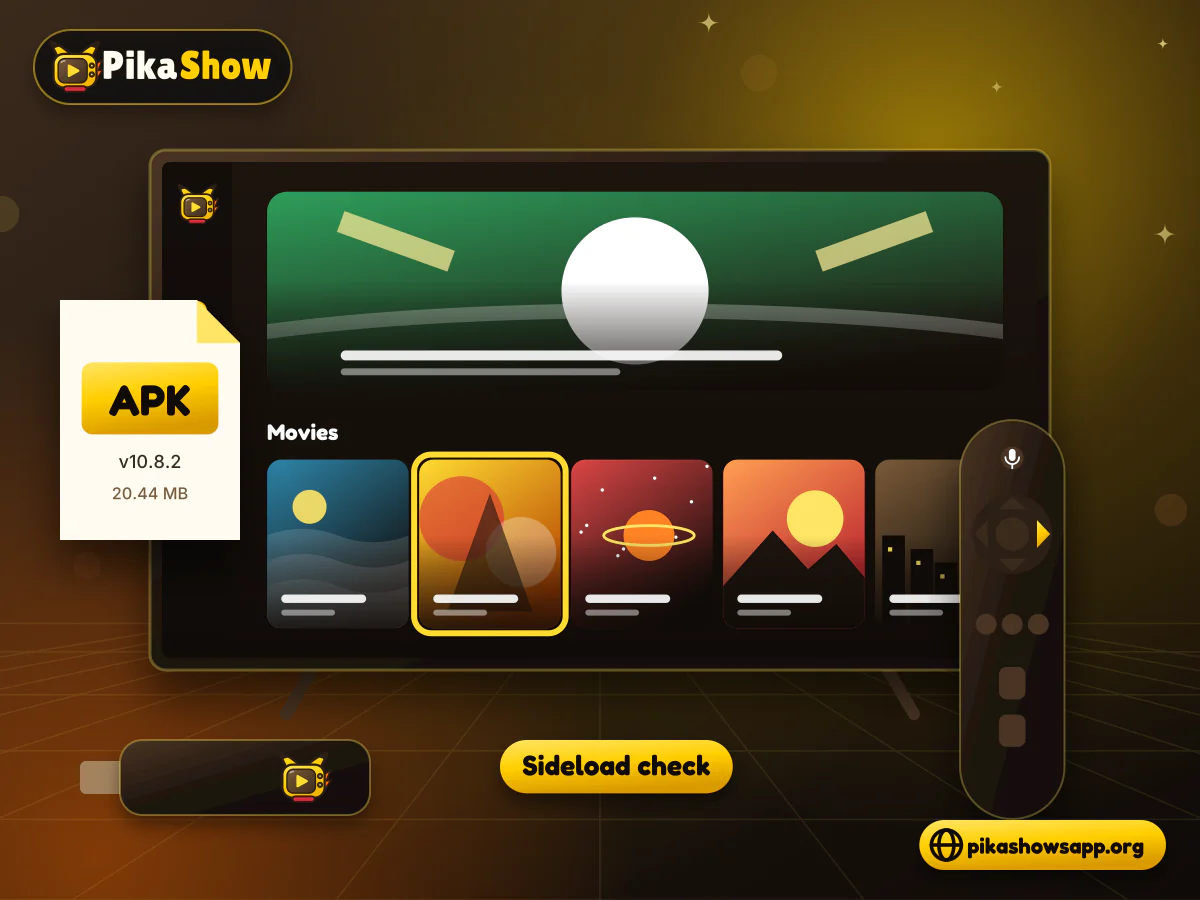
Remote control with a highlighted directional pad next to a TV app showing a focused poster tile
08

Video Quality and Playback

Using a television does not automatically improve video quality. The available resolution depends on:

  • The original video source
  • Your internet connection
  • Server availability
  • Fire TV hardware
  • APK compatibility
  • Selected playback setting

A file described as “HD” by a download website may not provide HD playback for every stream. PikaShow also cannot convert a low-resolution source into genuine Full HD or 4K video.

09

Advantages of Using PikaShow on Firestick

When the APK is compatible, possible advantages include:

  • Viewing on a larger screen
  • Using a television remote
  • Access through a living-room device
  • No need to cast from a phone
  • Access to an Android-based environment

These are possible device benefits, not guarantees about content quality, speed or availability.

10

Limitations to Consider

Installing PikaShow for Fire TV can involve several limitations:

  • No clearly verified Amazon Appstore listing
  • Manual APK installation
  • Uncertain remote-control support
  • Limited Firestick storage
  • Possible screen-orientation problems
  • Updates may need manual installation
  • Video sources can become unavailable
  • Some streams may be region-restricted
  • APK files may differ between websites
  • Content licensing may be unclear

The application may also stop working after Fire OS, PikaShow or its streaming sources change.

11

Is PikaShow for Firestick Safe?

Sideloading does not automatically mean that an application is harmful, but it removes some protections associated with a standard app-store installation.

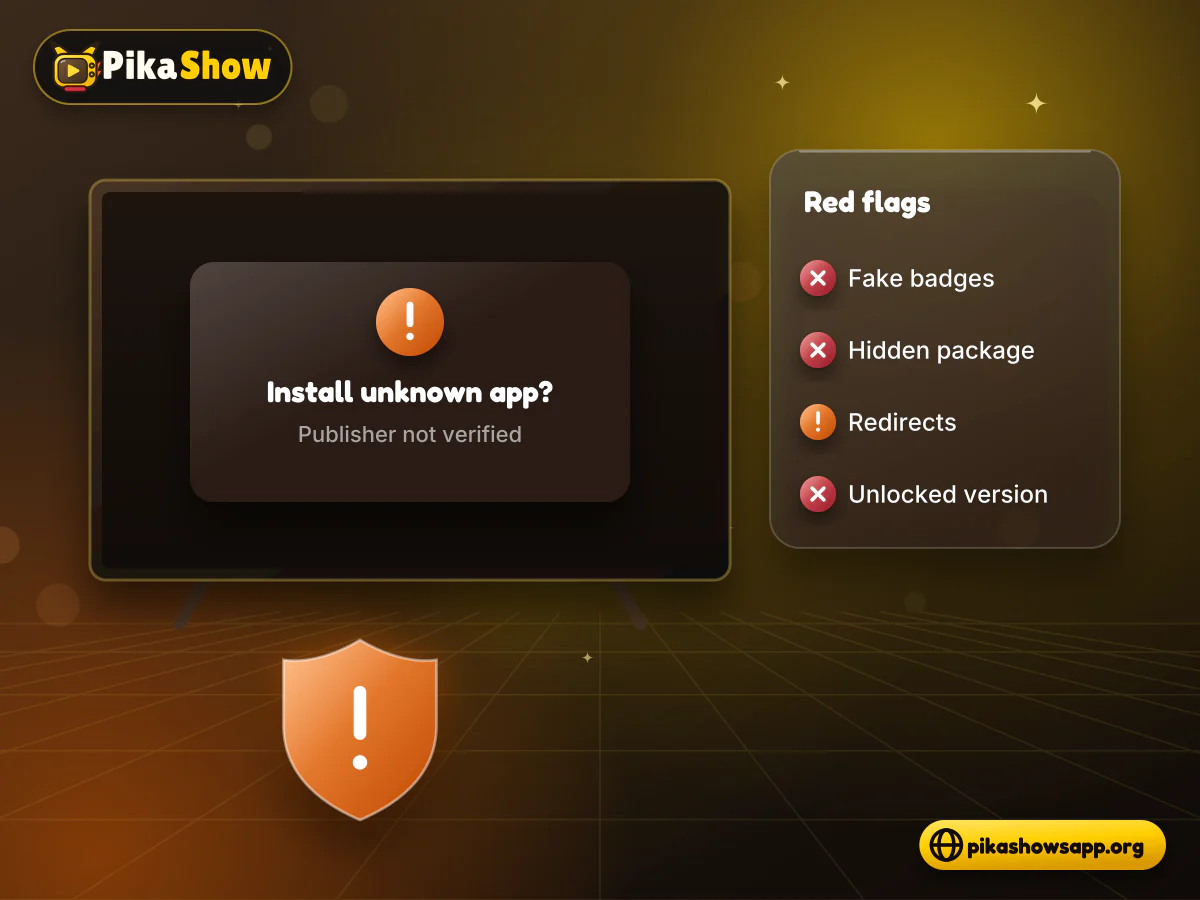
Be cautious if the APK or its source:

  • Claims to be completely safe without evidence
  • Uses fake security badges
  • Hides the package name
  • Does not show the file size
  • Forces several advertising redirects
  • Requests personal or payment details
  • Asks you to disable security tools
  • Requires unusual permissions
  • Installs another application first
  • Offers a modified or unlocked version

If the APK’s publisher and data practices cannot be verified, do not use personal accounts or sensitive information inside it.

Television showing an unknown APK install prompt with warning badges beside a list of sideloading red flags
13

Common PikaShow Firestick Problems

  • The APK Will Not Install

    The file may be incomplete, incompatible with the Fire OS version or built for a different processor. Low device storage can also prevent installation.

    Check the APK details instead of repeatedly downloading files from unrelated websites.

  • The App Does Not Appear

    Open the full installed-applications list in the Fire TV settings. Sideloaded applications may not appear immediately among the first home-screen items.

    Restart the Firestick if the installation completed but the icon is missing.

  • The App Opens Sideways

    The APK may have been designed only for a phone’s portrait display. This indicates limited television compatibility.

    Do not install an unknown screen-rotation application without checking its permissions and publisher.

  • The Remote Does Not Work

    The app may require touchscreen input. Restart it and test the directional controls again.

    If important buttons remain unreachable, the current PikaShow release may not be suitable for Fire TV.

  • Videos Keep Buffering

    Restart the router and Firestick, then test another legitimate streaming application. Reduce playback quality if the option is available.

    If other services work normally, the PikaShow source may be slow or unavailable.

  • Video Opens but Has No Sound

    Check the television volume and Fire TV audio settings. Try another video to determine whether the problem affects one source or the complete application.

    An unsupported audio format can also cause silent playback.

  • PikaShow Keeps Closing

    Low storage, limited memory, damaged application data or an incompatible release can cause crashes. Clear the app cache and restart the Fire TV.

    Avoid clearing all application data unless you understand what information will be removed.

  • Update Will Not Install

    A new APK may use a different signing certificate from the installed version. Fire TV can reject the update even when both files carry the PikaShow name.

    Do not uninstall the working version until the new file’s source and compatibility have been checked.

14

Frequently Asked Questions

Can PikaShow be installed on Firestick?

Some Android APK releases may run on Fire TV devices, but compatibility is not guaranteed. It depends on the APK, Fire OS version and device model.

Is PikaShow available in the Amazon Appstore?

A clearly verified PikaShow streaming-app listing is not established. Users should carefully examine similarly named listings before installing them.

Do I need to sideload PikaShow?

If no verified Amazon Appstore listing is available, installing the APK generally requires sideloading from an external source.

Why does the Fire TV remote not work with PikaShow?

The APK may be designed for touchscreen phones rather than television remotes. Some buttons and menus may therefore be inaccessible.

Does PikaShow provide 4K video on Firestick?

A 4K Fire TV device does not guarantee 4K playback. Resolution depends on the original source and available stream. Avoid making a 4K claim without technical verification.

Why is PikaShow buffering on Firestick?

Possible causes include a weak connection, limited device resources, heavy server traffic or an unavailable video source.

Is PikaShow safe for Fire TV?

Complete safety cannot be guaranteed. Check the APK source, signature, security results and permissions before installing it.

From the blog

Latest PikaShow Articles

View all articles
15

Final Words

Installing PikaShow for Firestick generally requires an externally obtained APK because the application is not clearly available through a verified Amazon Appstore listing. Some releases may work, while others can have remote-control, screen-layout or playback problems.

Check the file before sideloading it, limit unknown-app permissions and do not ignore Fire TV security warnings. Most importantly, use authorised streaming providers whenever the ownership or licensing of content is uncertain.

Non-affiliation notice: This website is an independent informational resource and is not affiliated with, endorsed by or sponsored by PikaShow, Amazon or any content provider.

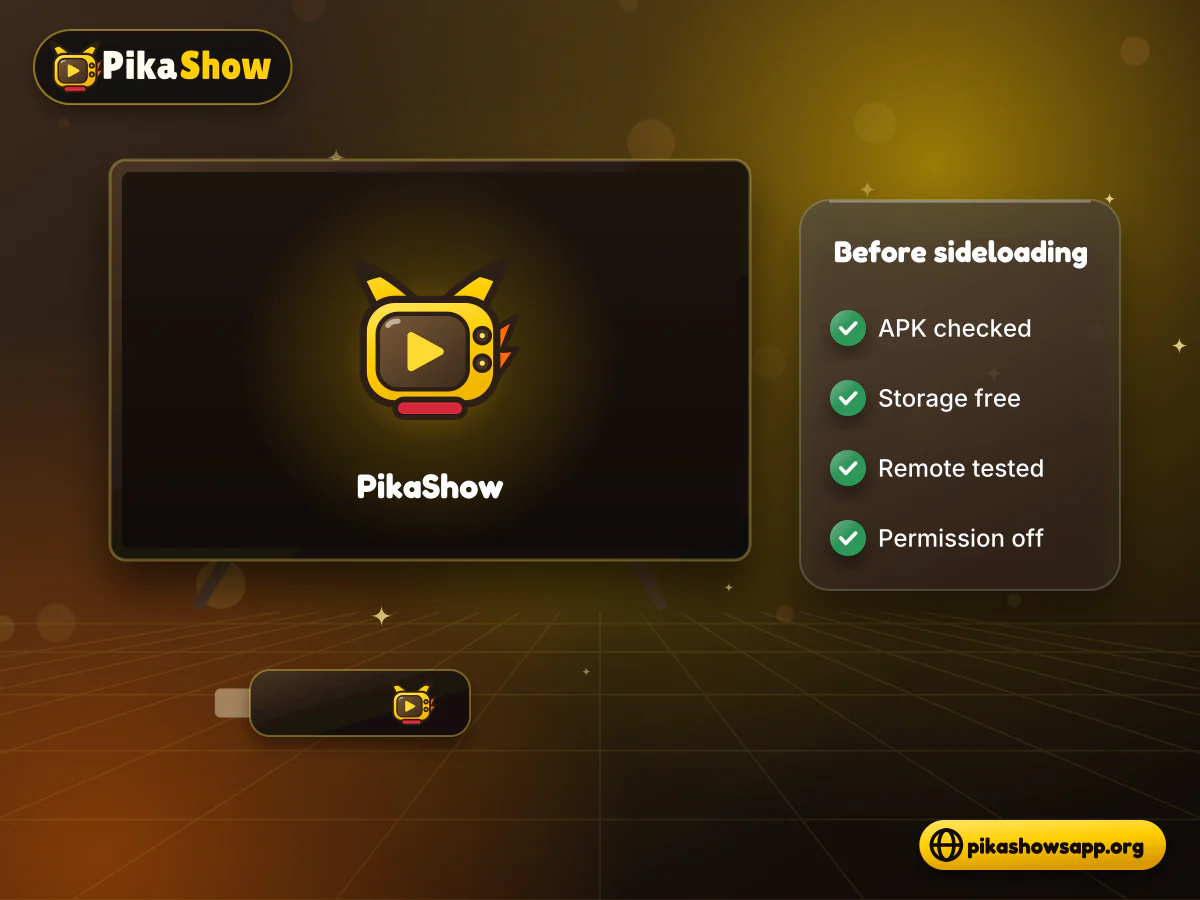
Streaming stick plugged into a television with a checklist of APK, storage and remote checks completed