
Skip to content
v10.8.2 · 20.44 MB · Android 5.0+

PikaShow for PC: How to Use the APK on Windows

PikaShow is generally distributed as an Android APK rather than a Windows program. This means you cannot normally open its APK file directly on a computer in the same way you would run an .exe application.

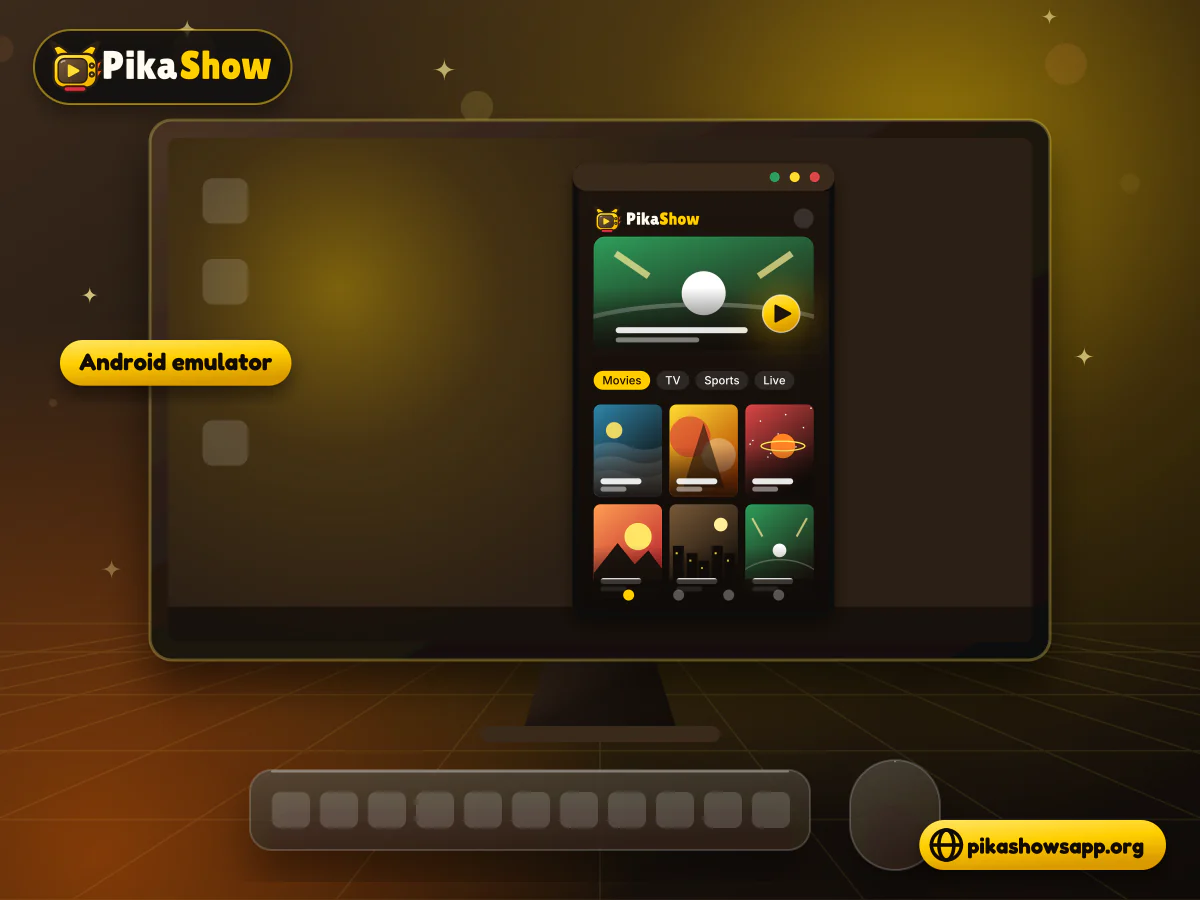
People searching for PikaShow for PC usually need an Android emulator. This type of software creates an Android environment inside Windows, allowing compatible mobile applications to run on a desktop or laptop.

Before installing anything, remember that PikaShow is a third-party streaming application. Its official developer, download source, content licensing and privacy practices can be difficult to verify. Check both the emulator and APK carefully before using them.

01

Is PikaShow Available for Windows?

A verified native version of PikaShow for Windows is not clearly available. Websites may advertise a “PC version,” but the file they provide is often still an Android APK.

An APK is designed for Android. It does not become Windows software simply because it is downloaded on a computer.

In most cases, users need:

  • A Windows desktop or laptop
  • A compatible Android emulator
  • A PikaShow APK file
  • Free storage space
  • A stable internet connection
  • Permission to install applications on the computer

Be cautious if a website offers an unfamiliar PikaShow .exe installer. Do not run it unless its developer, digital signature and source can be verified.

02

How Does PikaShow Work on a PC?

An Android emulator creates a virtual mobile device on your computer. After installing it, you can import an APK and open the application within the emulator.

The basic process looks like this:

  1. 1

    Install a reputable Android emulator.

  2. 2

    Open the emulator and complete its initial setup.

  3. 3

    Download the APK from a source you have examined.

  4. 4

    Scan the file before opening it.

  5. 5

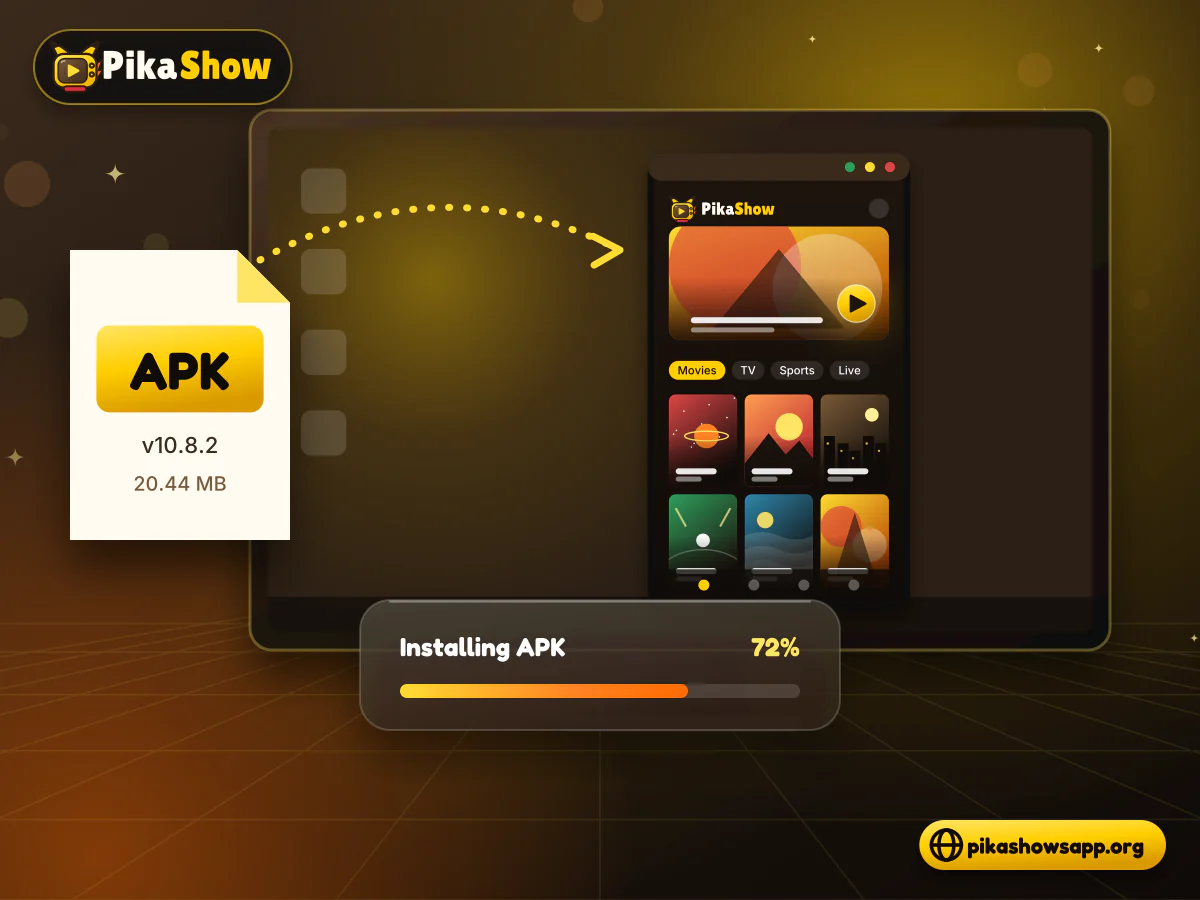
    Import the APK into the emulator.

  6. 6

    Wait for the application to install.

  7. 7

    Open PikaShow from the emulator’s application screen.

APK file being dragged from a Windows folder into an Android emulator window with an install progress bar

Performance depends on your computer, emulator settings and the particular APK version. Not every feature available on an Android phone will necessarily work on Windows.

03

Requirements for Running PikaShow on Windows

There is no single system requirement that applies to every emulator. However, Android emulation generally works better on a computer with a modern processor, enough memory and available storage.

Check the following before starting:

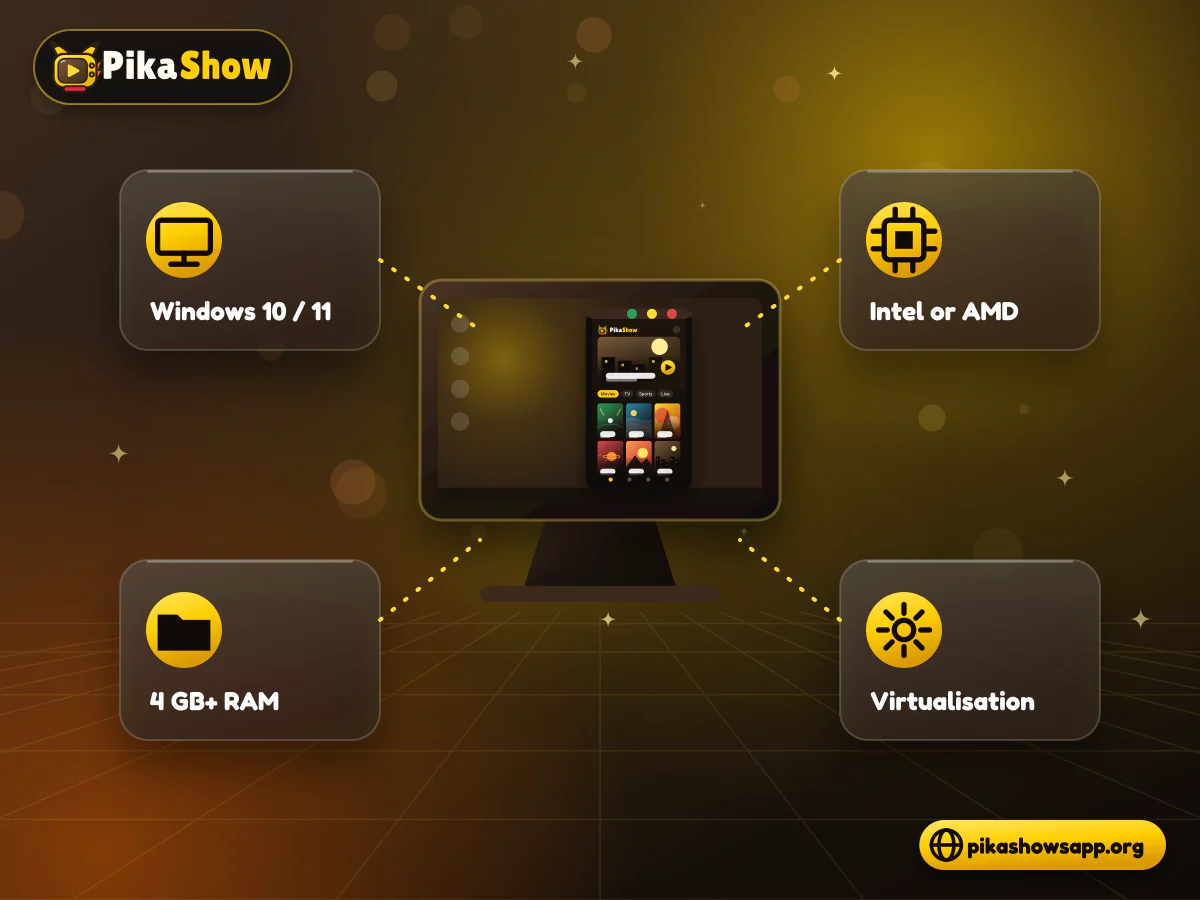
RequirementRecommendation
Operating systemA supported Windows 10 or Windows 11 installation
MemoryAt least 4 GB; more may improve performance
StorageEnough room for the emulator, APK and temporary files
ProcessorA reasonably modern Intel or AMD processor
InternetStable connection for setup and streaming
GraphicsUpdated graphics drivers
VirtualisationMay be required or recommended by the emulator

These are general guidelines, not confirmed requirements for PikaShow itself. Always check the current specifications published by the emulator provider.

Processor chip, memory module, storage drive and graphics card arranged around a Windows desktop screen
04

How to Install PikaShow APK for PC

  • Step 1: Choose an Android Emulator

    Select an emulator from a recognisable developer with an official website, privacy policy and active support information.

    Before downloading it, review:

    • Its Windows requirements
    • Installation size
    • Privacy policy
    • Advertising behaviour
    • Update history
    • User and technical documentation

    Avoid modified or “premium unlocked” emulator packages from file-sharing websites.
  • Step 2: Install the Emulator

    Download the Windows installer from the emulator’s verified website. Open the file and follow the setup instructions.

    Read each installation screen carefully. Some free applications may offer optional software during setup. Decline anything you do not need.

    Restart the computer if the installer requests it.

  • Step 3: Complete the Android Setup

    Open the emulator after installation. It may ask you to choose a language, set the screen size or sign in with a Google account.

    A Google account is not always required for manually importing an APK. Avoid entering personal account details unless the feature you need genuinely requires them.

  • Step 4: Check the PikaShow APK

    Before installing the PikaShow APK for PC, inspect the file carefully.

    Check its:

    • Version number
    • File size
    • Package name
    • Signing certificate
    • Security-scan results
    • Source website
    • Requested permissions

    A professional-looking download page does not guarantee that its APK is original or safe.

  • Step 5: Import the APK

    Most Android emulators include an Install APK or Import APK option. Select that option and find the downloaded file on your computer.

    Some emulators also allow you to drag the APK file into the main window. Wait until the installation finishes.

  • Step 6: Open PikaShow

    After installation, the PikaShow icon should appear on the emulator’s Android home screen or application menu. Select it to open the app.

    If Android displays a security or permission warning, read it before continuing. Do not approve unrelated access simply to complete the installation.

05

How to Use PikaShow on a Computer

The PikaShow PC interface may look similar to its mobile version, but you will control it with a mouse and keyboard.

Nothing changes if you want PikaShow for laptop use. A Windows laptop runs the emulator in the same way as a desktop, although a laptop with limited memory may feel slower.

You may be able to:

  • Browse entertainment categories
  • Use the search box
  • Open available video sources
  • Change playback settings
  • Enter or exit full-screen mode
  • Manage application settings

Certain controls may still be designed for touchscreens. If a button does not respond, the problem may be related to emulator compatibility rather than the computer itself.

Content availability can also vary by application version, region and streaming source.

06

Benefits of Using a Larger Screen

Running an Android application on a computer may offer a more comfortable viewing area and easier navigation. A desktop connection can also be more stable than mobile data.

Possible advantages include:

  • Larger display
  • Mouse and keyboard controls
  • Easier full-screen viewing
  • No need to hold a phone
  • Access to a wired internet connection
  • More storage on some computers

These benefits depend on the computer and emulator. They do not guarantee better video quality or faster streaming.

07

Limitations of PikaShow for PC

Using PikaShow through an emulator has some practical drawbacks:

  • It is not a native Windows application.
  • The emulator uses additional RAM and storage.
  • Playback may lag on older computers.
  • Some mobile controls may not work correctly.
  • Casting and offline functions may be unavailable.
  • The APK may crash after an update.
  • Video quality still depends on the source.
  • Copyright or regional restrictions may apply.
  • APK files from unrelated websites may contain different code.

An emulator adds another layer between the application and the computer. As a result, the experience may not match an Android phone.

08

Is PikaShow for PC Safe?

No third-party APK should be described as completely safe without technical evidence. A PikaShow file can be modified or repackaged by the website distributing it.

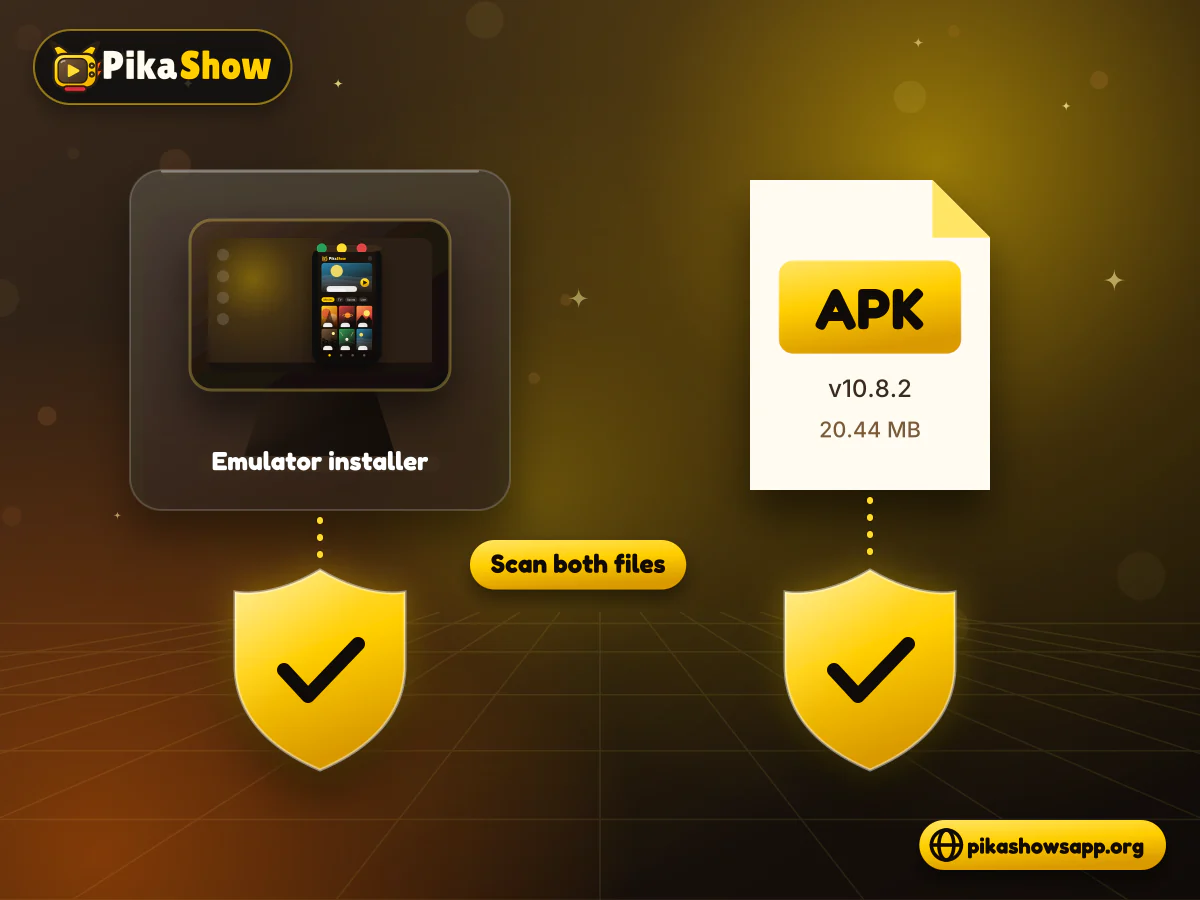
There are two separate files to examine:

  1. The Android emulator
  2. The PikaShow APK

Download the emulator from its genuine publisher. Scan the APK separately before importing it.

Avoid installation if the APK:

  • Produces several security warnings
  • Has an unrelated package name
  • Requests unusual permissions
  • Comes through repeated redirects
  • Downloads automatically
  • Is packaged inside an unknown Windows installer
  • Asks you to disable antivirus protection

Do not provide payment information, passwords or personal documents to an unverified application.

Two file cards for an emulator installer and an APK each passing through a separate security scan shield
10

Common PikaShow PC Problems

  • APK Does Not Install

    The file may be incomplete, incompatible or signed differently from an existing version. Downloading another random copy is not a reliable solution.

    Check the file size and scan result before trying again.

  • Emulator Runs Slowly

    Close unnecessary programs and check the emulator’s memory settings. Updating Windows and graphics drivers may also help.

    Older computers may not have enough resources for smooth Android emulation.

  • PikaShow Opens to a Blank Screen

    Restart the application and clear its cache from the emulator’s Android settings. If the problem continues, the APK may not be compatible with that emulator.

    A temporary server or video-source problem can produce a similar result.

  • Video Keeps Buffering

    Test the internet connection and reduce playback quality when that option is available. Do not assume that the emulator is always responsible; the video source may be slow or unavailable.

  • App Crashes After an Update

    The new release may conflict with old application data or the emulator’s Android version. Check compatibility and signing information before replacing the installed application.

  • Sound Is Not Working

    Check the Windows volume mixer, emulator audio settings and video player controls. Try another application inside the emulator to determine whether the issue affects PikaShow or the complete Android environment.

11

Frequently Asked Questions

Can I install PikaShow directly on Windows?

An Android APK cannot normally run directly on Windows. You generally need a compatible Android emulator or Android environment.

Is there an official PikaShow PC application?

A verified native Windows release is not clearly available. Most pages offering PikaShow for PC provide an Android APK and emulator instructions.

Can I use PikaShow on Windows 11?

It may run through a compatible Android emulator, but performance depends on the emulator, computer hardware and APK version.

Why is PikaShow slow on my PC?

Limited RAM, outdated graphics drivers, incorrect emulator settings, a weak connection or a slow video source can affect performance.

Is an emulator required for PikaShow?

An emulator is generally required because PikaShow is distributed as an Android APK rather than a native Windows program.

Does PikaShow provide better video quality on PC?

A larger screen does not improve the source video. Available quality depends on the original stream, internet connection and playback source.

Is PikaShow free to use on a computer?

PikaShow is commonly advertised as free, but that does not confirm that its content is licensed. The emulator may also display advertisements or offer paid features.

From the blog

Latest PikaShow Articles

View all articles
12

Final Words

Using PikaShow for PC normally means running its Android APK through an emulator. It is not the same as installing a native Windows application.

Choose a reputable emulator, verify the APK source and examine the file before installing it. Keep in mind that performance may vary and some mobile features might not work properly on a computer. When the licensing status of a programme is unclear, use an authorised streaming platform instead.

Non-affiliation notice: This website is an independent informational resource and is not affiliated with, endorsed by or sponsored by PikaShow, Microsoft, Google or any streaming provider.