Skip to content
Troubleshooting

PikaShow App Not Working? How to Fix It Step by Step

Blank screen, endless loading or crashes? Work through safe checks for your connection, cache, storage, server status and APK version before reinstalling.

Written by pikashowsapp.org Editorial TeamPublished Updated 10 min read

Phone showing a PikaShow playback error beside quick checks for network, settings, updates and storage

Opening PikaShow and finding a blank screen, endless loading symbol or unexpected error can be frustrating. Sometimes the app opens and then closes immediately. In other cases, its categories load but videos refuse to play.

A PikaShow app not working problem can come from several places. Your internet connection may be unstable, the app cache may be damaged, the APK could be incompatible with your Android version, or a PikaShow server may be temporarily unavailable.

Start with the simple checks below. Do not uninstall the application or download another APK until you have a better idea of what is causing the problem.


01

Why Is the PikaShow App Not Working?

There is no single cause that explains every PikaShow error. The likely cause depends on what appears on the screen.

Common reasons include:

  • Unstable internet connection
  • Temporary server problem
  • Damaged application cache
  • Low phone storage
  • Limited available memory
  • An outdated APK version
  • Android compatibility problems
  • Incorrect date and time
  • Restricted data or battery use
  • Missing application permission
  • Unavailable video source
  • A damaged or modified APK
  • Package conflict after an update
  • Problems with an external video player

Check whether the whole app is affected or only one feature. This will help you choose the right solution.

02

Identify the PikaShow Problem First

Before changing any settings, look closely at how the application behaves.

ProblemPossible cause
App does not openDamaged files or compatibility problem
App closes immediatelyLow memory or APK error
Blank home screenServer or connection issue
Categories do not loadNetwork or application server problem
Only one video failsRemoved or unavailable source
Every video buffersConnection, server or app problem
Update does not installSignature or package conflict
No sound during playbackPlayer, source or audio-format issue
APK will not installStorage, compatibility or security warning

An error message can provide a useful clue, so read it before dismissing the screen.

03

1. Check Your Internet Connection

PikaShow needs a working internet connection to load its interface and available video sources. A phone may show a Wi-Fi icon even when the connection is too weak to load content properly.

Try these checks:

  1. Open a normal website.
  2. Test a recognised streaming application.
  3. Turn Wi-Fi off and on.
  4. Restart your router.
  5. Move closer to the router.
  6. Pause downloads on other devices.
  7. Switch between Wi-Fi and mobile data.

If other applications are also slow, fix the network before changing PikaShow settings.

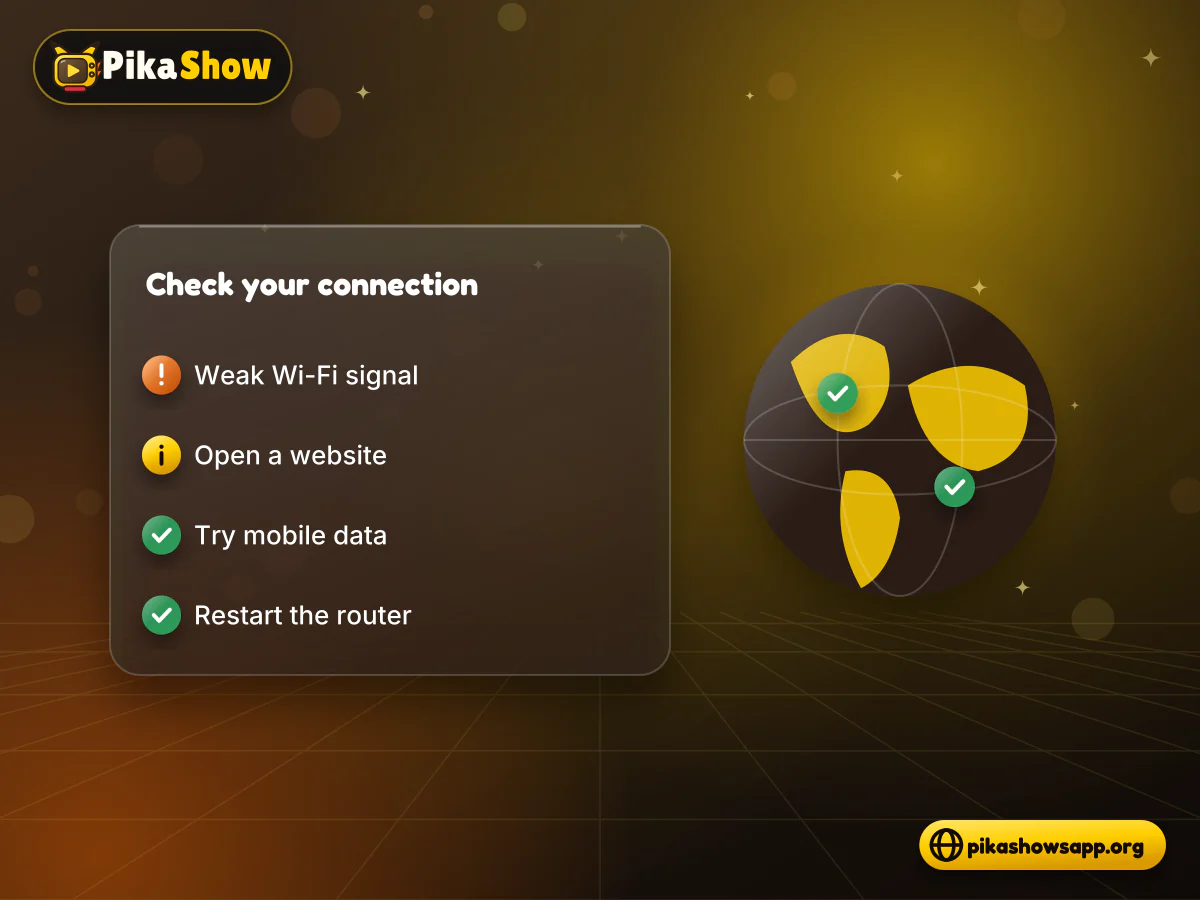
Phone with weak Wi-Fi signal and network checklist for fixing PikaShow app not loading content
04

2. Close and Reopen the App

Remove PikaShow from the recent-applications screen instead of simply returning to the home screen. Wait a few seconds and open it again.

This can resolve a temporary loading process that has stopped responding. It will not repair a deleted video source or an incompatible APK.

05

3. Restart Your Phone

A restart closes background processes and frees temporary memory. This can help when the PikaShow app keeps crashing or becomes unresponsive after the phone has been running for a long time.

After restarting, open PikaShow before launching games, social-media applications or large downloads.

If the app works normally after a restart, limited memory or a temporary Android process may have caused the problem.

06

4. Check Whether PikaShow Is Down

If your connection works but PikaShow remains empty, the application’s servers or connected sources may be unavailable.

Signs of a possible PikaShow server error include:

  • The home page does not load
  • Search returns no results
  • All categories are empty
  • Every video displays the same error
  • The same problem appears on different networks
  • The app was working normally a short time ago

There may not be a reliable official server-status page. Avoid websites that promise an instant server fix or ask you to install another application.

Wait for a while and test it again.

07

5. Clear the App Cache

PikaShow stores temporary files to load pages faster. If these files become damaged, the application may show old information, freeze or fail to open.

On most Android devices:

  1. Open Settings.
  2. Select Apps or App Management.
  3. Find PikaShow.
  4. Open Storage and cache.
  5. Select Clear cache.
  6. Reopen the app.

Avoid selecting Clear data at first. That option may remove settings, favourites, history and locally stored information.

Android menu names vary by manufacturer.

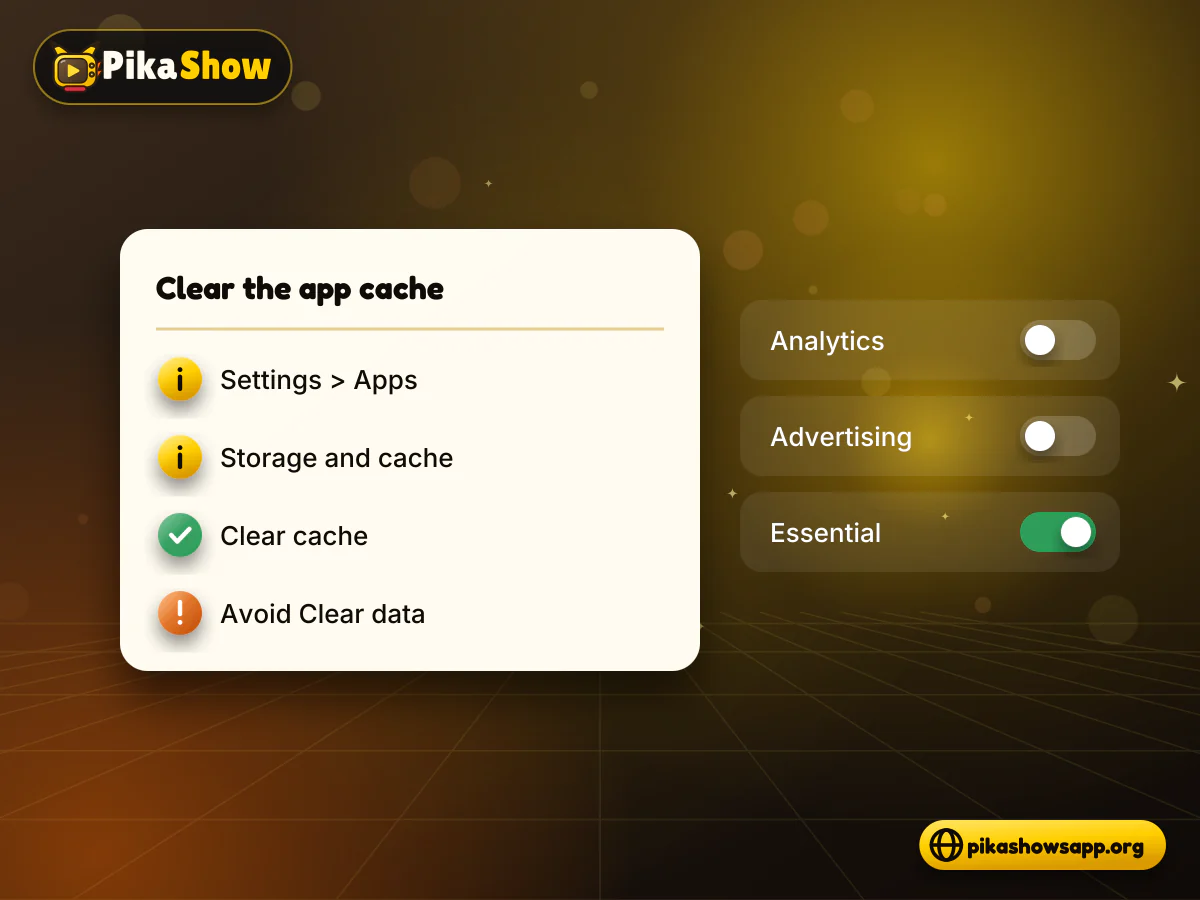
Android storage settings with Clear cache highlighted to fix the PikaShow app freezing or not opening
08

6. Check Available Storage

Low storage can cause apps to crash, updates to fail and video files to stop loading.

Open your phone’s storage settings and check how much space remains. Remove files you no longer need, especially:

  • Duplicate APK files
  • Old downloads
  • Large videos
  • Unused applications
  • Temporary files from trusted applications

Do not install an unknown “phone cleaner” to solve the problem. It may add more advertising and request unnecessary permissions.

09

7. Close Background Apps

Other applications can use memory, processor power and internet bandwidth. Close large games, video editors, social apps and unnecessary browser tabs.

Pause automatic updates or cloud backups temporarily while testing playback. If PikaShow starts working, another process may have been consuming the available resources.

10

8. Check the Date and Time

An incorrect date can interfere with secure connections between the application and online services.

Set Android to use the network-provided time:

  1. Open Settings.
  2. Find Date and time.
  3. Enable automatic date and time.
  4. Enable the automatic time zone.
  5. Restart PikaShow.

This check is useful when several internet-based apps suddenly display connection errors.

11

9. Review Network Permissions

Check that PikaShow is allowed to use Wi-Fi and mobile data.

Open its Android application settings and review:

  • Wi-Fi access
  • Mobile-data permission
  • Background-data permission
  • Data Saver restrictions

Only provide the access required for the app’s normal function. A streaming application should not need contacts, SMS messages or call history to connect to the internet.

12

10. Check Battery Restrictions

Android can limit an application’s background activity to save battery. This may cause playback to stop or the app to reload when you return to it.

Review PikaShow under the phone’s battery or app-management settings. If the app is heavily restricted, choose the standard or optimised setting.

Avoid disabling all device battery protection for every application.

13

11. Try Another Video

If PikaShow opens but one title does not play, test another video or category.

When only one item fails, its source may be:

  • Removed
  • Expired
  • Temporarily offline
  • Region-restricted
  • Incompatible with the player

Reinstalling the complete app will not necessarily restore one unavailable source.

When every video fails, check the connection, server availability and application version.

14

12. Lower the Playback Quality

If a video loads but pauses repeatedly, lower the resolution through the player settings when that option is available.

A lower setting requires less bandwidth and may work better on mobile data or a busy Wi-Fi network.

PikaShow cannot improve the original source. A low-quality stream will not become genuine HD or 4K video simply because it is viewed on a larger screen.

15

13. Check the Android Version

A newer PikaShow APK may not support an older Android phone. An old APK may also behave incorrectly after a major Android update.

To check your operating system:

  1. Open Settings.
  2. Select About phone.
  3. Find Android version.
  4. Compare it with the verified APK requirements.

Do not copy compatibility information from another download website. Check the exact file provided on your own site.

16

14. Update PikaShow Carefully

An update may fix compatibility problems, but downloading the first file labelled “latest version” can create additional risks.

Before updating, compare the new APK’s:

  • Version number
  • File size
  • Package name
  • Digital signature
  • Android requirement
  • Security-scan result
  • Requested permissions

A file signed by a different publisher may fail to install over the existing version. It could also be a modified copy.

17

15. Check the APK Source

Different websites can distribute different files under the same PikaShow name. A professional design, logo or “official” label does not establish that the APK belongs to the original publisher.

Be cautious if the source:

  • Hides the file size
  • Does not show a package name
  • Uses an automatic “updated today” date
  • Opens several advertising redirects
  • Provides no privacy policy
  • Claims complete safety without evidence
  • Requires another app before downloading
  • Asks you to disable Play Protect
  • Distributes a modified APK

If the source cannot be verified, do not reinstall its file.

18

16. Check Play Protect or Antivirus Warnings

If Android or another security service blocks the application, read the warning carefully.

Do not disable security protection automatically. Instead:

  • Scan the APK
  • Check its package name
  • Review its signature
  • Compare its file size
  • Inspect its permissions
  • Confirm where it came from

Delete the file if several reputable security scanners flag it.

19

17. Reinstall PikaShow as a Final Step

Reinstallation may help when local application files are damaged. It will not fix an unavailable server or deleted video source.

If you are dealing with PikaShow not opening after an update, remember that Android only replaces an app when the new file has the same package name and signing certificate; otherwise you must uninstall first, which deletes local app data.

Before uninstalling:

  1. Note the current version.
  2. Check whether saved data will be removed.
  3. Verify the replacement APK.
  4. Compare digital signatures.
  5. Scan the replacement file.
  6. Review its Android requirements.

Uninstalling may remove favourites, settings, history and offline files.

A newly installed APK is not necessarily safer than the old version.

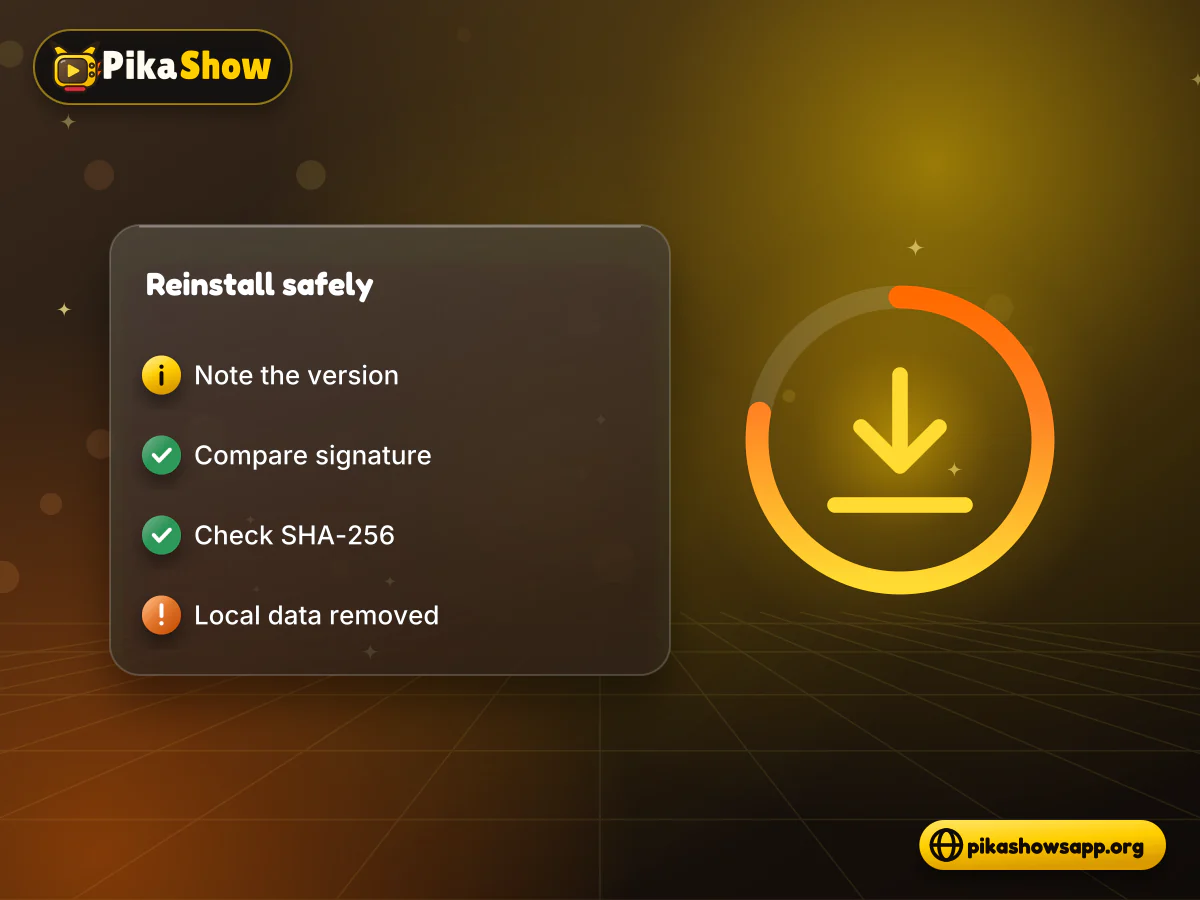
PikaShow APK reinstall checklist with signature and checksum checks before uninstalling the app
20

PikaShow Not Working on Other Devices

  • PikaShow on Windows

    PikaShow normally runs on Windows through an Android emulator rather than as a native PC program.

    Restart the emulator and review its memory, storage and graphics settings. The emulator’s Android version must also support the APK.

  • PikaShow on Firestick

    A phone-based APK may not work properly with a Fire TV remote. Low storage and Fire OS incompatibility can also cause crashes.

    Clear the application cache and restart the Firestick before attempting another installation.

  • PikaShow on Android TV

    An APK may install but display in portrait mode or fail to respond to television controls. This means the application is not properly optimised for that device.

  • PikaShow on iPhone

    An Android APK cannot be installed directly on an iPhone or iPad. Websites offering an APK are not providing genuine iOS compatibility.

21

What Not to Do

When PikaShow stops working, avoid risky shortcuts.

Do not:

  • Download random modified APK files
  • Disable security software
  • Grant accessibility permission without a clear need
  • Install unknown “PikaShow fixer” applications
  • Share passwords or payment information
  • Follow instructions for bypassing legal restrictions
  • Assume that every PikaShow-branded site is official
  • Keep installing files after repeated security warnings

Protecting the device is more important than fixing one streaming application.

23

Frequently Asked Questions

Why is my PikaShow app not working?

Possible causes include a weak connection, server downtime, damaged cache, low storage, Android incompatibility or a problem with the installed APK.

Why is PikaShow not opening?

Restart the phone, clear the application cache and check available storage. If the issue started after an update, the APK may be incompatible.

Is PikaShow not working today?

If the app fails across different devices and networks, there may be a temporary server problem. Wait and test it later.

Why does PikaShow keep crashing?

Low memory, damaged application data, device incompatibility or a modified APK can cause repeated crashes.

Why are videos not playing on PikaShow?

The selected source may have expired or been removed. Test another video before changing the complete application.

Will clearing the cache delete my information?

Clearing the cache normally removes temporary files. Clearing all app data may remove settings, favourites and other stored information.

Should I reinstall PikaShow?

Use reinstallation only after checking the network, cache, storage and server availability. Verify the replacement APK before removing the existing version.

Does a VPN fix PikaShow errors?

A VPN does not repair damaged files or unavailable servers. It can also slow the connection and does not make unauthorised content legal.

24

Final Words

A PikaShow app not working problem may come from the device, connection, application file or an unavailable server. Begin with safe checks such as restarting the app, testing the network and clearing the cache.

Do not rush to install another APK or disable Android security settings. If PikaShow remains unavailable while other services work normally, the problem may be outside your phone.

Use a licensed streaming platform when a video source is unavailable or its distribution rights cannot be confirmed.

Non-affiliation notice: This website is an independent informational resource and is not affiliated with, endorsed by or sponsored by PikaShow, Google, Android or any streaming provider.

Share this article