
PikaShow App Not Working
17 checks for crashes, blank screens and loading errors.

A video that pauses every few seconds can quickly become frustrating. In other cases, PikaShow may display a loading circle, show a blank player or return a source error instead of starting the video.
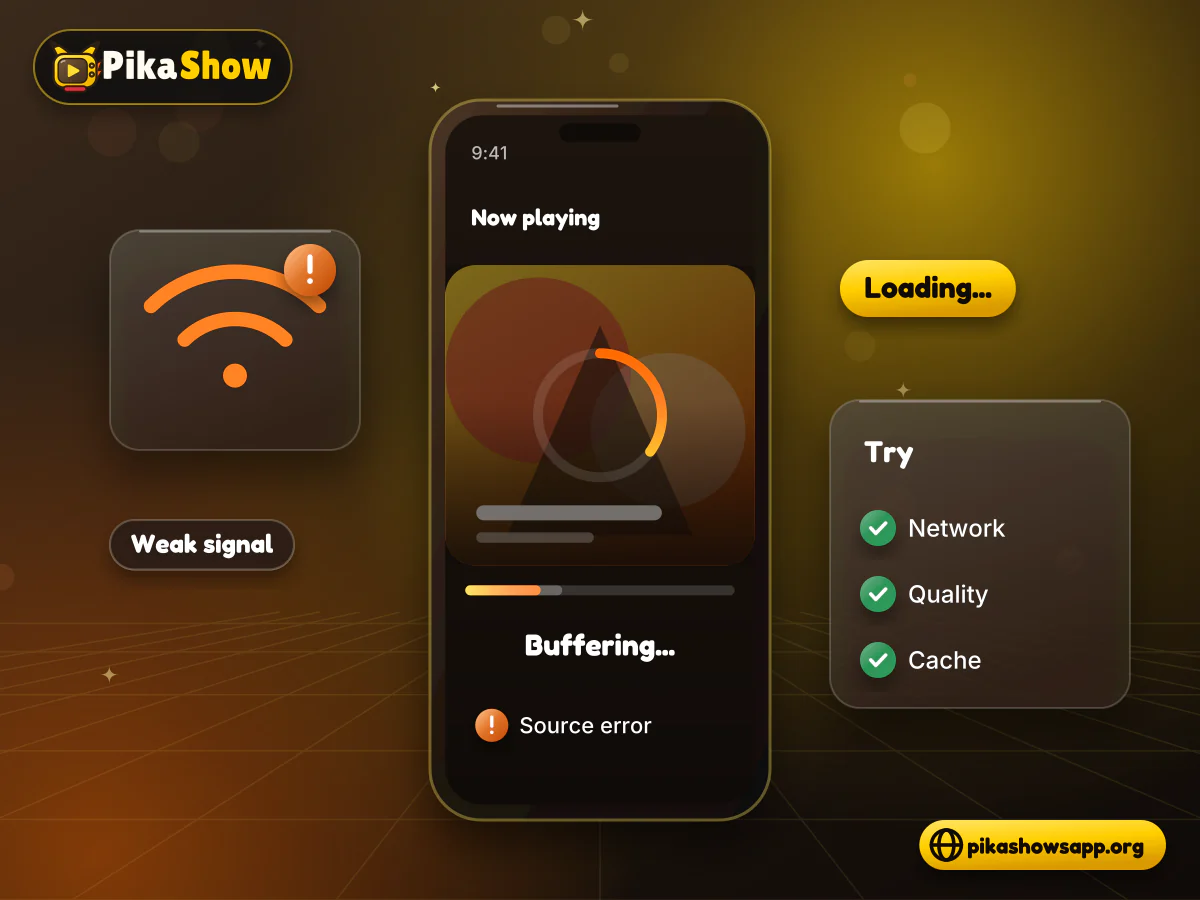
A PikaShow buffering problem does not always mean something is wrong with your phone. The cause may be your internet connection, the selected video source, temporary application data, low device storage or an unavailable server.
Work through the checks below one at a time. Avoid downloading several unknown APK files or changing security settings before identifying the actual cause.
Buffering happens when the video player is not receiving data quickly enough to maintain continuous playback.
Common causes include:
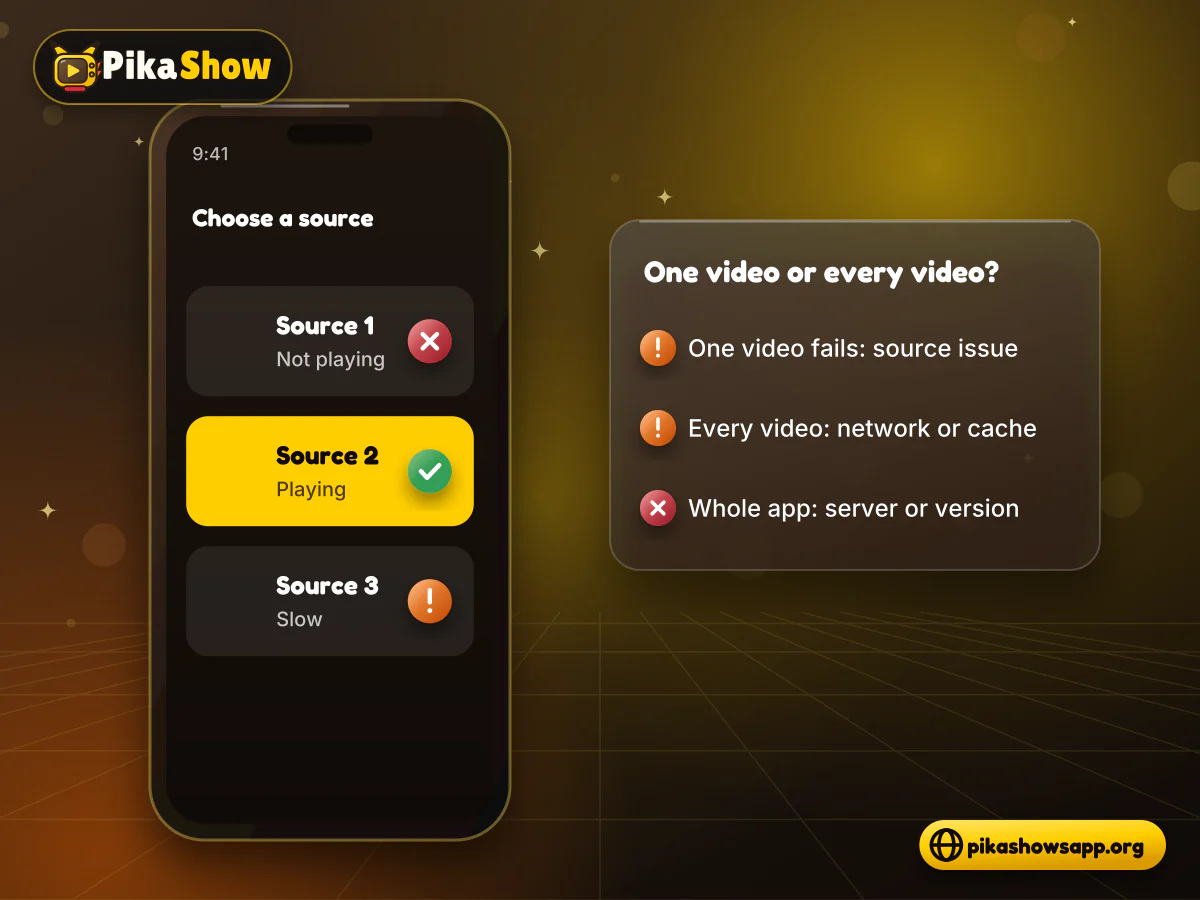
The correct solution depends on whether the problem affects one video, every video or the complete application.
Start by opening another title or channel.
If only one video fails, the problem is probably related to that particular source. The link may have expired, been removed or become restricted in your location.
If every video keeps buffering, check your network, application cache and device resources. If the entire app fails to load, there may be a broader server or compatibility problem.
This quick test can prevent an unnecessary reinstallation.
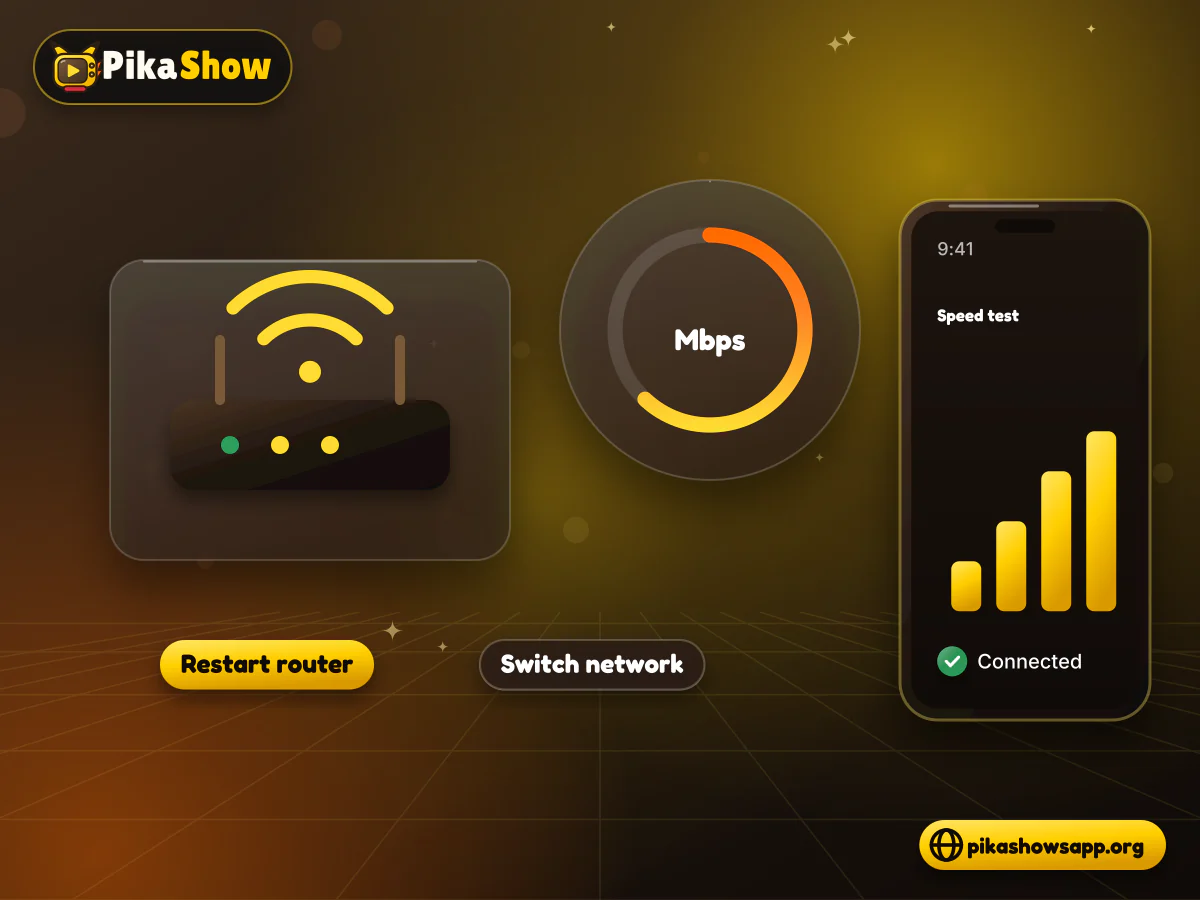
Open another legitimate streaming service or a regular website. If those pages are also slow, your connection is the likely cause.
Try these basic steps:
A connection can appear active while still experiencing high latency or frequent interruptions.
A high-resolution stream requires more data. If your connection cannot keep up, the player pauses while it waits for the next part of the video.
Open the player settings and select a lower resolution if that option is available. For example, switching from a higher setting to a standard resolution may reduce interruptions.
Not every source provides multiple quality levels. PikaShow cannot create additional resolutions when the original source offers only one.
Close the application completely instead of leaving it in the recent-apps list.
On Android:
Restarting can clear a temporary playback process. It will not repair an expired or deleted video source.
A phone with limited free memory may struggle to keep a video player running. Restarting closes background processes and gives Android a clean start.
After the device turns back on, open PikaShow before launching several other applications. If playback improves, low available memory may have contributed to the problem.
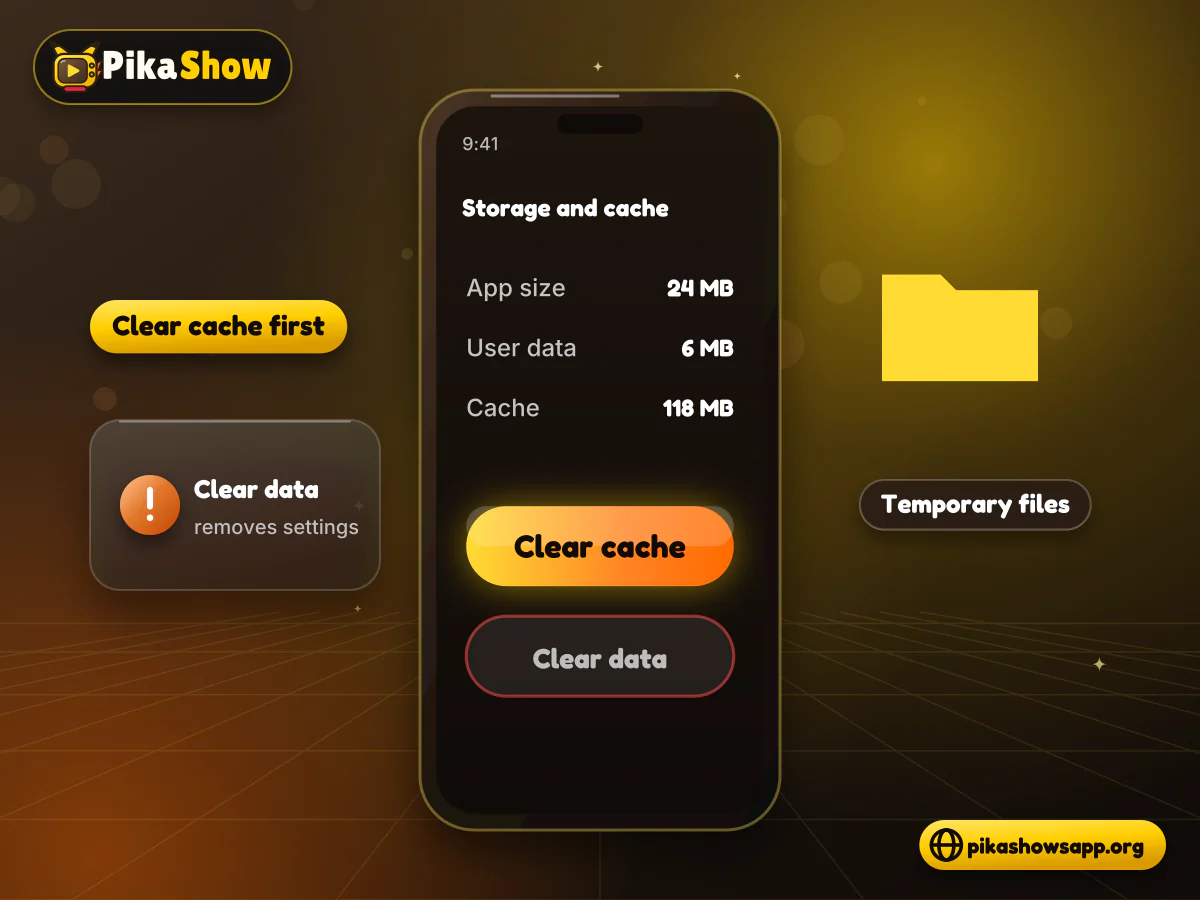
Applications store temporary files to load pages and images more quickly. These files can occasionally become outdated or damaged.
To clear the cache on most Android devices:
Choose Clear cache, not Clear data, at first. Clearing all data may remove saved settings, favourites and locally stored information.
Menu names differ between Android brands.
Low storage can affect temporary video files, application updates and general performance.
Open your phone’s storage settings and remove files you no longer need. Check large downloads, duplicate videos and unused applications before deleting personal files.
Leave enough room for Android and installed applications to operate. Moving a few files may help if the device is almost full, but it will not fix a down video server.
Games, social-media applications, file downloads and browser tabs can use memory and network bandwidth.
Close unnecessary applications and pause any ongoing updates. Then test PikaShow again.
Avoid installing “RAM cleaner” or “speed booster” applications from unknown developers. These tools may add advertising and permissions without solving the underlying issue.
Some PikaShow releases may provide more than one source for a title. If the first link does not play, select another available source.
A source can stop working because:
Do not use a VPN to bypass copyright restrictions or court-ordered blocks. A different connection method does not provide content permission.
Incorrect date and time settings can interfere with secure network connections.
Set the phone to use the network-provided date, time and time zone:
This check is especially useful if several secure applications suddenly stop connecting.
Android can restrict background data or battery use for individual applications. These controls may interrupt playback when the app is minimised or the screen state changes.
Open PikaShow’s application settings and review:
Only change the setting needed for playback. Do not give the application unrelated access to contacts, SMS messages, call history or accessibility controls.
An older release may no longer work with current video sources. However, downloading any file labelled “latest PikaShow APK” is not a safe update method.
Before replacing the installed version, compare:
An update signed by a different publisher may fail to install or replace the application with a modified copy.
Do not uninstall a working release until you have examined the replacement file.
A newer APK may require an Android version that an older phone does not support. At the same time, an old PikaShow release may not function correctly on a recent Android system.
Check your Android version under Settings > About phone.
A VPN or custom DNS server adds an extra step between your phone and the video server. If that server is far away or busy, every video can start slowly and pause more often.
Test with a plain connection first:
If playback improves, the VPN server or DNS provider was adding delay. If you use a VPN for privacy, pick a server close to your real location. Our guide to VPN settings for PikaShow explains the speed trade-offs in more detail.
Using a VPN to get around copyright restrictions or court-ordered blocks is not a fix. It does not give you permission to watch the content and may break the law where you live.
Outdated system components can cause blank screens or pages that never finish loading. This check is worth a minute, but it is less likely to solve buffering than checks 1 to 8.
Android System WebView displays web content inside apps. We could not confirm whether PikaShow’s video player relies on it, since the readable code includes a separate media-player library, so treat this as a secondary step rather than a guaranteed cure.
To update the usual components:
Menu names vary by brand, and older Android TV devices may not offer every option. Update WebView only through the Play Store, never from an APK found on a download site.
Reinstalling can repair a damaged installation, but it also deletes everything the app stored locally. Try it only after the earlier checks have failed.
Uninstalling removes saved settings, favourites, watch history and any downloads kept inside the app’s own storage. Android cannot restore them afterwards.
A careful reinstall looks like this:
The file checked on this site on 16 September 2026 has these details:
| Detail | Value |
|---|---|
| File name | PikaShow-v10.8.2.apk |
| Version | 10.8.2 (versionCode 83) |
| Size | 21,434,649 bytes (about 20.44 MB) |
| Package name | com.offshore.pikachu |
| Minimum Android | Android 5.0 (minSdk 21) |
| SHA-256 | 372dc5af73e2299ed4a65c0567a3a2ecb3ce6c7ce850d06f4d3c29faf3a4e0a6 |
If the hash is different, do not install the file. Also note that Android will only install one version over another when the package name and signing certificate match, and it blocks a lower versionCode over a higher one. That is why a mismatched file shows “App not installed” instead of updating.
Sometimes nothing on your phone is at fault. If the video server or the app’s content source is offline, no setting, cache clear or reinstall will fix it locally.
Signs that the problem is on the server side:
In that case, wait and try again later rather than reinstalling or downloading other files. PikaShow has no developer we could verify and no official status page we could confirm, so there is no reliable way to check an outage. Some sources may never return, particularly after blocking directions.
If the app refuses to open at all rather than buffering, the steps for PikaShow not working cover crashes and loading errors.
Match what you see to the most likely cause, then jump to the check numbers listed.
| Symptom | Likely cause | Checks to try |
|---|---|---|
| Every video pauses every few seconds | Slow or unstable connection | 1, 2, 13 |
| One title fails while others play | Expired, removed or restricted source | 8, 16 |
| Playback stops when the screen turns off | Battery or background-data limits | 10 |
| Endless loading on a nearly full phone | Low storage or memory | 4, 6, 7 |
| Several apps show connection errors | Wrong date and time, or DNS problem | 9, 13 |
| Blank screen or menus that never load | Damaged cache or outdated components | 5, 14 |
| Videos stopped after installing a new APK | Incompatible or mismatched version | 11, 12, 15 |
| Restarting helps for a short time | Stuck app process | 3, 5 |
| Nothing plays on any network or device | Source or server offline | 16 |
Some common “fixes” make the phone less secure without improving playback. Skip these.
Avoid:
Modified files will not fix buffering
A PikaShow MOD APK is a modified file from an unknown source. It cannot make a slow server faster, and its changes cannot be checked against the original. If Play Protect warns about a file, treat that as a reason to stop and investigate, not a switch to turn off.
A fast connection at home does not guarantee a fast source. The video server may be overloaded, the stream may be set to a high quality, or a VPN or custom DNS may be adding delay. Try a lower quality, turn off the VPN for a test and open a different title.
Clear cache removes temporary files only, so saved settings and favourites normally stay. Clear data and uninstalling are different: both remove locally stored app information.
Usually not. A VPN adds another server to the route, which often makes streams slower, especially when the server is far away. It should never be used to bypass copyright restrictions or blocking orders.
When other titles work, the problem is almost always that particular source. The link may have expired, been removed or be restricted in your region. Try another available source or come back later.
Not necessarily. A different version can bring new problems, and a file signed with a different certificate will not install over your current app. Compare the version, package name and SHA-256 value before replacing anything.
Booster and RAM-cleaner apps from unknown developers often add adverts and permissions without improving streaming. Restarting the phone and closing apps you are not using does the same job safely.
If every title fails on both Wi-Fi and mobile data, on more than one device, while other apps work, the server or source is the likely cause. That cannot be fixed from your phone, so wait and test again later.

10 min read
Reported PikaShow features, a step-by-step Android setup, how to use the interface, practical tips and the safety, privacy and copyright limits to understand first.
5 min read
Has PikaShow shut down? What the Delhi High Court blocking directions mean, why the app may stop working, and what to check before you download a “new” version.
11 min read
A VPN can slow streaming as easily as it helps. Choose a nearby server and modern protocol, avoid extra routing layers and test before assuming it improves playback.

8 min read
A checksum tells you whether the APK on your device is the exact file that was published. Here is how to calculate and compare it on every platform, and what it cannot tell you.

8 min read
apkpikashow is a search term, not a verified brand. Learn why a domain containing the PikaShow name proves nothing, and how to check a site and its APK before installing.
11 min read
Compare legitimate streaming services people consider instead of PikaShow, from subscription platforms to free ad-supported apps, with devices and regional limits.
10 min read
Blank screen, endless loading or crashes? Work through safe checks for your connection, cache, storage, server status and APK version before reinstalling.

8 min read
What a PikaShow MOD APK really is, why premium and ad-free claims can't be verified, how re-signing changes the certificate, and what to do if you have already installed one.
9 min read
Updated PikaShow and now it will not open, crashes on launch or refuses to install? Match your symptom to the cause, then work through 12 fixes in a safe order.
Most PikaShow buffering comes down to three things: the connection, the video source or the phone’s own resources. Start with check 1, change one thing at a time and replay the same video, so you know which step actually made the difference.
If you do reinstall, compare the file with the details checked on this site: PikaShow v10.8.2, 21,434,649 bytes, package com.offshore.pikachu. It is signed with a generic Android debug certificate and its developer could not be verified, so match the SHA-256 value before installing.
PikaShow has faced blocking directions from the Delhi High Court in copyright proceedings, so a source that stops working may not come back. For dependable playback with official support, licensed streaming services remain the more reliable choice.
This independent website provides information about PikaShow. It is not affiliated with, endorsed by or sponsored by PikaShow, Google, Pinterest, any streaming service or any content owner.